Read one roadmap in different ways
Free
Use a detailed timeline to plan activities and a compact or summarized one to discuss the release; a saved view keeps each arrangement.
Get started
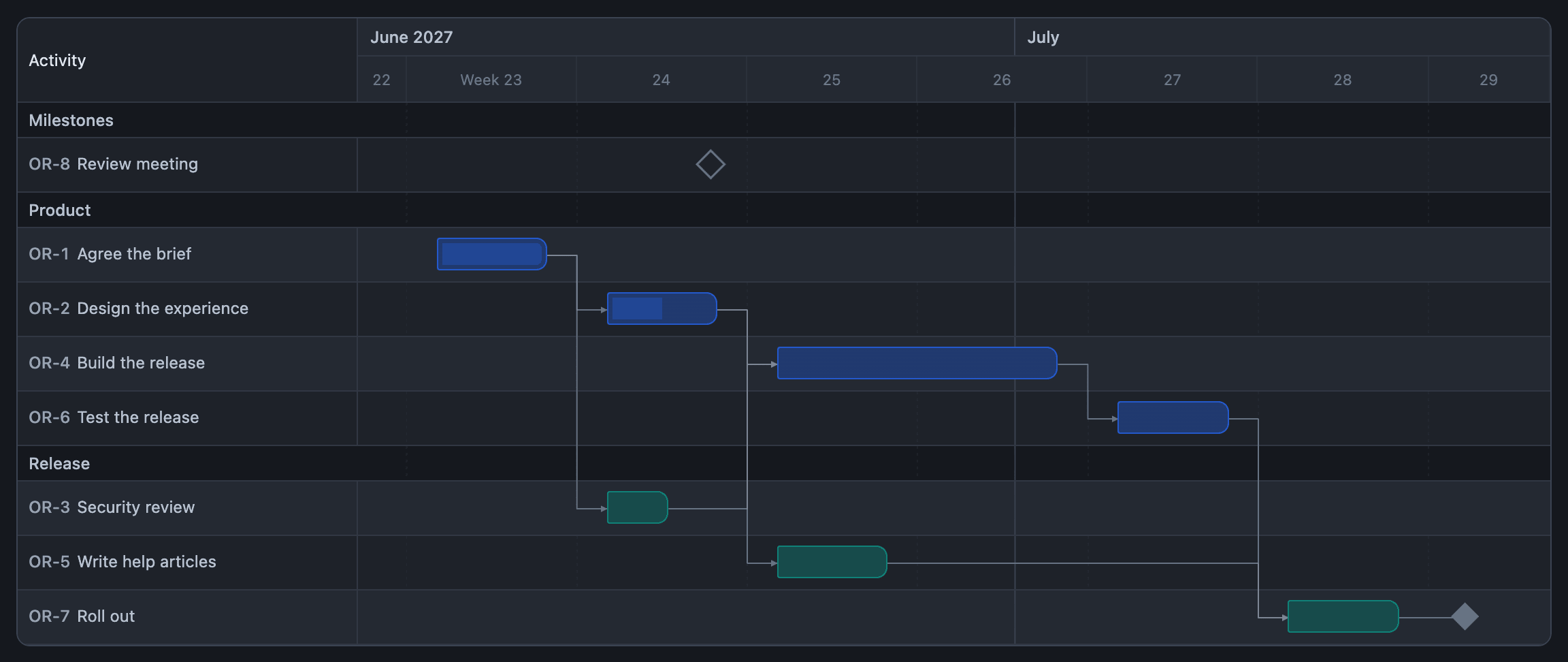
The timeline above gives each activity a row, with its title in a fixed column on the left, grouped and colored by Team. Move a bar in any example here and the others follow.
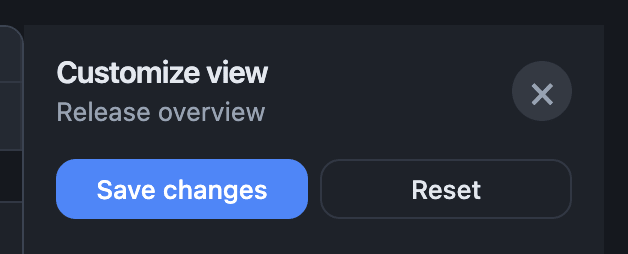
- Open the saved views menu, choose New View… and name it for its purpose, such as Release overview.
- Open Customize View… and choose grouping, activity rows, text placement, summaries or filters.
- Choose Save changes to keep them, or Revert Changes to return to the stored settings.
- Create another view for another question. If you started from All activities, use Save as View… to name that arrangement.
More things to do
Put titles beside the bars
Choose One activity per row, then Put the label beside the bar under Activity bar labels. The name sits next to its dates and the timeline gets more room. If a title is near the edge, widen the date range instead of shortening the activity name.
Show a compact overview by team
Choose Multiple activities per row and group by Team. The four Product activities fit on one row and the three Release activities on another, because their dates do not overlap within each team; the milestones keep rows of their own above.
Summarize phases within each team
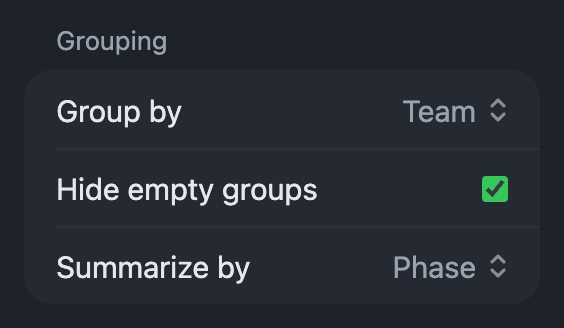
Keep Team as the grouping and choose Phase under Summarize by. Each team gets Preparation and Delivery summaries with a bracket over their work. This example also turns on Show reference keys, Milestones beside their work and Show milestones as flags.
Find an activity with search
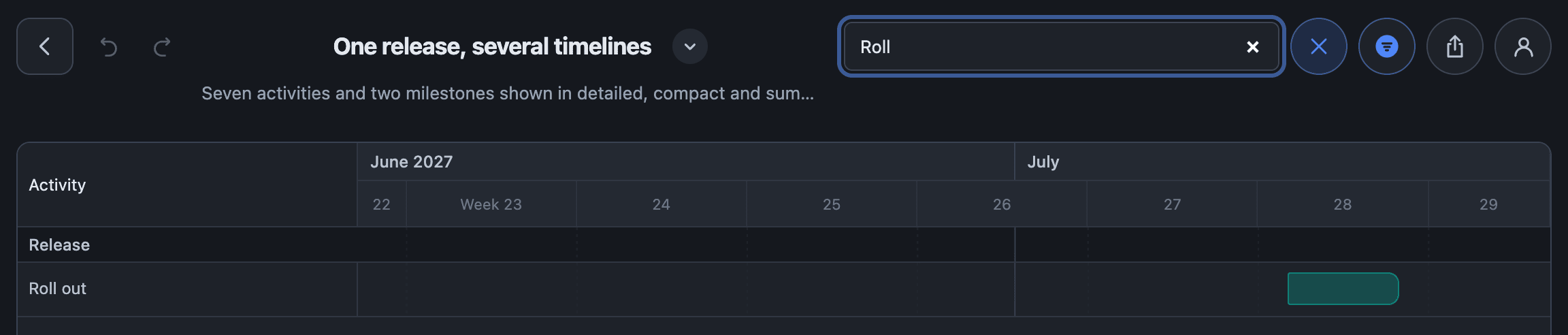
Select the Search activities magnifying glass beside the plan title (on a phone in portrait, … → Search activities) and type part of a name, such as Roll for Roll out. Clear the text to bring back the activities your view allows; if one is missing, clear other filters or switch to All activities.
How it works
The plan, the saved view and your own reading state
Activity names, dates, dependencies, dimension values and reference keys belong to the plan. Editing them from any view changes the same records. Dragging a bar therefore affects other views too, and may move dependent work even when that work is hidden by the current filter. In these examples, Security review and Design the experience both start after Agree the brief and Build the release waits for both; changing how titles are arranged keeps those relationships and dates.
A saved view stores how to read those records: grouping, coloring, filters and search, row and text layout, date range and scale options, summary dimension, milestone presentation and whether to show reference keys. Changing these settings gives you a working version; Save changes updates the stored view. Revert Changes (Reset in the Customize View panel) restores its settings. It does not undo activity edits made while that view was open.
Which summaries you have collapsed is personal reading state. Tidigar remembers it locally, but it neither marks a saved view as modified nor becomes part of that view when you save it. This lets you inspect one phase without choosing how everyone else must read the plan. Each embedded example keeps its own view settings while plan edits stay synchronized.
Grouping, filtering and summarizing answer different questions
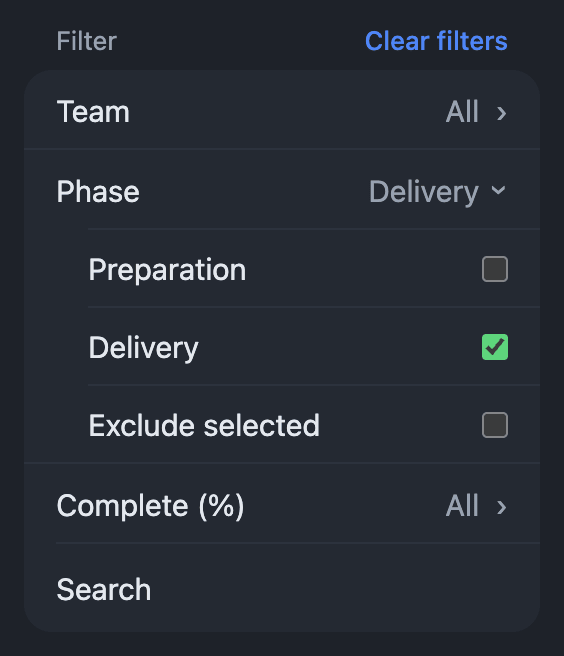
Grouping arranges activities by a dimension such as Team. Coloring can use that dimension or a different one. Neither creates a dependency. Filtering and search select the records you see; they do not delete the hidden work or disconnect its relationships.
Summaries are built from the activities that pass the current filters and search. Each bracket runs from its earliest activity start to its latest activity end, including any gaps. It describes a span of dates, rather than an amount of effort or continuous work. Filtering out an early or late activity can shorten that bracket without changing any activity's dates.
When activities overlap in compact rows, Tidigar adds rows within the group so their bars stay distinct; use a detailed view to scan every name. When you group by Team and summarize by Phase, a separate summary appears for each phase with visible work inside each team. If you group and summarize by the same dimension, the summary itself supplies the heading. Empty summaries are omitted; activities without a value for the summary dimension remain outside its summaries. Hide empty groups separately controls whether empty group headings remain.
Collapsing a summary value applies to every occurrence of that value in the timeline. Collapsing Delivery in Product therefore also collapses Delivery in Release. The shared phase value identifies what to fold, even though each team has a different bracket and different activities.
Folding a summary and dragging its bar have different effects
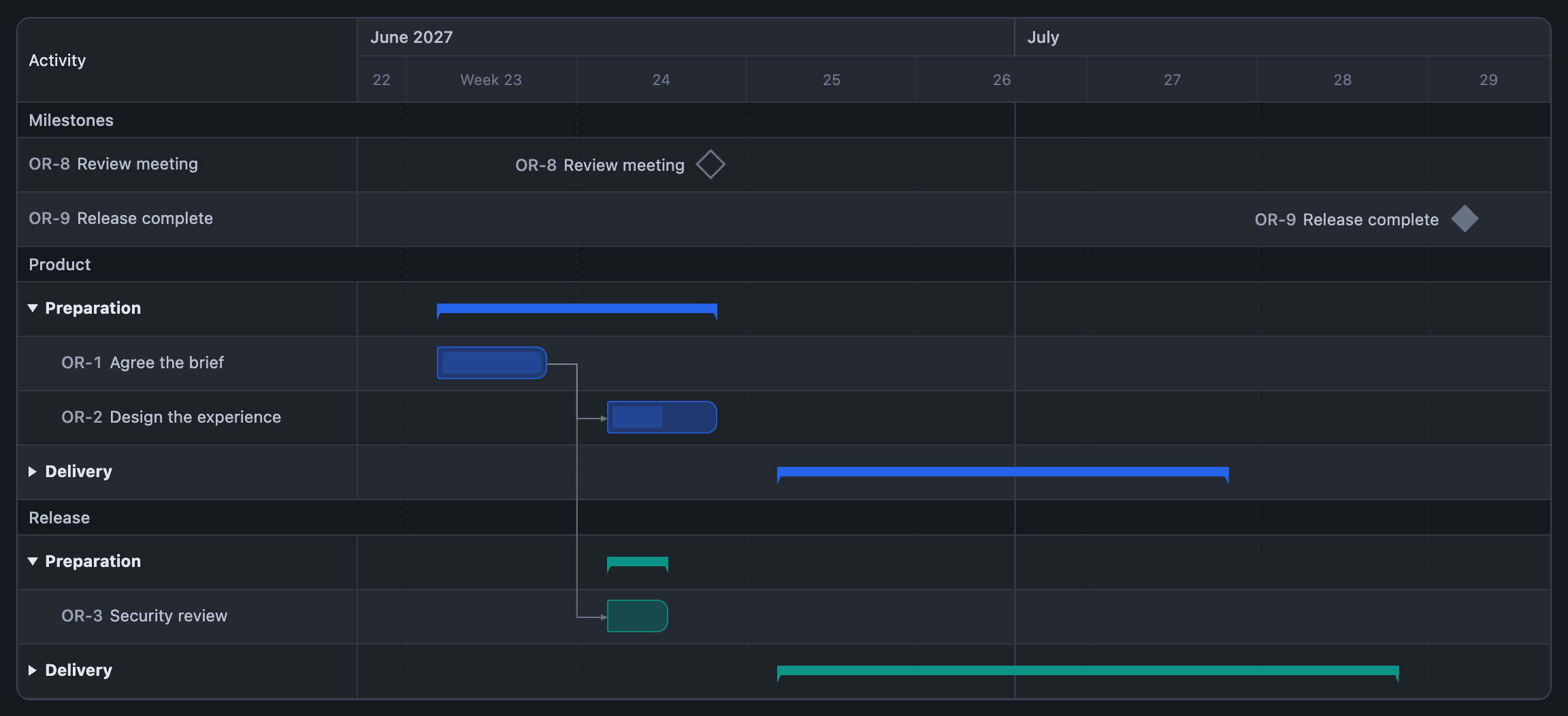
Folding hides the member activity rows while keeping their summary span. Arrows between hidden members disappear; relationships that leave or enter collapsed work can meet the summary instead. Expanding restores the individual rows and their arrows. The dependencies in the plan remain unchanged.
Dragging the bracket changes activity dates. It moves that summary's member activities through the roadmap's scheduling rules, and work that depends on them can follow outside the summary. In work-day planning, the move follows the work calendar. One undo returns the move.
Tidigar refuses the drag if any activity at the summary's earliest start already waits for another record. That predecessor determines when the summary can start; moving the predecessor or editing the individual activities makes the scheduling choice explicit. In this example, Product / Preparation starts with the independent Agree the brief and can move, while Product / Delivery starts with Build the release, which waits for earlier work, and cannot be dragged as a summary.
Milestones stay at their dates when their placement changes
Milestone display and placement are separate choices. You can hide milestones, show markers, include labels or use flags. Milestones beside their work places a non-fixed milestone beside the visible activity it depends on that ends last. Its date and dependencies still come from the plan; placement does not reschedule it.
A fixed milestone, or a milestone with no visible activity predecessor, stays in the milestones area. If filters hide its latest predecessor, a different visible predecessor can host it. This changes where it is drawn, not which predecessors it waits for. When its host's summary is collapsed, the milestone has a separate row below the summary. Its arrows are suppressed there to keep the overview readable and return when the summary expands.
Compact rows also reserve room through the date of a milestone placed beside its activity. This can require more rows than the activity bars alone would need. For how fixed and following milestone dates behave, read Two kinds of milestone.
Reference keys identify work across views

Set an activity's or milestone's Reference in its properties, then turn on Show reference keys in the view to display it before the title. Search and the dependency picker can find records by their keys even when the view does not show the keys. A reference is useful when a discussion or an external ticket needs a short name for the work.
The roadmap's Reference key prefix supplies suggested keys for new activities and milestones. With prefix OR, both record types share the numbering: the next suggestion follows the highest existing OR number. Changing the prefix does not rename existing keys. You can keep a key from another system instead, or leave it empty.
Keys are editable text and duplicates are allowed, with a warning: two people working offline may independently choose the same number. Keeping both preserves their work when the changes meet. A key therefore helps people find work but does not establish its identity or dependencies. Showing or hiding keys changes the view; editing a key changes the record and leaves its dates alone.
The date range and the available width both matter
The start and end dates in Customize View… define the timeline interval. Fit to screen fits that interval to the available width; it does not replace it with the dates of the filtered activities. After narrowing a view to one phase, choose a useful interval as well as the filter.
The timeline can extend its end to retain later visible work, milestones and periods. A saved range is therefore a framing choice rather than a rule that forbids work outside it. On a narrow screen, a long interval also leaves less room for labels. Choose a shorter interval, fixed titles or a more compact layout according to the question you need to answer.
Limits and access
- Free, in the browser and in every Tidigar app.
- A summary bracket spans dates, including gaps; it is not an amount of work, and it cannot be dragged when its first activity waits for another.
- Collapsed summaries are personal reading state and are not saved in a view.
- Keys are editable text and duplicates only warn; a key never identifies work or sets a dependency.
Related
- Screen links: show a saved view on an office screen.
- Organize activities into phases: views limited to one phase.
- Two kinds of milestone: how fixed and following milestone dates behave.
- Example gallery: complete roadmaps to adapt.