Give each activity someone to follow it through
Free Tidigar Business · Paid
Assign each activity to one teammate, find your own work across plans and keep the discussion next to the activity’s history.
Get started
The frame shows the launch plan without real members, assignments or history. Choose Open in Tidigar for your own copy, then move it to your team to try the controls: Library and storage explains the move and Teams and permissions explains invitations and roles. The pictures show a team of stand-in people: Alex Morgan (you), Priya Shah and Jonas Berg.
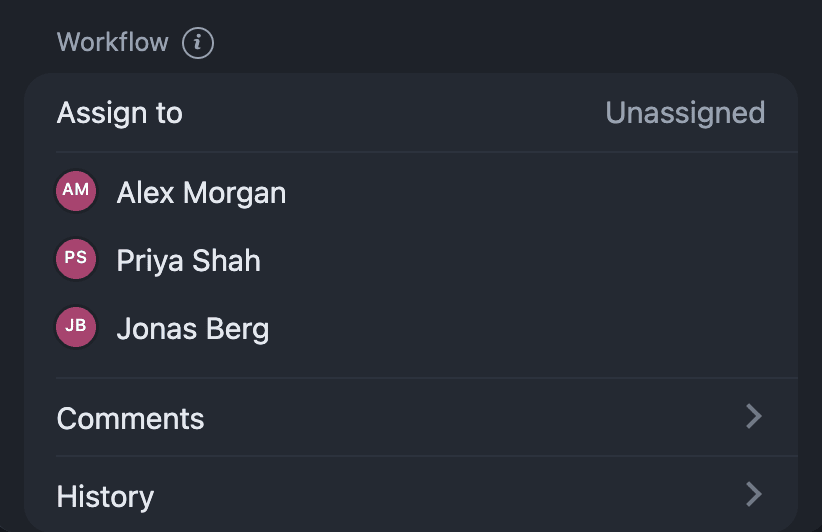

- Open Prepare the release in your team’s plan, choose Assign to and select a teammate who is an editor, coordinator or owner.
- Close the panel. Their picture or initials appear on the activity in Board, Timeline and Flow; List has an Assignee column.
- Assign Review with the team to yourself. In Customize view, set Assignee to My activities to see only your work in this plan.
- Reopen Prepare the release and expand History to see the assignment with its author and time.
- Choose My activities from the account menu to list your activities across your organisations’ plans. Select one to open its page.
More things to do
Ask for a review on the activity page
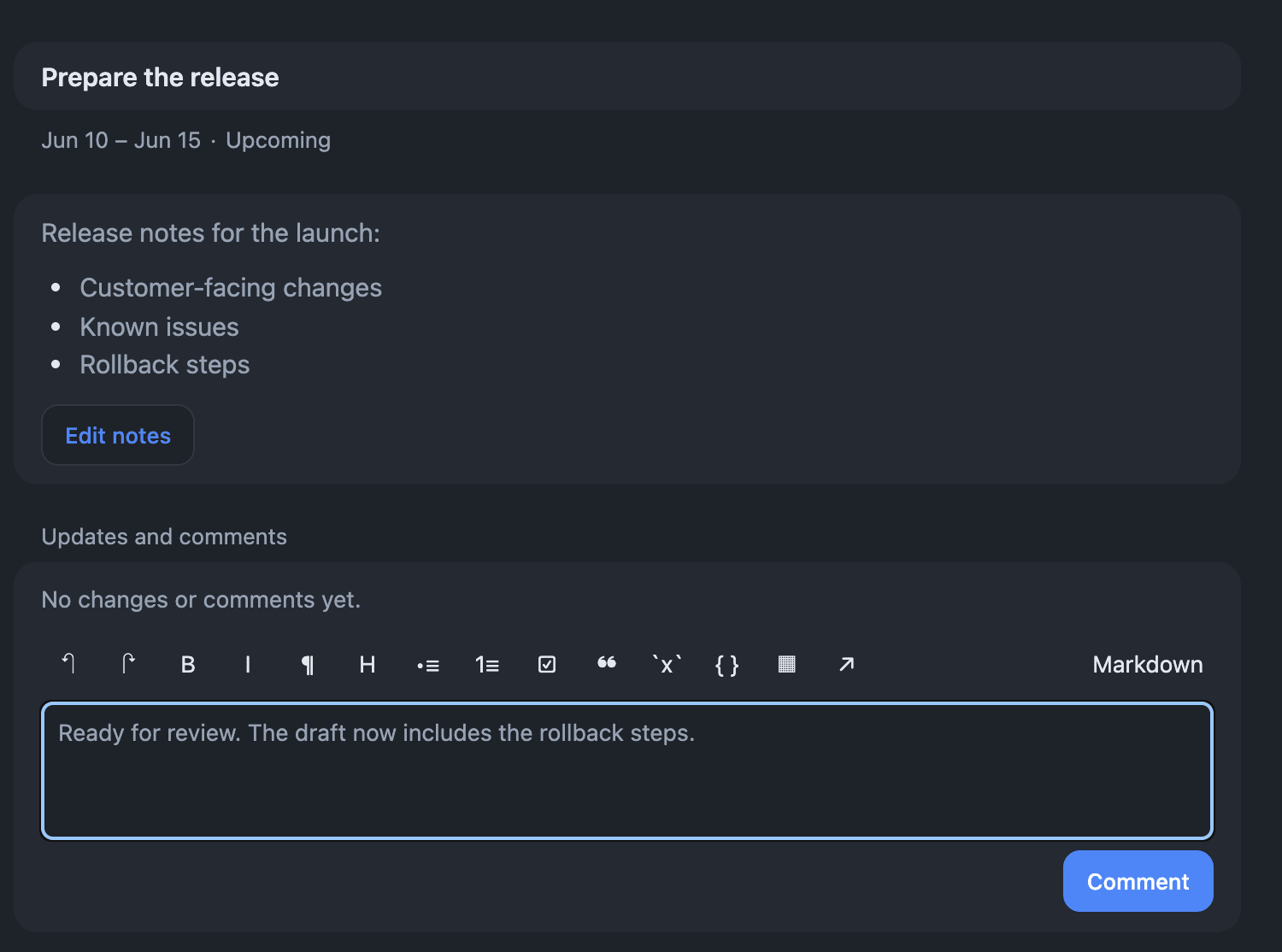
Open Prepare the release and choose Open as page. Write what the team must deliver in Notes, add an update in Add a comment, mention a teammate with @ and choose Comment.
Arrange the work by person
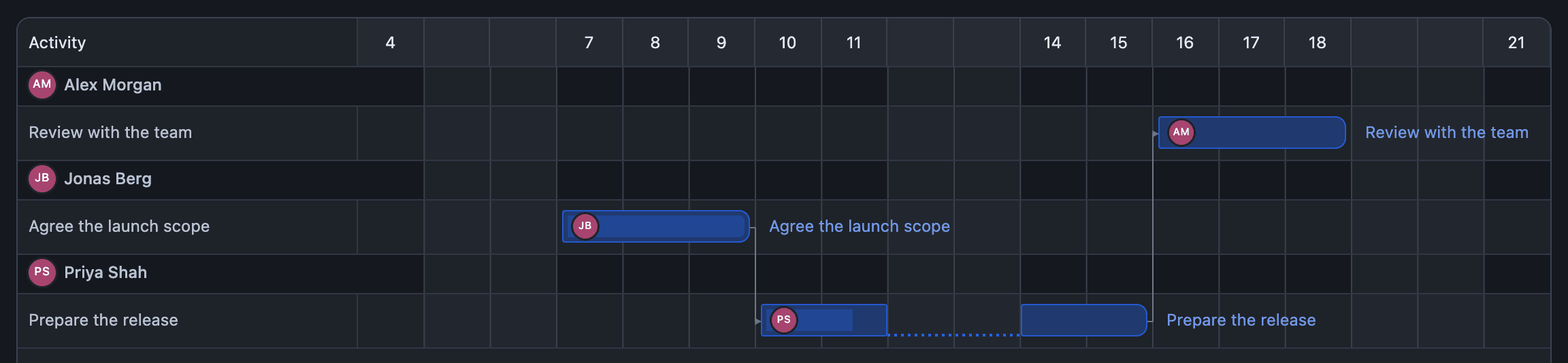
In Customize view, set Board rows or columns, or Timeline groups, to Assignee. Activities without a person go under Unassigned.
Choose whether to receive assignment emails
In your account settings, use Email me when I’m assigned an activity. It applies to all your organisations.
How it works
One person is responsible for each activity
To hand an activity over, choose another person in Assign to; Unassign leaves it without an assignee. There is one assignee per activity: naming several people in the notes gives none of them an assignment. Assigning the same person again changes nothing. A newly created activity must be saved before it can be assigned. An assignment is an edit of the plan: it works offline, Undo takes it back and it reaches Tidigar with the plan’s other edits. Tidigar checks each assignment when it arrives. If the person can no longer be assigned, or you can no longer assign, Tidigar clears it and the activity’s history says that the assignment was not kept.
Each device keeps the names, roles and picture versions of its organisations’ members, so faces and Assign to work offline. Without a connection, a picture that has not been loaded shows initials. Signing out removes these names.
Responsibility does not grant access
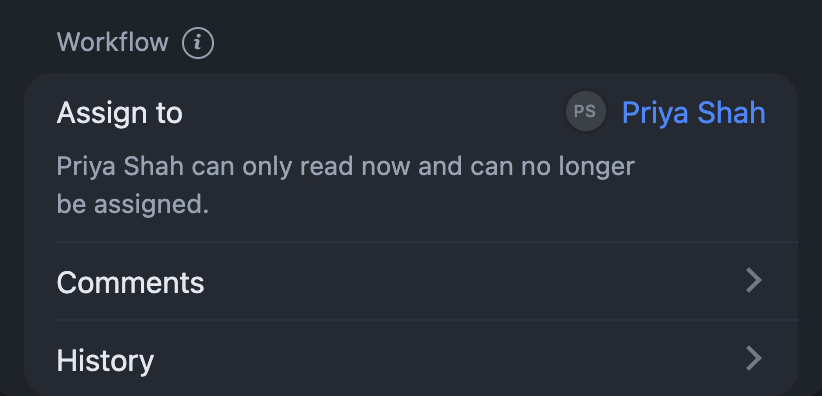
Owners, coordinators and editors can assign activities while the organisation is writable, and those are the roles that can receive new assignments. Viewers can read assignments and history but cannot change assignments. An expired subscription can prevent changes even for an owner.
An assignment does not invite someone or narrow which plans they may read. Organisation membership controls access. If a colleague is missing from Assign to, check that they accepted an invitation to this organisation and have a role that can edit.
Changing a person’s role to viewer, or removing them from the organisation, leaves their existing assignments in place and dims them. The activity panel explains that the person can only read or is no longer a member. This preserves the handover information so an editor can deliberately choose a replacement. It does not let a former member keep opening the plan.
A personal filter travels with your session
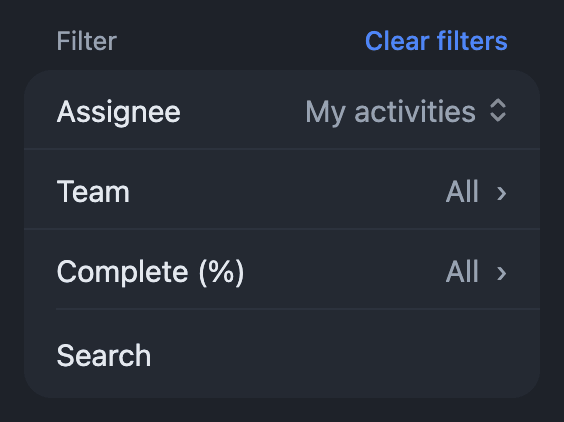
The assignee filter belongs to your personal session for the plan. It is not stored in the project, a saved view or a share link. My activities means whoever is currently signed in. Selecting another member filters by that person; Unassigned matches activities without an assignment.
Other activity filters and search still apply. If an expected activity is missing, clear those filters too. Filtering changes what you see, not dates, dependencies or assignments. It does not grant privacy or remove other members’ work from the team’s plan.
Grouping by person is a view setting
If you can change assignments, moving an activity into another person’s group changes its assignee. Moving it into Unassigned clears the assignment. An inactive person’s group remains readable but does not accept new assignments. Grouping by person does not turn the plan into separate private plans.
The grouping is a view setting; assigning someone changes the shared responsibility for an activity. Board and Timeline’s assignee grouping and Show assignee are saved-view settings. They can remain stored in a copy, but without the team’s assignment data the grouping arranges nothing and there are no real assignees to display. Show assignee controls faces on activities and the List assignee column. It does not remove assignments. A picture or printed export reflects the current view and personal assignee filter, so check the filter before sending a picture intended to show the whole team’s work.
My activities gathers your work
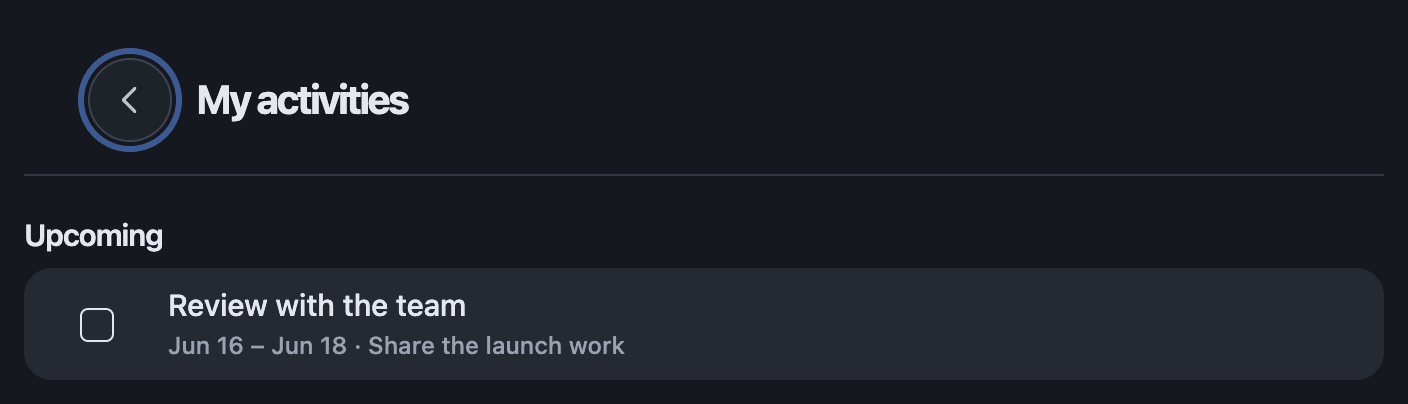
In the browser, My activities gathers work assigned to you across organisations and groups it into overdue, today, upcoming, undated and done. A completed activity remains listed while assigned. The account menu offers My activities when you are signed in.
Activities removed from a plan, and plans in the trash, disappear from this list. Restoring them brings their assignments back. A member demoted to viewer can still read activities already assigned to them. Losing membership removes that organisation’s work from the list when the app learns of the change.
The list refreshes as assignments and relevant plans change and when a connection returns. Plans kept on this device for offline use list your activities offline too, and checking one off is an edit of the plan: it reaches Tidigar with the plan’s other edits. A plan that is only online cannot be listed or changed without a connection; its last list can remain visible and may be out of date. Select an activity name to open its page and load its plan if needed. If the activity no longer exists, Tidigar shows a message. Use the browser’s Back button or close the activity page to return to My activities.
Read and discuss an activity on its page
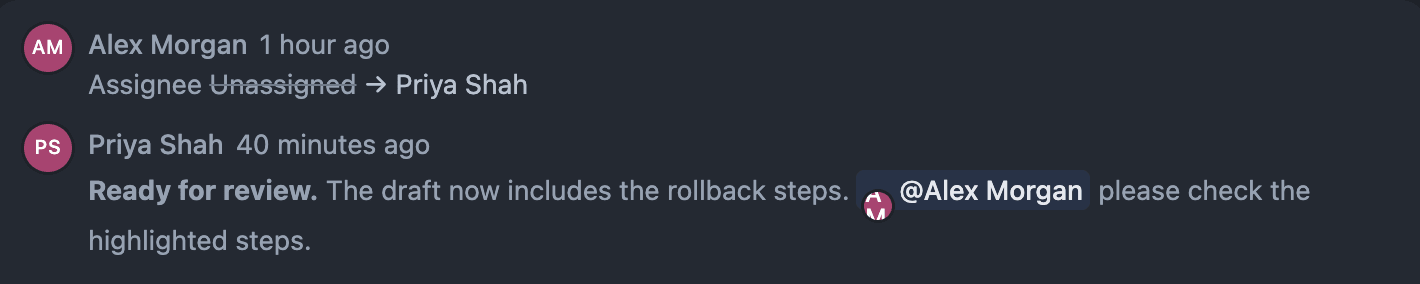
The notes are a field in the plan and travel with an editable copy. On a narrow screen, use Details for fields such as dates and assignment. You can type Markdown in the notes; Tidigar shows them formatted when you leave the field. The feed brings together saved activity changes and the team’s discussion in time order. Posted comments and their images stay with the original team plan.
Keep the task, scope and acceptance criteria in the notes. Use comments to ask for a decision, share progress or record the result and how you verified it. When the team agrees to change the scope, update the notes so the next person can pick up the work from there.
In a comment, select text and choose Bold in the formatting toolbar; Markdown shows or edits the source and returns to visual editing when selected again. Paste a screenshot from the clipboard after your text: its preview appears in the comment editor before you post.
Members who can read the plan can read its comments. Posting requires write access and a connection. If posting fails, the draft and any pasted image stay available in the current session so you can try again. Use Comment actions → Edit to correct your own comment. An edit is marked in the feed.
A mention notifies a teammate
An @ mention can notify a teammate who can already read the plan, including a viewer: type @ and the name, then select the person from the suggestions. Use Assign to to give someone responsibility for the activity. Tidigar checks access again before sending email or a notification to a subscribed browser. The notice links to the activity so the recipient can open the discussion.
History explains recorded activity changes
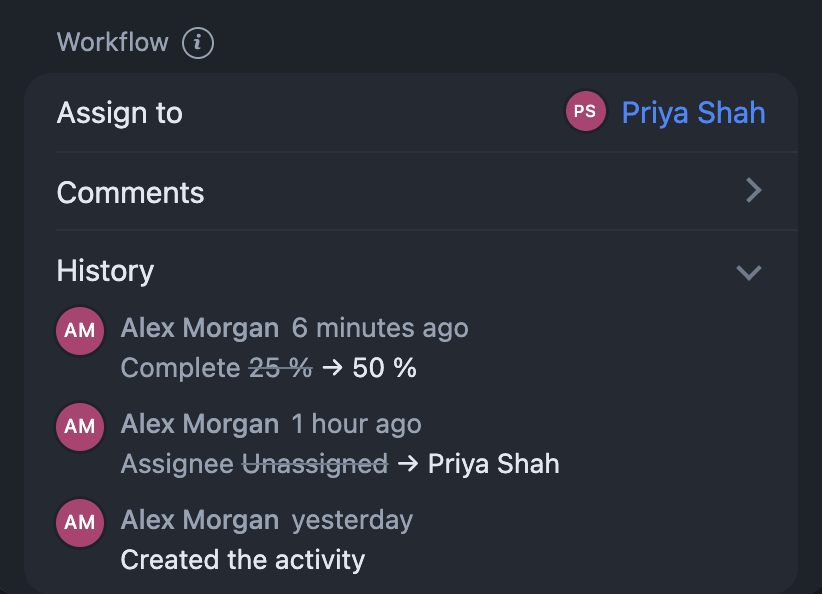
History opens collapsed so the activity fields remain easy to reach. Expanding it reads the newest changes first. While open, it follows changes announced by Tidigar; reopening it reads again. A loading or failure message is different from No changes recorded yet. After a change such as completion reaches Tidigar, history shows it too.
History records titles, start and end dates, completion, description changes, dependencies, dependency start rules, dimension values and assignees. Changes from one saved write by one person appear together. It is a record of saved changes, rather than every keystroke. A merge or revision restore records the resulting activity changes too.
Moving a plan to a team does not create a history entry for every existing activity. An unchanged save records nothing. Reference-key changes, view settings and personal filters are outside activity history. A description entry says that the description changed; it is not a full earlier document you can restore from this panel. History helps explain recent work; it is not a complete archive or an undo control.
Copies leave the team context behind
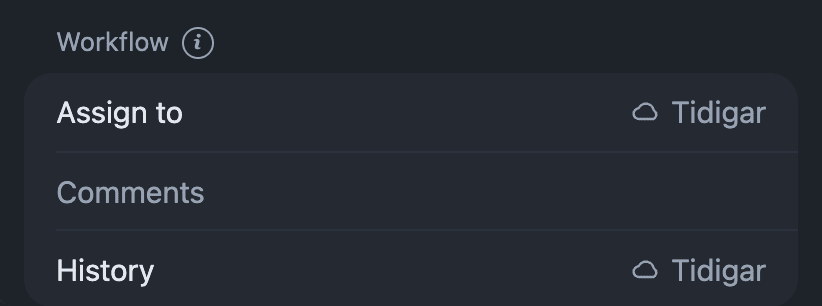
An assignment is part of the team’s plan, but it names a member of that organisation only by a number. Share links, Markdown, calendars and copies outside the organisation leave assignments behind, including a copy to another organisation or to this browser. History belongs to the organisation beside its plan and is never copied. Moving or copying project content should not be treated as transferring the team’s responsibility record. A rendered picture can still show assignee faces when the view includes them.
Outside a team, Assign to and History explain how to move the plan to one. They do not create local team assignments or reconstruct earlier history from the plan’s dates. A public example or screen does not expose the organisation’s assignment and history controls.
Mail follows the current assignment
Automatic assignment email is available in every team, Free or Business, and on Tidigar Server with mail configured. Email me when I’m assigned an activity applies to your account, across organisations. Mail is enabled by default and uses your remembered editor language.
When someone else assigns you work, Tidigar waits five minutes before sending. Several assignments in the same plan can arrive in one email. An email naming one activity opens that activity; a grouped email opens the plan. You still need to sign in with an account that has access. Assigning yourself or clearing an assignment sends no email.
Each reassignment restarts the five-minute wait. If an activity returns to its original holder before the waiting notice is sent, the pending notice is cancelled. Tidigar also skips a notice if the activity was removed, the plan was trashed, the recipient no longer holds it or can no longer receive new assignments, or they turned assignment emails off.
Mail delivery depends on the service’s mail setup. A failed delivery is not retried automatically. An absent email therefore does not prove that the assignment failed, and an old email does not prove that you still hold it. Check the plan or My activities for the current assignment: an email describes an assignment at the time it was sent.
Limits and access
- Assignments, History, comments and My activities need a plan kept in a team: free for up to five people, or Business; on Tidigar Server with mail configured for assignment email.
- Owners, coordinators and editors assign; viewers read. An expired subscription can prevent changes.
- Assigning works offline; posting comments and reading history need a connection.
- History reads 30 events at a time, which may be grouped into fewer visible entries; Show earlier loads another page. Each plan keeps at most 5,000 events and prunes events older than 365 days when changes are recorded. Long descriptions and dependency lists are shortened in stored events.
- Local, file and link plans, share links and public examples have no assignments or history.
Related
- Teams and permissions: invitations and roles.
- Library and storage: move a plan to your team.
- Board and List: group and edit by person.
- Timeline views: group the Timeline by assignee.
- Sharing: what links and copies leave out.