Choose what people receive
Free Tidigar Business · Paid
Send a copy to let someone explore on their own, or a plan link to work on the same plan.
Get started
The view above hides Prepare support team, the internal work that Run the pilot waits for. Choose Open in Tidigar to try the steps.
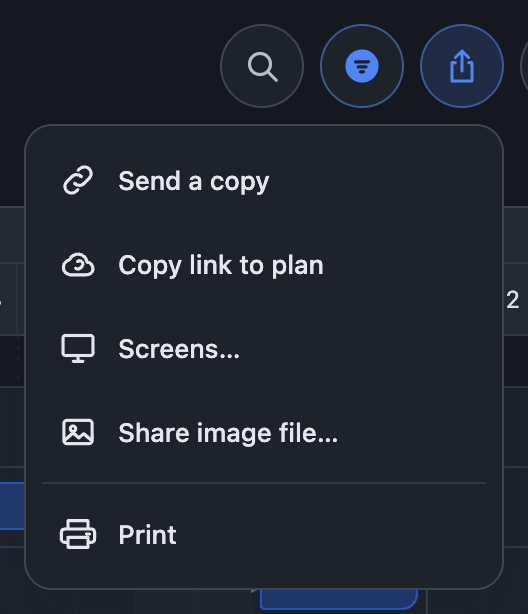
- Open Share → Send a copy. No account is needed.
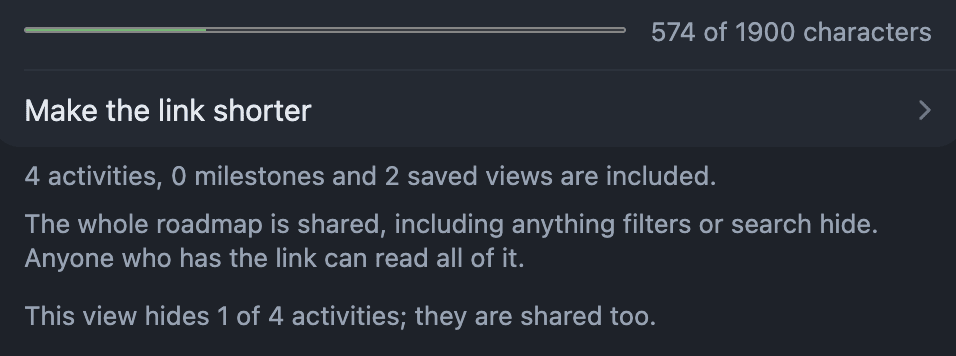
- Check the counts: the copy holds all four activities, although the view shows three.
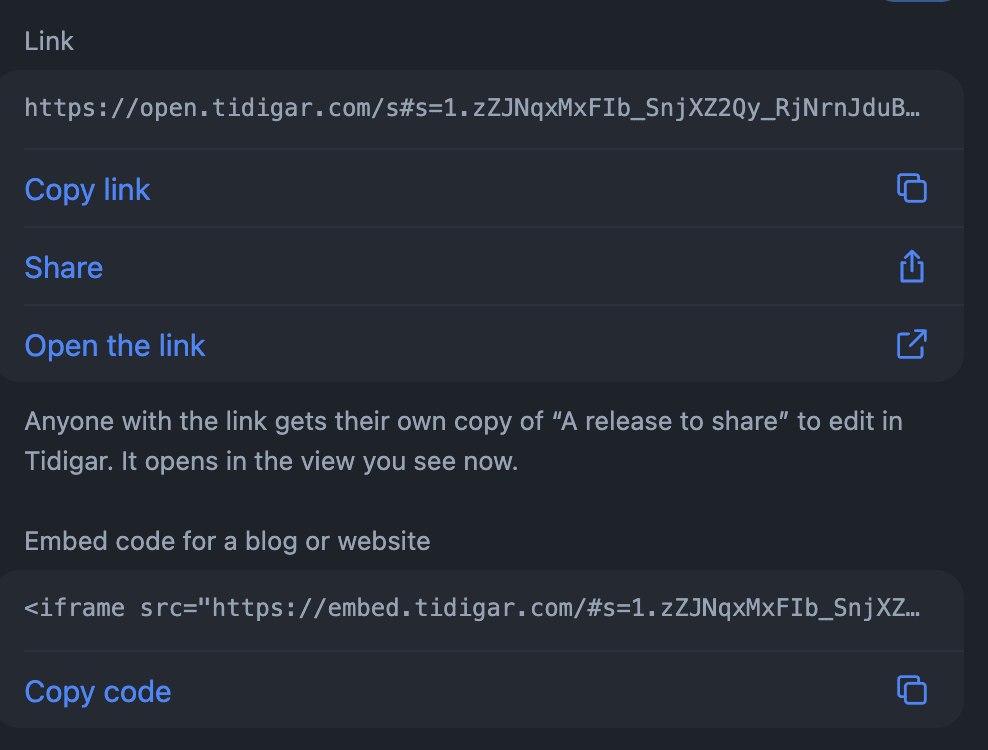
- Choose Copy link and paste it into a message. Open the link lets you check the result first.
- The recipient edits their own copy. It never changes your plan, and your later edits do not reach it.
More things to do
Send only what the view shows
Here is the whole release. Both frames read one demonstration plan, so moving Build the release in one moves the other; ordinary copies are independent.
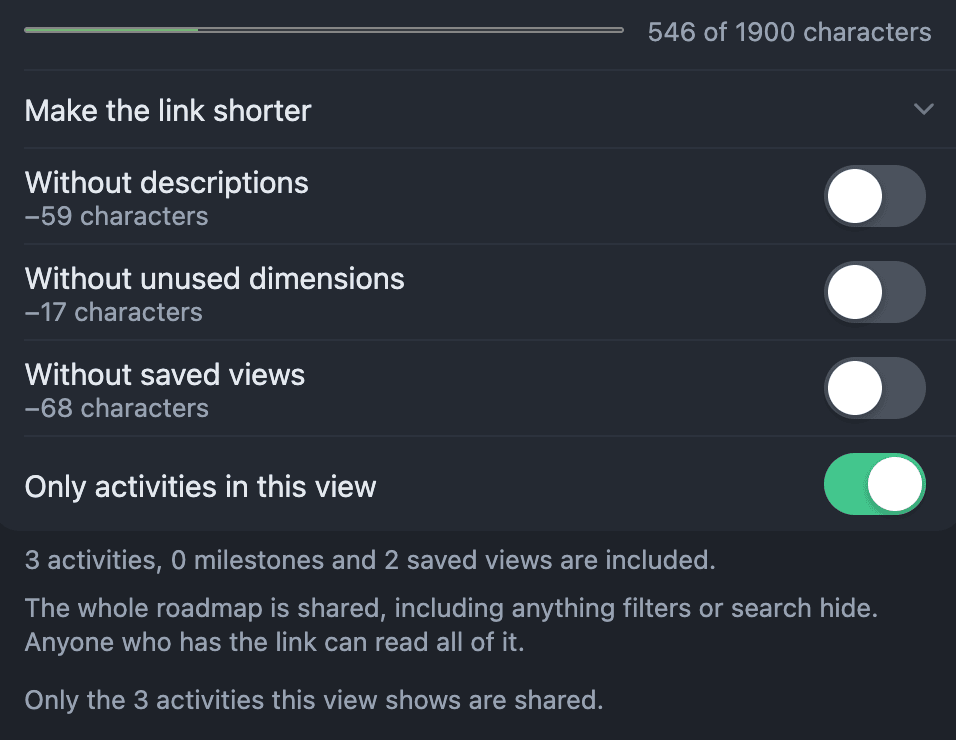
Open Make the link shorter and turn on Only activities in this view. The copy drops Prepare support team and the pilot's wait for it.
Put the copy on a page or a poster
Copy code under Embed code for a blog or website gives a frame and fallback link for an HTML block; see Embed a roadmap.
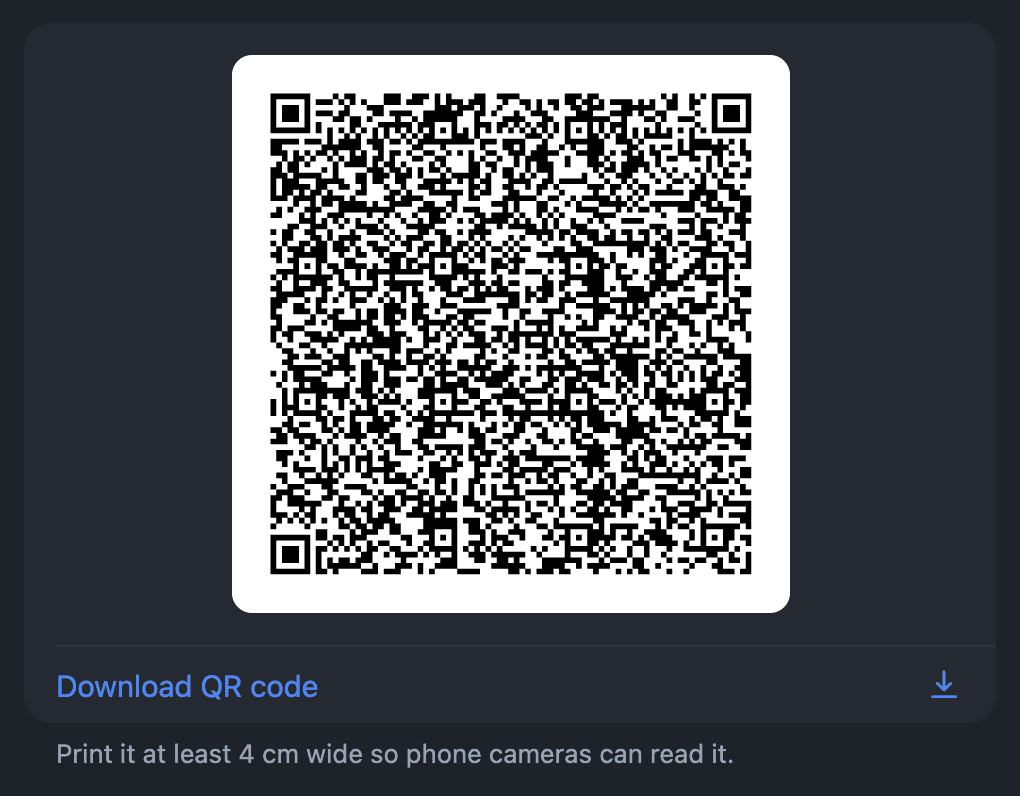
Download QR code saves an SVG of the same link. Print it at the width shown and test a scan.
Invite members to the same plan
For a plan kept in Tidigar, choose Share → Copy link to plan and send it to members of the organisation. It invites no one; see Teams and permissions.
Let people follow dates in their calendar
Save a delivery view, make a screen of it under Share → Screens…, open it and choose Calendar subscription → Copy calendar link. Recipients subscribe in their calendar app, with no Tidigar account.
How it works
A copy travels inside its address
The plan data is compressed into the part of the address after #. Creating the copy link does not upload the plan to Tidigar. Anyone holding the full address can read the included content and pass it on. Compression makes it smaller; it does not encrypt it.
Because the data travels with the address, deleting or editing your original cannot recall copies already sent. An old copy link continues to describe the old snapshot. Use a plan kept in a team for controlled member access, or a screen when you need an updating public view whose link you can end. Tools that generate copy links follow the share link specification; to make a plan with an assistant, see Create a new plan with AI.
A view chooses where the copy starts, not what it holds
The copy opens in the view you see when you create it, including its current filters and search. A view chooses the starting presentation; it does not limit what the link contains. Filtering alone leaves hidden activities in the copy.
Before sending sensitive content, inspect the actual copy, including its descriptions, milestones, dimensions and saved views. For the presentation people start with, read Timeline views.
Shortening changes only the outgoing copy
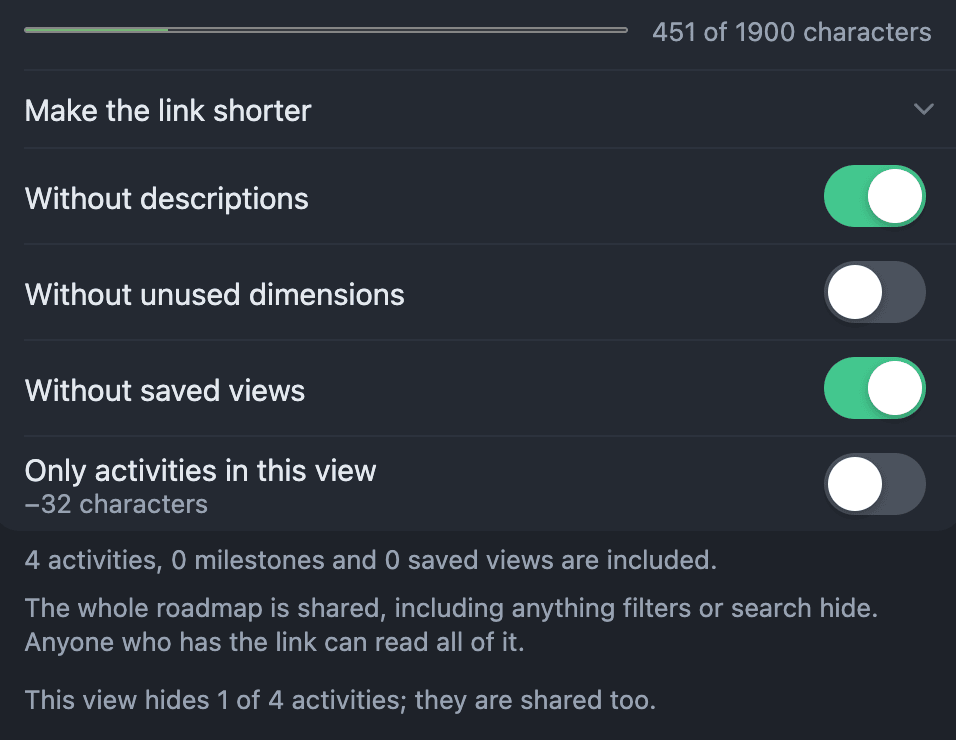
The dialog limits the encoded plan to 1,900 characters and shows the current length. If the plan is too large, link, embed and QR output are unavailable until it fits. Your original stays editable and nothing is deleted from it.
Without descriptions, Without unused dimensions and Without saved views remove those parts from the outgoing copy. Only activities in this view uses the activities currently shown by filters and search, including a personal assignee filter when active. It leaves milestones in the copy and removes dependency references to excluded records, so the copy is a reduced plan whose scheduling relationships can differ. It is not a promise that every hidden detail is gone. Check the counts and open the link after choosing options. Only activities in this view is unavailable when the view shows every activity. In a plan with a baseline, Leave out the baseline appears and starts on.
Removing saved views still leaves the copy's initial presentation. Removing unused dimensions can also clear view settings that used them. If the copy still will not fit, keep the plan in Tidigar and share its plan link instead.
A QR code or an embed changes how people arrive, not what they get
A QR code does not change the copy's contents or make it follow later edits. An embedded copy can be explored and opened in Tidigar, but it does not write back to your original. When the release changes, make a new link and replace the old link, embed code or printed QR code as needed. In the browser, the system share action (Share in the dialog, where supported) can send the link through another app.
A plan link is an address for the stored plan
A signed-out reader is asked to sign in. An account without access is told to ask the sender for an invitation or use another account. A local plan has no plan link; keep the plan in your team first if the team should work on it together. A plan link needs a connection and access to the plan, and a moved or deleted plan may no longer open. Organisations can separately allow plan-link previews to show a plan name and thumbnail in chat apps; a preview does not give the recipient access to the plan.
A screen shares a saved view and can be ended
A Business team can show an updating view to people without accounts using Screen links. A screen shares a saved view and can be ended by deleting that screen. Its optional join QR code opens the shared plan for members; scanning it does not grant membership.
A calendar subscription publishes the view's dates
It publishes all-day activities and milestones, without descriptions. An activity covers its full work period, not just its final date. Edit the original in Tidigar; changes do not travel back from a subscribed calendar. Anyone with the subscription address can read the published view and pass it on. Calendar apps can take hours or longer to fetch updates, and deleting the screen does not erase events they have already downloaded. Follow Screen links and calendar feeds for the steps and limits.
Copies leave assignments and organisation rules behind
Copy links do not carry activity assignments, and the dialog says so. Sending a copy therefore cannot delegate work or keep it connected to the team's activity history. Use the team's shared plan for that workflow.
An organisation can require plans to stay inside it. For those plans, Send a copy is blocked and screens are unavailable; a filtered view does not bypass that rule. Members can still use the plan's member link within their access.
Limits and access
- Send a copy, link, embed and QR code are free, in the browser and in the apps; no account is needed to send or receive.
- The encoded copy is limited to 1,900 characters; the original is never limited.
- A plan link needs a plan kept in Tidigar and the recipient's access to it.
- Screens and calendar subscriptions need a Tidigar account, free for up to five people.
- Plans an organisation keeps inside it have no copy link, embed code or screen.
Related
- Embed a roadmap: platform steps for the embed code.
- Teams and permissions: invite people and choose roles.
- Screen links and calendar feeds: updating views and calendar subscriptions.
- Timeline views: choose the view people start with.
- Example gallery: a complete plan to adapt before sharing.
- Publish: images and animated explanations.