Take the plan into a briefing
Free Tidigar Business · Paid
Prepare a picture for a slide, print a copy for the room or send the activities to a spreadsheet: each file is a snapshot that later changes to the plan do not update.
Get started
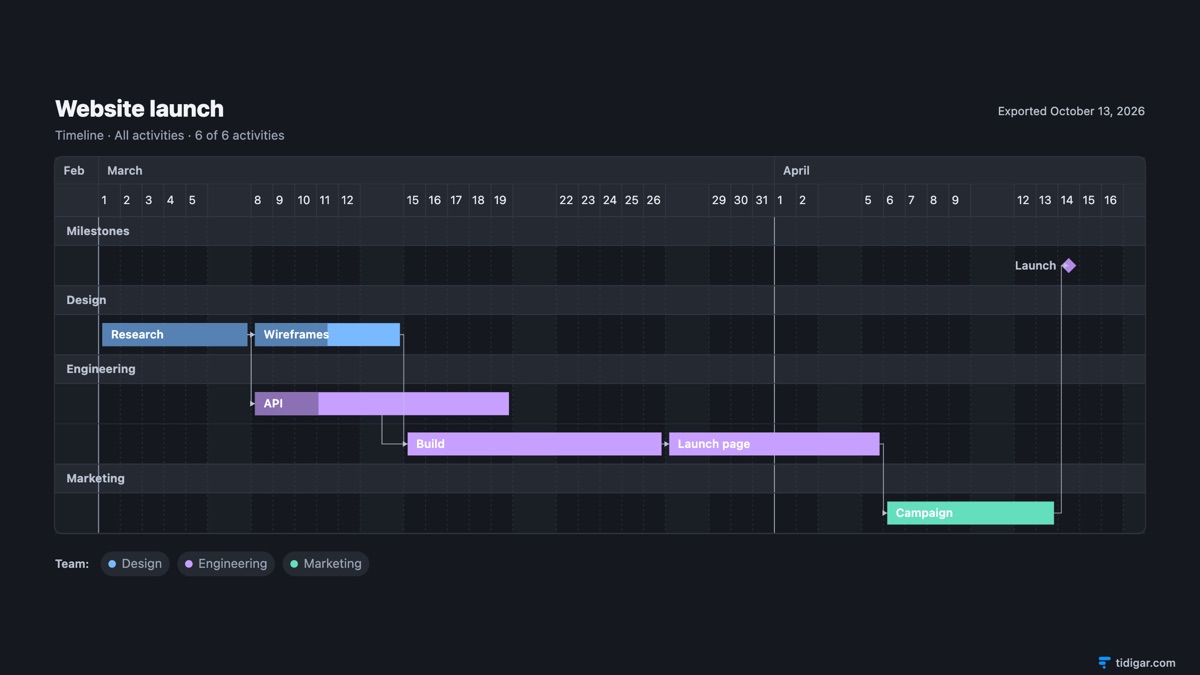
This launch has five activities, two teams and a milestone. Above, the Launch briefing view groups work by Team and uses High contrast to make the bars and relationships clear. Choose Open in Tidigar to try the steps on your own copy.
- Select Launch briefing in the saved views menu.
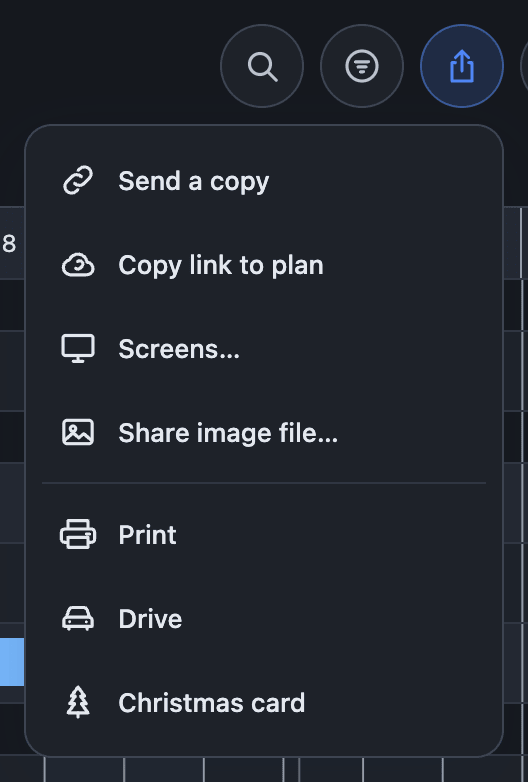
- Choose Share → Share image file…. In the browser, the Share button is in the header, and the … menu has it too.
- Choose PNG for a message or slide, or SVG for a vector picture that stays sharp when resized.
- Choose 16:9 for a widescreen slide, 4:3 for a squarer slide or 9:19 · iPhone for a phone display. Use Fit to content when the plan needs its natural height.
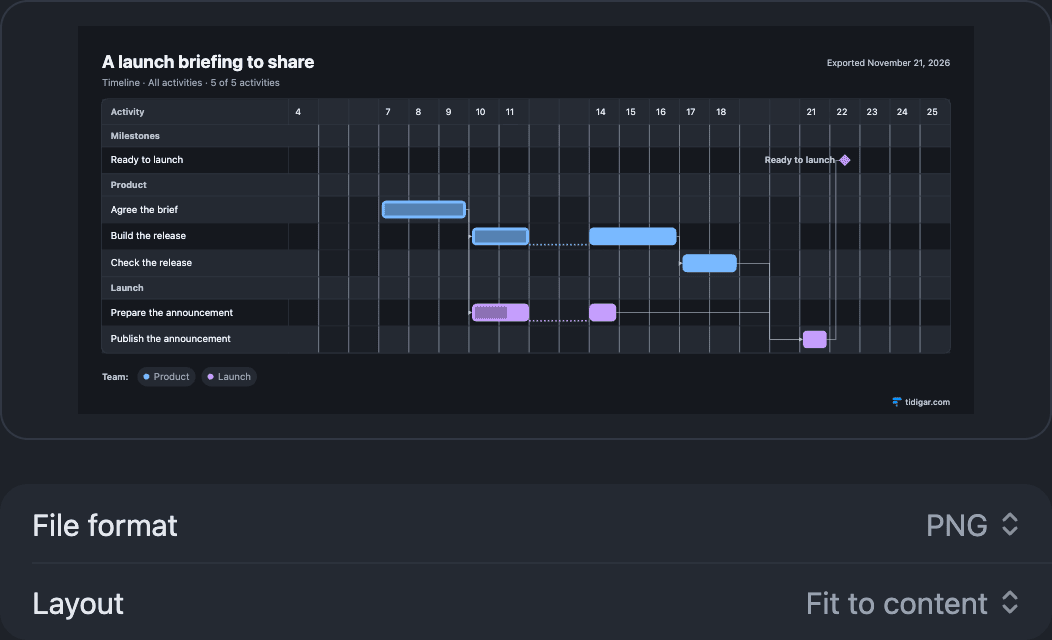
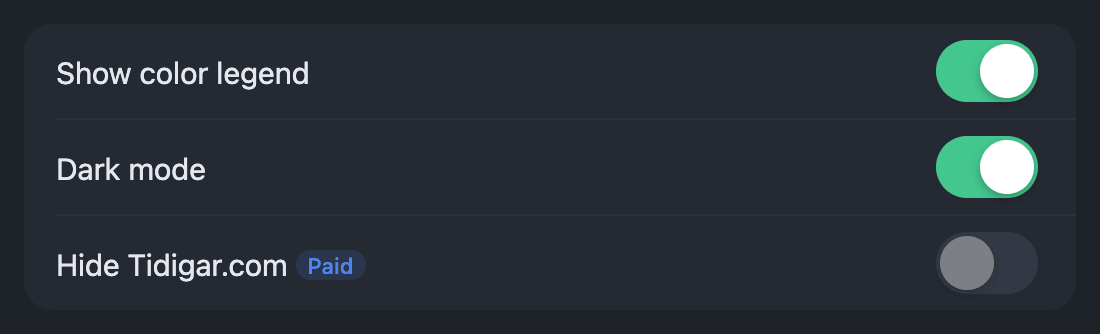
- Check the preview. Turn Show color legend and Dark mode on or off for the destination, then choose Share to save or send the file.
More things to do
Print a readable copy
Choose Share → Print, or Print in the image sheet after checking its layout and legend. The browser opens its print dialog; choose the paper and inspect the page preview there. For a tall plan, start with Fit to content.

Choose a presentation style
Open Customize View… from the saved views menu, then choose Style preset. You can also change it inside the image sheet.

Send the activity table
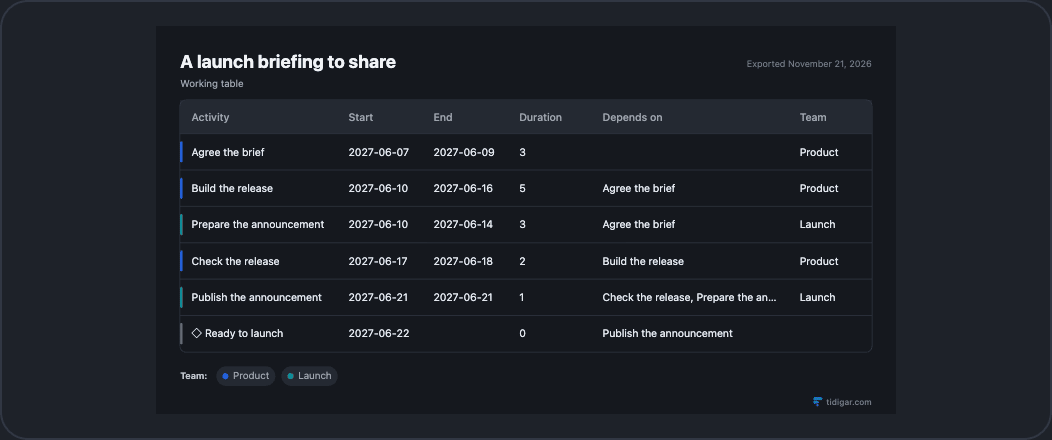
The Working table view shows names, dates, durations and dependencies before you share the table.
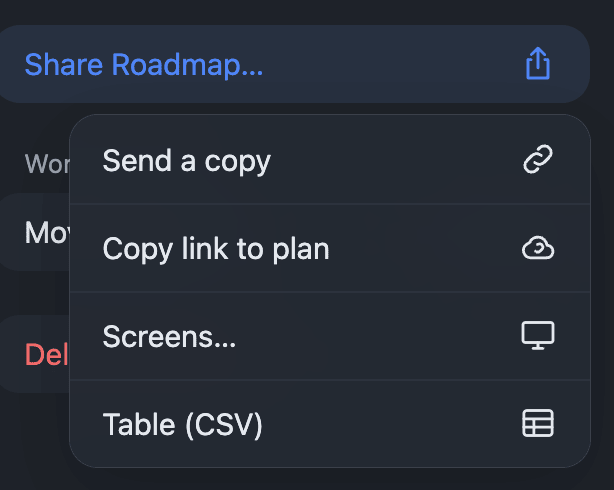
Open the roadmap's properties, choose Share Roadmap…, then Table (CSV). Open the file in your spreadsheet application. If it asks how to separate columns, choose a semicolon and UTF-8 text.
How it works
A picture follows the view rather than the screen rectangle
PNG, SVG and printing use the active view type: Timeline, Board, List or Flow. They follow its filters, search, grouping, colors, date range and display options. Scrolling and zooming do not crop the result to the part currently on screen. The export lays out the selected view again for the chosen image size, so text wrapping and spacing can differ from the editor window.
For a plan kept in a team, the picture follows your personal assignee filter too. With Show assignee, it can include people's names and pictures; initials stand in when a picture cannot be loaded. Check the preview before sending it outside the team. For how personal filters differ from shared plan data, see Assignments.
The picture includes the roadmap title, view information, an export date and, by default, a color legend. Named saved views can supply their own subtitle. The image sheet lets you hide the legend and choose a light or dark picture independently of the app's theme. Plans you can edit in Tidigar or on Server can Hide Tidigar.com under their service export access; without it the attribution remains.
Presentation settings and output settings have different lifetimes

Changing a style changes the current view's appearance; choose Save changes to keep it in the saved view, or Revert Changes to restore the saved settings.
A style preset belongs to the view, alongside grouping, colors and filters. Customizing these controls in the image sheet changes your working view just as Customize View… does. Closing the sheet does not revert those changes. Save the view to share that arrangement with others; reverting the view restores its stored presentation without undoing activity edits.
File format, image layout, legend visibility and the image sheet's dark-mode choice control the output. They do not reschedule work or create another saved view. Choosing a different picture theme does not switch the whole app's theme. See Timeline views and Board and List for choosing what the view shows.
Page breaks preserve readable rows where possible
Saving a PDF depends on the options your system offers. For a tall plan, Fit to content divides the picture across pages and repeats its header, using breaks between rows where possible. The browser lays the view out for A4 or Letter. A fixed image shape fits the whole view into one composition instead, which can make a large plan too small on paper. Printing uses the light variant of the chosen preset even when the image preview is dark. Terminal's light variant still has a blue background; use Standard or Minimal for white paper.
For a natural-height picture, print pagination repeats the header and continues the body at allowed breaks. A row taller than a page may still need to split. Flow uses breaks that avoid cutting a shape where possible. The footer follows the body on the last page when it fits. The print system controls the final paper size and margins, so review the system preview before printing a large plan.
PNG requires a bitmap canvas. Very large pictures can exceed the browser's drawing limits, and an export can fail rather than produce a usable file. Reduce the content or try SVG, which keeps shapes and text as vectors. A fixed layout can fit more content, but fitting alone does not ensure readable labels.
CSV is a table of activities, not a project backup

Try searching for Build in your copy, then compare the picture with the CSV. The picture contains the matching work; the shared CSV still contains all five activities and the full set of activity columns. Hiding a column in List or filtering the view does not limit the table shared from roadmap properties.
The Table (CSV) sharing action exports every activity with the full activity column catalog, including dimension values and predecessor names. It ignores the view's search, dimension filters and visible-column selection. It does not use the List view's current column sort. Milestones do not become activity rows, though milestone predecessors appear by name with a diamond marker. Show reference keys adds a separate reference column. With Show assignee in a team's plan, the table also includes assignee names.
When a plan has a cost currency, the CSV includes an estimated-cost column labelled with its currency code. The column uses regular currency units even when the plan shows thousands. Empty cells mean the activity has no estimate.
Dates are written as year-month-day values. Durations follow the plan's calendar-day or work-day scheduling rules. Dimension cells contain readable value names. The file uses semicolon-separated columns, quotes cells containing semicolons, quotes or line breaks, and includes a UTF-8 encoding marker for spreadsheet readers.
CSV leaves out the saved views, milestone records and other project structure needed to restore a complete plan. Keep the plan in Tidigar when you need the complete project. A picture or CSV remains a separate snapshot, with no live connection back to the original. For sharing a copy or opening the shared plan, see Sharing.
Organisation copy restrictions treat tables and pictures differently
When an organisation keeps its plans inside the organisation, Table (CSV) is unavailable for those plans. Pictures and printing remain available. This means a picture can still show the visible content; the restriction is not a way to prevent readers from seeing or printing the plan. See Teams and permissions for the organisation controls.
Each style preset suits a different screen
Open the example pictures to compare the presets at full size. Each shows the same example plan; the work and dates stay the same.
| Preset | What to look for | Light picture | Dark picture |
|---|---|---|---|
| Standard | Tinted bars with a clear progress share. | Open light | Open dark |
| Minimal | Thin activity lines and a quieter grid for dense plans. | Open light | Open dark |
| Airy | Soft bars and more space between rows. | Open light | Open dark |
| High contrast | Solid bars and stronger lines for a projector or bright screen. | Open light | Open dark |
| Terminal | A monospaced look: blue with yellow text in light mode, green on black in dark mode. | Open light | Open dark |




Limits and access
- Pictures, printing and CSV are free; Hide Tidigar.com is paid.
- Table (CSV) is unavailable for plans an organisation keeps inside the organisation; pictures and printing remain.
- The embedded example is a copy for exploration. Choose Open in Tidigar for an editable copy; edits to it do not change this guide.
Related
- Timeline views: choose what the view shows.
- Board and List: the other views you can export.
- Sharing: send a copy or open a shared plan.
- Assignments: personal filters and assignees.
- Teams and permissions: organisation controls.