Show branches with flowchart symbols
Free
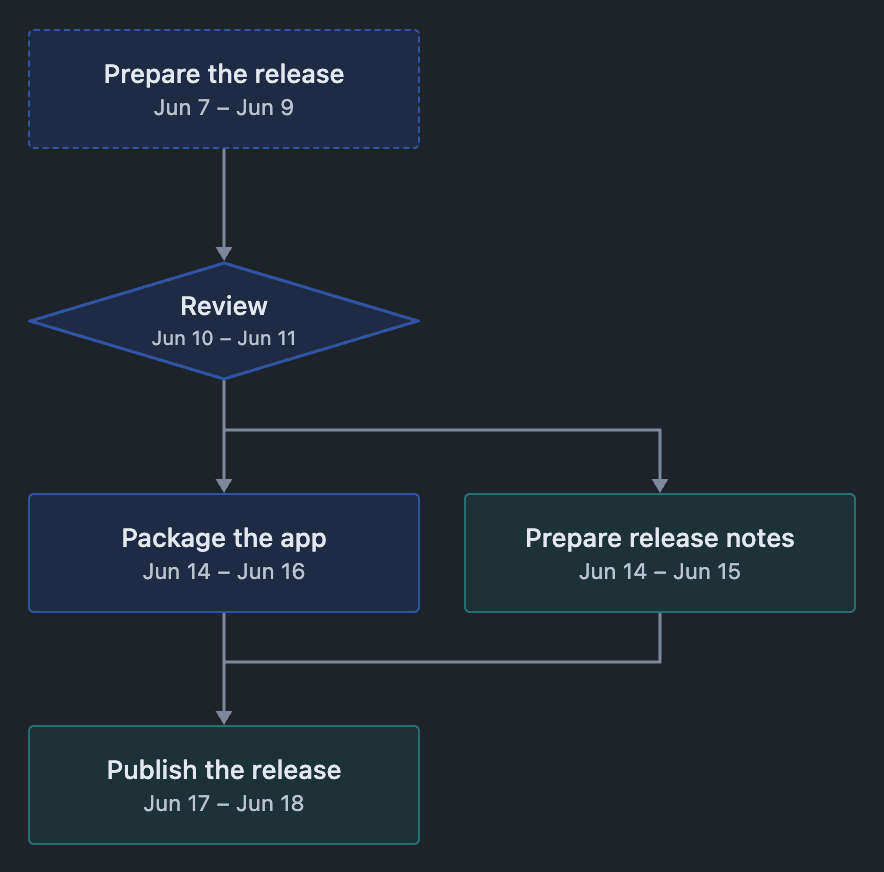
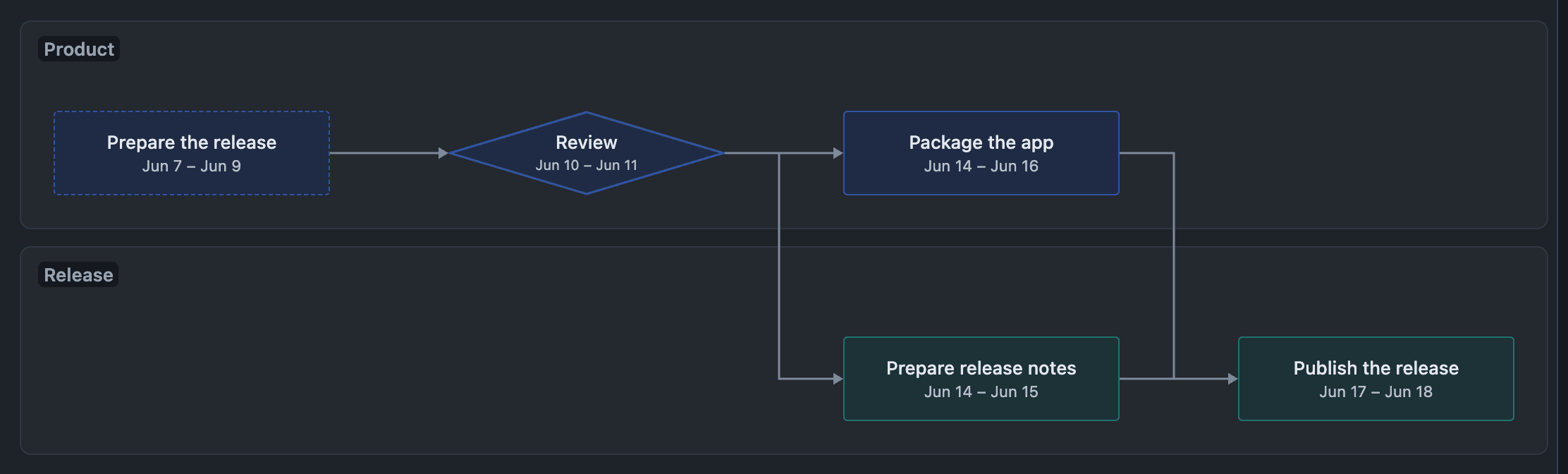
Rectangles show activities, a diamond marks a fork where work splits, and right-angle arrows connect the dependencies.
Get started
Review is a diamond because Package the app and Prepare release notes both depend on it. Publish the release waits for both but has no activity successors, so it stays a rectangle. Tap Package the app once to highlight what it waits for and what waits for it; tap empty space to clear the selection.

- Open a plan and switch to Flow.
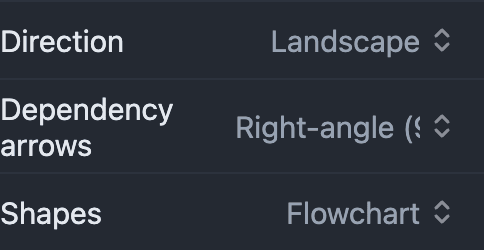
- Open Customize view, set Shapes to Flowchart and Dependency arrows to Right-angle (90°).
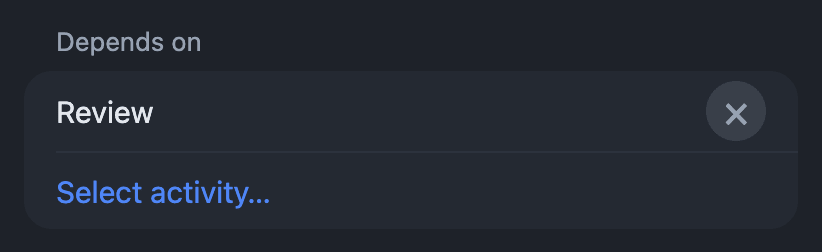
- Open two activities and give each the same Depends on activity. That activity becomes a diamond; one or no activity successors stay rectangles.
- Save the view to keep its shapes and arrow style.
More things to do
Turn the flow to read top to bottom
In your own editable plan, set Direction in Customize view to Landscape, Portrait or Automatic. Zoom with the controls or two fingers; with a mouse, drag the background to pan.
Change a dependency by dragging
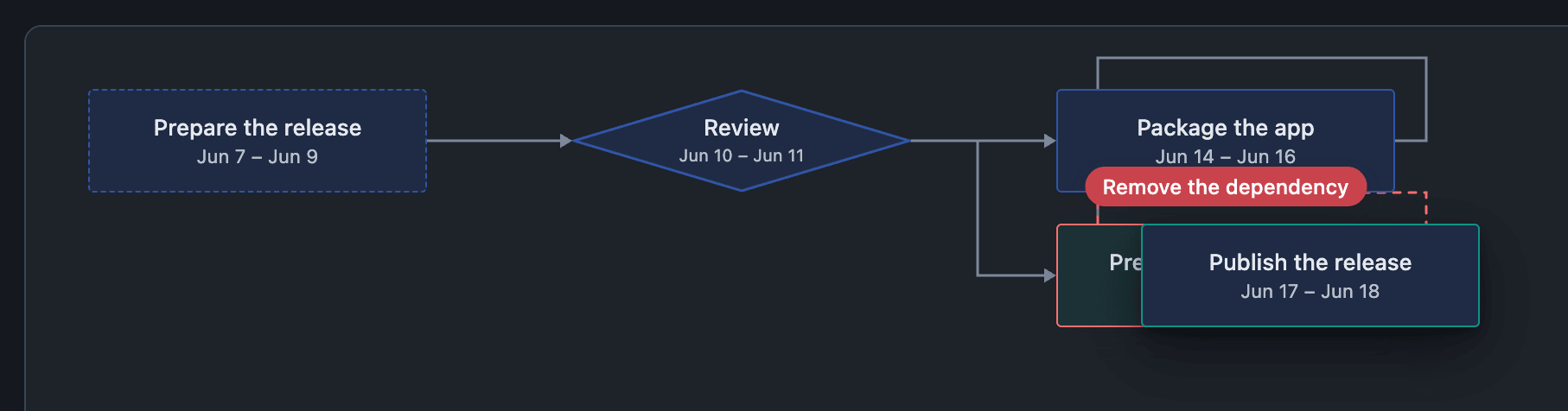
Drag one activity onto another, read the drop label, then release. Undo reverses the result.
How it works
Positions show dependency steps

Flow places activities by their position in the visible dependency chain. Separate connected chains occupy separate areas. Within a chain, the layout keeps a backbone through the work that finishes latest, and focusing an activity brings its branch into that backbone. The critical line explains that selection in detail.
An activity's distance across the page does not measure its date or duration. Package the app and Prepare release notes occupy the same dependency step even though their end dates differ. Use a timeline to compare dates, duration and waiting time. Changing shapes, arrow style or direction changes how you read the plan; it does not change the schedule.
Tap an activity once to focus it; tap the focused node again to open its details. The branching shape remains the same when you focus a different activity.
A diamond counts direct activity successors
With Shapes set to Flowchart, an activity with at least two distinct activities directly depending on it becomes a diamond. One successor, or none, gives it a rectangle. Indirect successors do not count: Prepare the release stays rectangular even though several later activities are reachable through Review.
A join is not automatically a diamond. Publish the release has two predecessors but no activity successors, so it remains rectangular. The diamond describes a split in planned work, not a conditional choice: both branches are part of the plan rather than exclusive yes/no choices, and both constraints on the join apply. Progress does not decide the shape.
The count uses the whole plan, including activities hidden by a filter. Filtering to the Product team hides Prepare release notes, but Review still has two activity successors and stays a diamond. This preserves the meaning of the shape across views. Switching Shapes back to Capsules draws the activities as capsules without changing any relationship.
Milestones use their own representation and do not count as activity successors for this rule. An activity followed only by two milestones therefore stays rectangular. Flow includes following milestones connected to visible activities and fixed milestones that visible activities wait for; standalone milestones need not appear. See Two kinds of milestone.
Filters hide records without removing their constraints

A team or phase filter changes the graph that Flow can lay out. Faded hints mark relationships to activities outside the view. The hidden work still belongs to the plan and still constrains scheduling. A filtered graph can have a different backbone or appear disconnected even though the whole plan is connected.
Activities with no visible connections appear in the activities area below the connected chains. Hide activities without dependencies removes activities that have neither visible connections nor hints of hidden connections. It keeps chain roots and activities linked to milestones. If there is no connected work and you hide the remaining activities, the flow can be empty; show those activities or relax the filter to find them again.
Lanes describe membership
You can group Flow by a dimension such as Team. Lanes show its values, with a lane for activities that have no value. Dependencies can cross lanes; placing two activities in one lane does not connect them. Group milestones in a separate lane separates milestone nodes, while Hide empty dimension lanes removes unused dimension lanes from the view.
In an editable plan, dropping an activity on empty space in another dimension lane changes that activity's value for the grouping dimension. It changes plan data, so other views using the same dimension reflect the new membership. Dropping on another node keeps the dependency gesture, even across lanes. Check the target and drop label before releasing.
Dragging can be exploration or a plan edit
To change a relationship you can also edit Depends on in an activity. In Landscape, dropping on the target's left half puts the held activity before it; dropping on the right half puts it after it. In Portrait, use the top or bottom half respectively. Repeating an existing relationship offers to remove it.
Dragging a node into empty space without a lane target pulls its neighbours along temporarily; releasing it lets the layout settle again. This does not save a manually positioned diagram or change dates. Selecting a node, panning and zooming are personal navigation.
Dropping onto another node can add or remove a dependency. Adding one can move the successor and its following work to satisfy the new constraint. Removing one leaves the current dates in place. A link that would close a dependency cycle is refused. Milestone links follow their scheduling direction: activities may wait for fixed milestones, and following milestones may wait for activities.
Shapes, arrows, direction, grouping and filters can be kept in a saved view. Dates, dependencies and dimension values belong to the plan. Focus and zoom are not a way to edit or save those relationships. For exact scheduling rules, including overlap and work days, see Moving activities and dependencies.
Limits and access
- Free, in the browser and in every Tidigar app.
- Flow has no exclusive choices, yes/no outcomes or branch labels; a diamond always means all branches happen.
- Direction, grouping and the other view settings apply in your own editable plan.
- The embedded example is a copy for exploration. Choose Open in Tidigar to work with an editable copy; edits to your copy do not change this guide.
Related
- The critical line: compare dependencies in a timeline and a flow.
- Moving activities and dependencies: how dependencies move dates.
- Two kinds of milestone: how milestones appear in Flow.