Keep a plan where you need it
Free Tidigar Business · Paid
Start a plan in your browser, keep it in a team when colleagues need it too, and use the library to find it again.
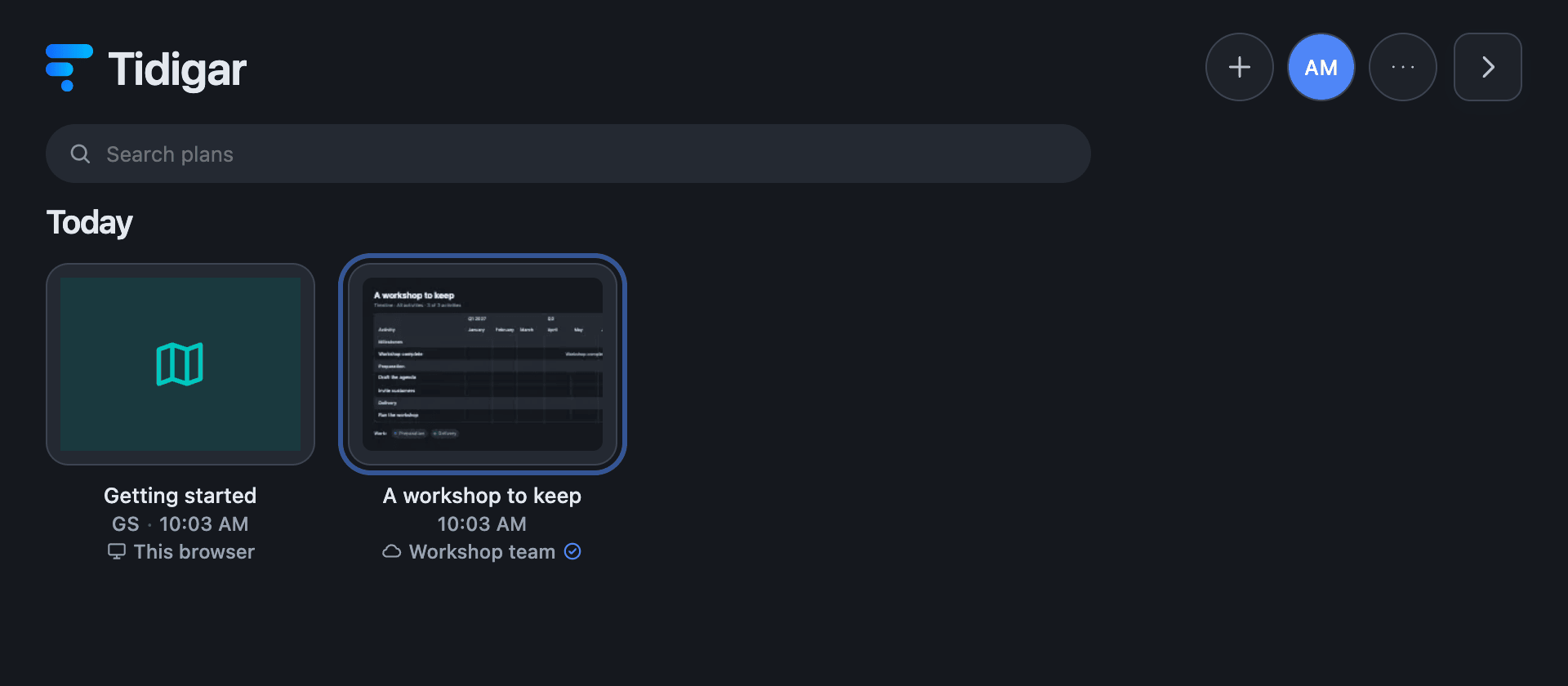
Get started
Open a plan at app.tidigar.com to follow along; the pictures show a stand-in plan, A workshop to keep.
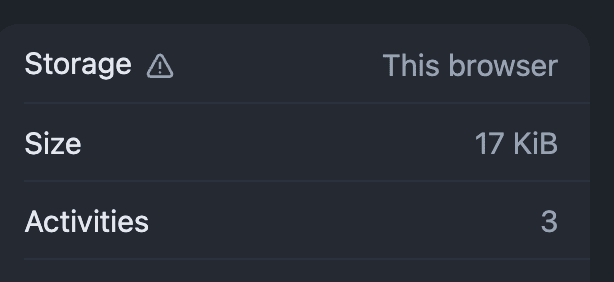
- Open Properties for A workshop to keep and look at Storage. In the free browser it says This browser.
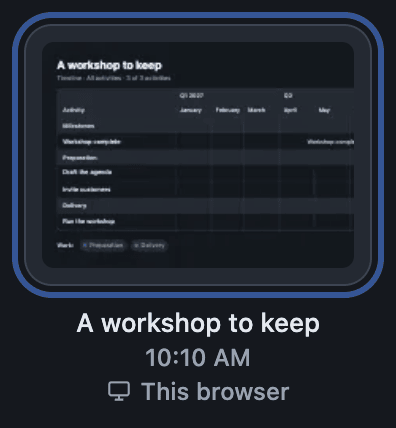
- Change the progress of Draft the agenda, return to the library and open the plan again. With browser storage available, the edit is kept here automatically.
- Check the storage label on the plan's library card. Signing in does not move an existing local plan to your account.
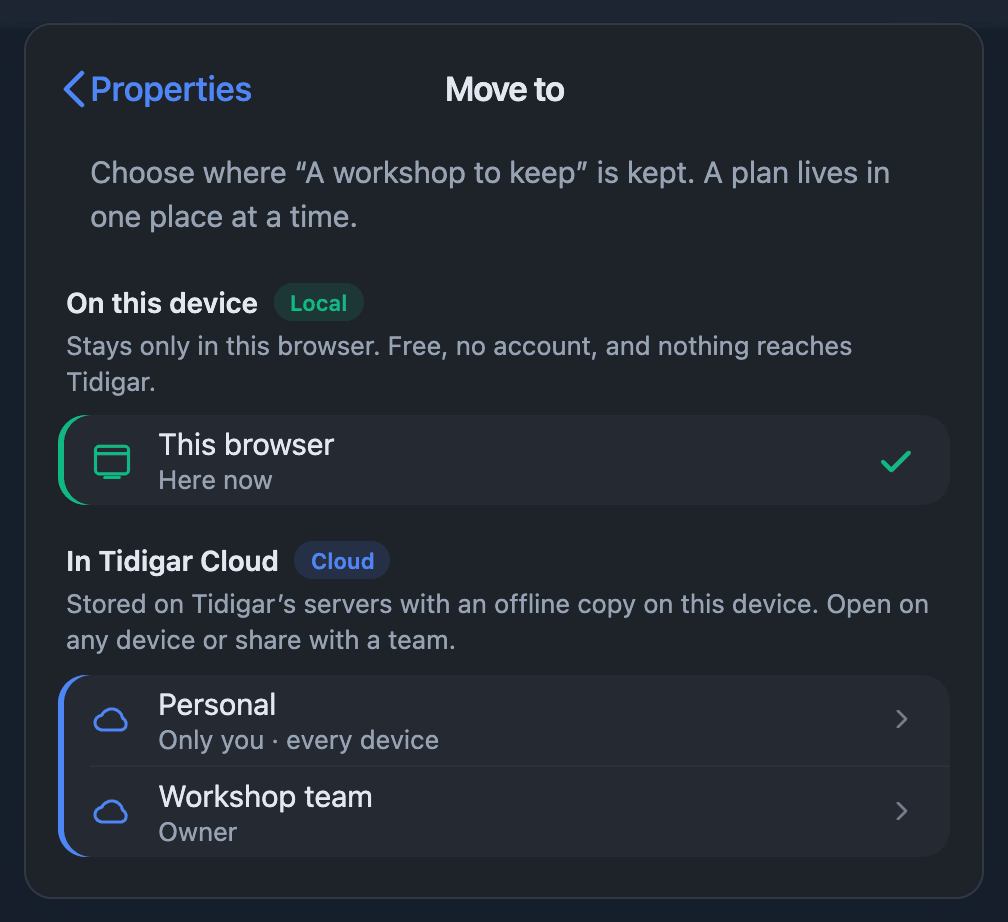
- Open Properties → Move to… to choose another place. Here now marks the current one. Read the explanation beside the destination before choosing it.
More things to do
Find an activity from the library
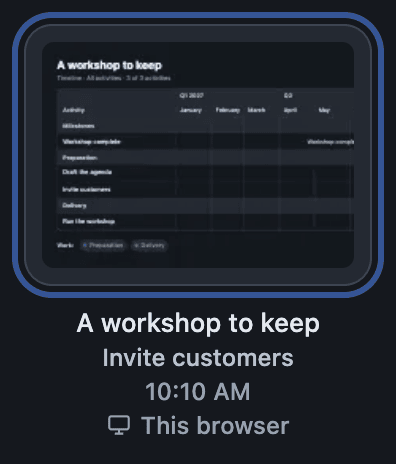
Open your editable copy and return to the library. Type invite cust in Search plans: the workshop card shows the matching text, Invite customers, below the plan name. Select the card to open the plan and that activity. A plan name such as workshop to keep opens the plan itself.
Move the workshop to a team
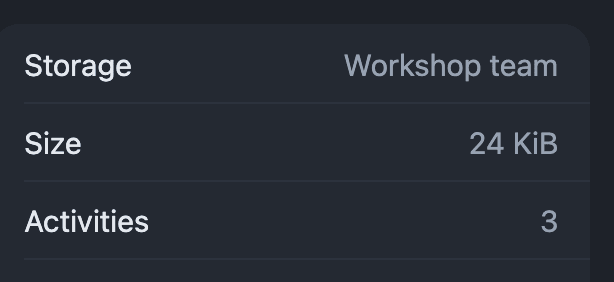
In the browser, choose Personal or one of your teams in Move to… and sign in if asked. Without a team, choose Start a free team for up to five people and follow the free team setup. Then check in Properties that Storage names the organisation. Teams and permissions invites colleagues; a plan link gives them an address.
Check whether the workshop is ready offline
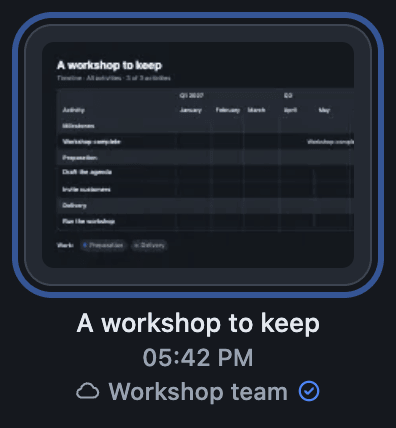
After the move, look at the small mark beside its storage name in the library; on a computer, hover over it to read its label. Wait for Available offline before you disconnect.
Bring a stored plan back here
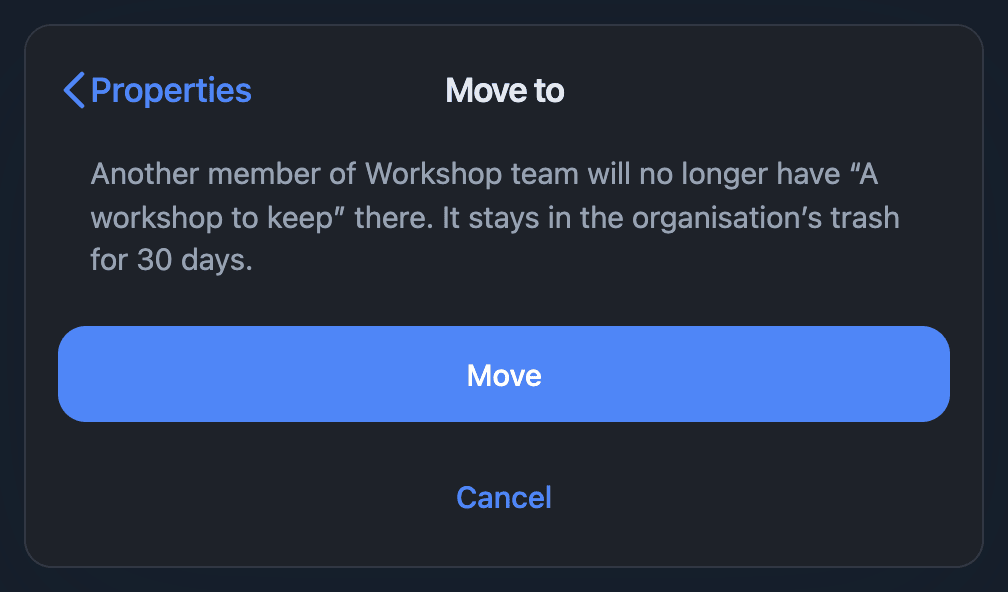
Open Properties → Move to… and choose This browser. Read any confirmation first; the effect depends on your access to the source.
How it works
Why every edit is instant

Most web planning tools are server-first: dragging a bar, filtering a view or updating a date sends a request over the network and waits for a server before the screen settles. Tidigar is local-first. The complete plan lives in your browser's localStorage, so every drag, view switch, search and edit runs directly on your device with zero network wait.
When you keep a plan in Personal, a team or Tidigar Server, the editor still works against that local copy first and syncs changes to the server in the background. You get the responsiveness of a native desktop app in the browser, and you can keep working without a connection while team plans catch up automatically once you are back online.
Local, personal, free and paid: where changes are kept

| Place | Where changes are kept | Who reaches it | What you need |
|---|---|---|---|
| This browser (local) | In this browser's local storage on your device | Only you, in this browser | The free browser editor; no account, and Tidigar receives nothing |
| Personal | On Tidigar's servers, with local copies for offline work | Only you, on every device you sign in to | An account; free |
| Free team | On Tidigar's servers, with local copies for offline work | Up to five people, by role | An account; free while the team has five people or fewer |
| Business team | On Tidigar's servers, with local copies for offline work | Any number of people, by role | An account and paid editor seats; writing needs an owner or editor role |
Free and Business teams are stored the same way; the difference is the number of people and the subscription. What is stored on the servers, where, and for how long is described in Where your plans live.
The library is a way to find plans across these places. Seeing two plans beside each other does not mean they share a storage service or permissions.
A move to a team needs a writable organisation
Personal is only for you. If you have several organisations, check the destination carefully. A free team writes while it has five people or fewer. A Business organisation writes while its subscription is paid: if it is not, its owner chooses a monthly or yearly subscription in the browser, and the move continues when checkout has completed. An editor cannot pay on the owner's behalf. If the organisation is already writable and your role permits adding plans, the move goes ahead immediately.
The workshop is now that organisation's plan. Other members reach it according to their roles; copying its plan link gives them an address, without granting membership.
The mark shows the state of the copy
Syncing and Saved on this device. Waiting to sync. share one icon, so read the label rather than the shape.
| Mark and label | What it means |
|---|---|
| Circled check, Available offline | A copy is ready to open in this browser without a connection. |
| Turning arrows, Syncing | Tidigar is fetching a copy. Wait for the check before going offline. |
| Cloud, Online only | The library has a card for the plan. Opening it needs a connection. |
| Turning arrows, Saved on this device. Waiting to sync. | Edits are kept here and waiting to reach Tidigar. |
| Warning triangle, Cloud save needs attention. | Open the plan to see what is holding up the save. |
Offline copies follow a setting

While signed in, Settings → Make all plans available offline is on by default in the browser. Tidigar fetches a copy of the plans you can access in your account and teams while there is room. Check the card for the plan you need before disconnecting. If you turn the setting off, Tidigar prioritises previously opened plans by their latest server changes.
What happens when a plan comes back depends on your access
- You can write to the stored plan. Moving it out removes it from the organisation's active plans. If there are other members, the sheet tells you how many will lose it and asks you to confirm. The original remains in that organisation's trash for 30 days.
- You can only read the stored plan. Taking it here creates a new local plan. The shared original stays in the organisation for its members. Your local changes belong to your new plan.
- The organisation keeps its plans inside it. Moving out is blocked, including to another organisation. Ask an owner about the setting; a lapsed subscription does not turn it off.
A local workshop no longer follows changes to the stored original. If colleagues still need one shared plan, keep it in the team and use its member link. If you only want to send an independent snapshot, use Send a copy instead of moving the team's plan.
Local means this place
A browser plan belongs to this browser profile and site. Another browser or device does not automatically have it. Clearing the site's data removes its local plans and cached copies of stored plans. Private browsing and unavailable or full browser storage can also prevent durable saving. Pay attention to storage errors; an edit on screen does not prove that it was saved.
In Properties → Storage, Size estimates the plan’s browser storage, including keys, saved project revisions and merge bases, personal view state, library details, and both thumbnails. It counts two bytes per UTF-16 code unit; browser quota accounting can differ. Undo/redo history lives only in tab memory and adds no localStorage space.
The plan contains activities, milestones, dimensions and saved views. Personal presentation state, such as which saved view you are currently using or which summary rows you have collapsed, is separate. Another member opening the same stored plan can look at it differently. See Timeline views for saving a presentation others can choose.
Search uses the content available in this browser
Library search uses plan names and, for plans with a copy here, plan descriptions, activity reference keys, activity and milestone titles and descriptions, and time-off titles. A plan whose copy is still being fetched or is only online can be found by its name. Try the plan name if you know it contains the activity but the activity search has no result.
Each search word has to match somewhere in the plan. Word beginnings are enough, and capital letters and accents are ignored. Plan names get the most weight. A result found by the plan name opens the plan. A result matched to an activity or milestone opens its card. Search activities inside the plan is useful when you already have the plan open.
An offline copy still belongs to the stored plan
With Make all plans available offline turned off, the browser normally keeps up to ten previously opened plans, prioritised by their latest server changes. The open plan, plans with unsent edits and some linked plans can also keep a copy. When storage runs low, some plans can remain Online only even with the setting enabled. A thumbnail can be available before the plan is ready offline.
Edits made offline wait here. The copy still belongs to the same account or team plan. When the connection returns, Tidigar combines the edits with changes made elsewhere and sends the result to Tidigar. If both versions changed the same thing, you may need to choose how to resolve it. Other devices get the edits after the server accepts them. See Changes made elsewhere for how to review a conflict.
A plan can be readable without being writable, for example because your role is viewer or the subscription ended. Edits you make while it is read only remain local; they do not update the shared plan. Use Move to… to keep an independent local plan where the organisation allows it.
Moves protect the source when something changes
Moving to another organisation needs write access at the destination. A full organisation, an oversized plan, a missing connection or insufficient access can stop the move. A failed move reports the problem rather than silently claiming a new storage location.
When leaving a writable stored source, Tidigar checks that source's revision. If a colleague saves during the move, the plan stays in its original organisation and their changes are brought in. Review the current plan and try again. This avoids deleting work that arrived after your move began.
When a paid step ends
If a Business organisation's subscription ends, an organisation with five people or fewer becomes a free team and keeps writing. A larger one's plans become read only until an owner renews it or it is down to five people. While you still have access, you can take a plan into local storage unless the organisation keeps its plans inside it. In that case, an owner can change the setting or use the organisation's data download.
A lapsed organisation that is still larger than five people, and its plans, is scheduled for deletion after 90 days. Owners receive a warning; deletion happens no sooner than 14 days after that warning. Save what you need before deletion. Your personal space and free teams are not deleted this way. Customer-operated Tidigar Server has no subscription lapse.
Limits and access
- Browser plans are free and need no account; plans kept in Tidigar need an account, free for a team of up to five people.
- Writing to a stored plan needs a writable organisation and an owner or editor role.
- Moving to a team, the offline marks and the offline setting need Tidigar's servers; the offline setting needs you signed in.
- Clearing a site's data removes its local plans; undo history lives only in the open tab.
- A lapsed organisation of more than five people is scheduled for deletion after 90 days; Tidigar Server has no lapse.
Related
- Teams and permissions: invite colleagues and choose roles.
- Where your plans live: what Tidigar stores, where, and for how long.
- Install the app: open Tidigar from its own icon.
- Sharing a plan: copies, plan links and member access.
- Screen links: an updating public view.
- Changes made elsewhere: review a conflict after offline edits.
- Timeline views: save a presentation others can choose.