Present scenarios to a steering group
Free
One plan can show what a project costs if it meets a deadline and if it runs late: tag the work with a Scenario and save a List for each answer.
Get started
A team is leaving a rented data centre. The contract renews for a year on 1 January, notice is due by 30 September, and a late migration needs 2028 too. Amounts are thousands of Swedish kronor (kSEK). Above, Always adds up to 2,970 kSEK and If we are late to 1,200 kSEK. Choose Open in Tidigar to try the steps.
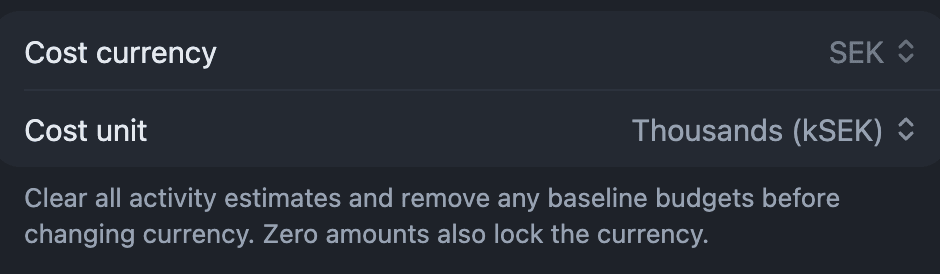
- In Properties, choose the Cost currency and Cost unit. Enter an Estimated cost for each activity, in List or under Advanced on its card.

- Add each contract period a decision can avoid as an activity with its own cost, such as one per contract year.
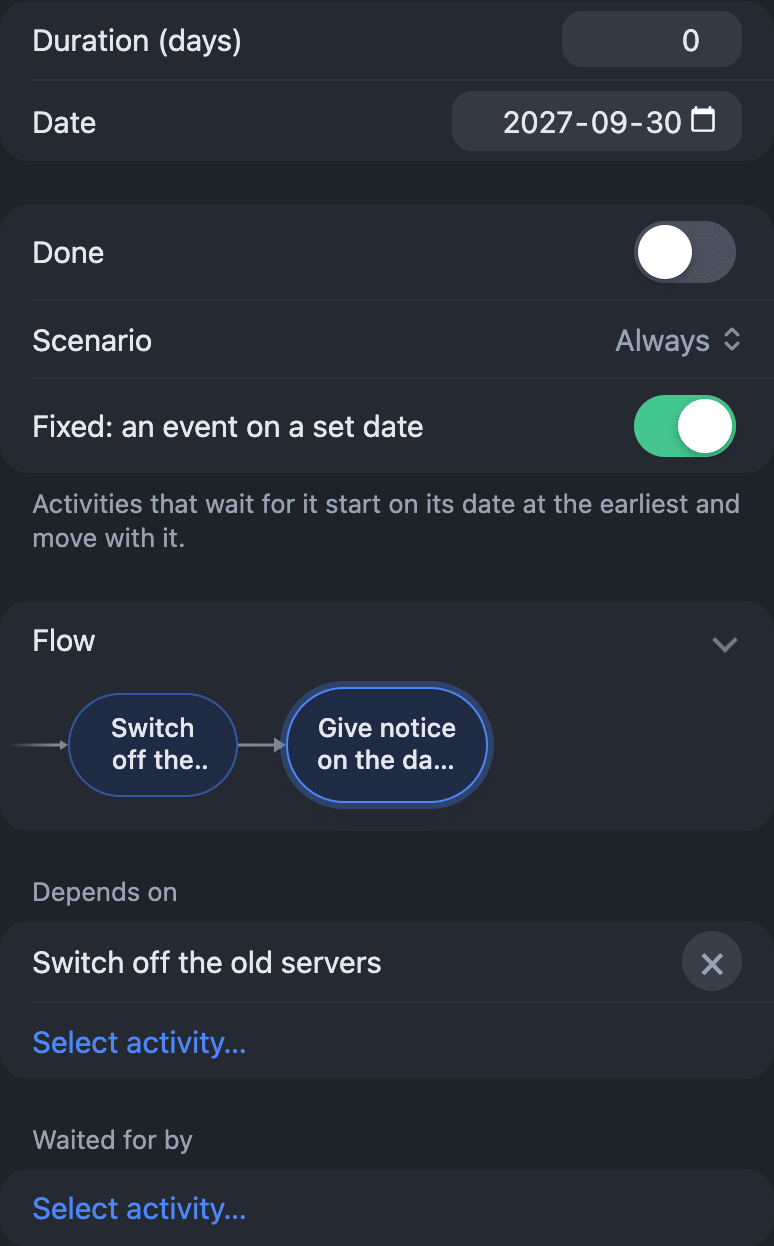
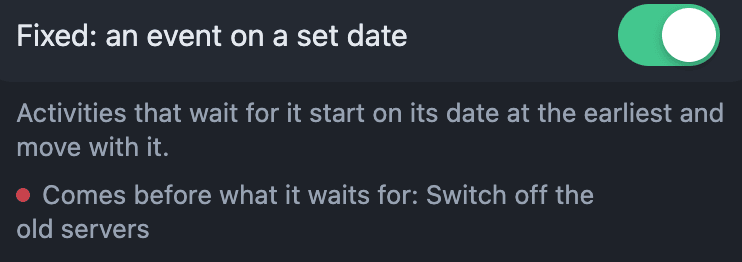
- Choose New activity for the deadline, give it the notice date and a length of 0, and turn on Fixed: an event on a set date. Add it under Waited for by on the last migration activity.
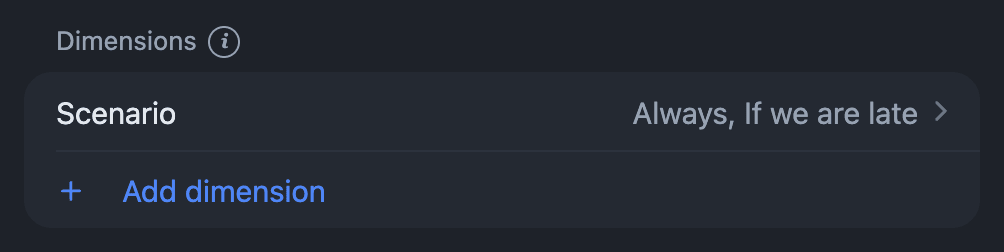
- Under Dimensions, create Scenario with the values Always and If we are late. Give every record a value, the milestone too.
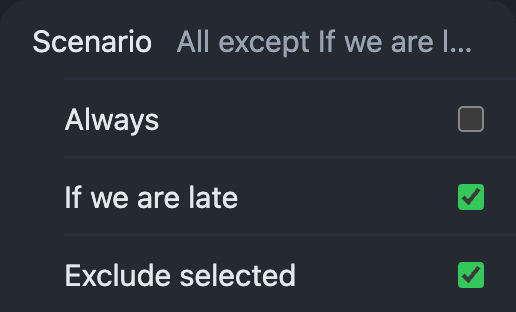
- Choose New View…, name it Meet the deadline and open List. Under Filter, open Scenario, tick If we are late and turn on Exclude selected. In Customize View… → Show cost summary, then open Cost summary and set Group by to Scenario. Choose Save changes.
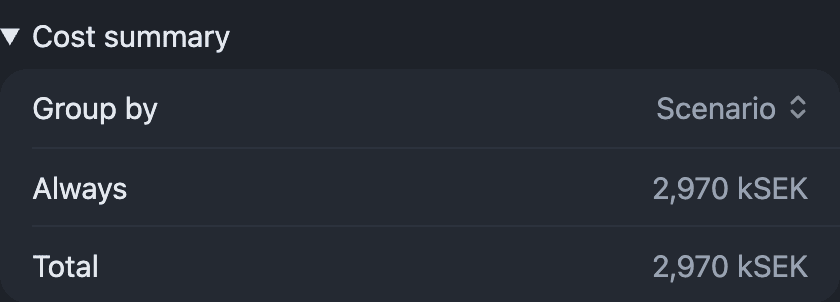
- Save a second List, Late, without a filter and with the same summary, and a Timeline grouped and colored by Scenario with Show cost summary on.
More things to do
See what happens when the migration slips
In the Timeline copy, change the end of Move the databases from 3 September to 1 October. Switch off the old servers now ends on 22 October, after the fixed milestone Give notice on the data centre, which gets a red dot. Move the end back, or choose Undo, and the dot goes.
How it works
The Timeline groups by Scenario and shows each group's cost
The migration is five activities in a chain, from Inventory the applications to Switch off the old servers. Each waits for the previous one, and the last leads to the fixed milestone Give notice on the data centre on 30 September 2027. Each contract year is an activity of its own with its yearly cost: Data centre, 2027 and Data centre, 2028.
Every record has a Scenario value. Work that happens whatever the outcome is Always. Data centre, 2028 is needed only if the notice date is missed, so it is If we are late. The Timeline groups and colors by Scenario and shows each group's cost beside its heading. Milestones have their own row at the top. Switch off the old servers ends on 24 September, six days before the notice date; while the chain ends before the milestone, the plan meets the deadline.
Each saved List keeps its own filter and totals
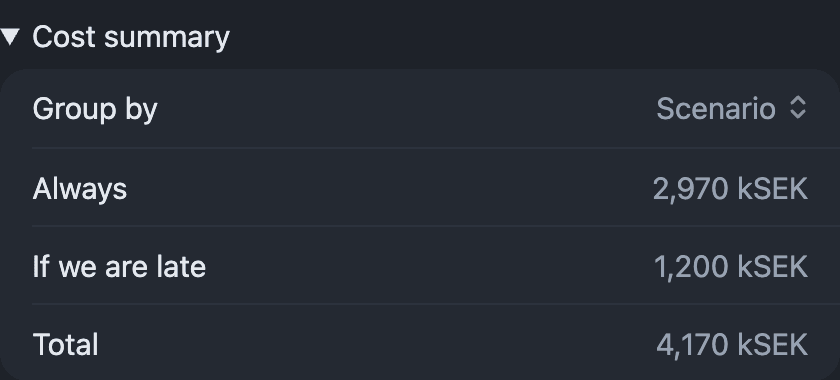
Meet the deadline shows everything except If we are late: the five migration activities, the 2027 contract year and the notice milestone. Its Cost summary total is 2,970 kSEK, made up of 1,770 kSEK of migration work and 1,200 kSEK for 2027.
Late is the same List without a filter. It adds Data centre, 2028: Always is 2,970 kSEK, If we are late 1,200 kSEK and the total 4,170 kSEK. Missing the deadline costs another 1,200 kSEK.
Switch between the saved views in the saved-view menu during the meeting. Each keeps its own filter, columns and cost grouping, so the two totals are one choice apart.
The totals follow the view's filter and search
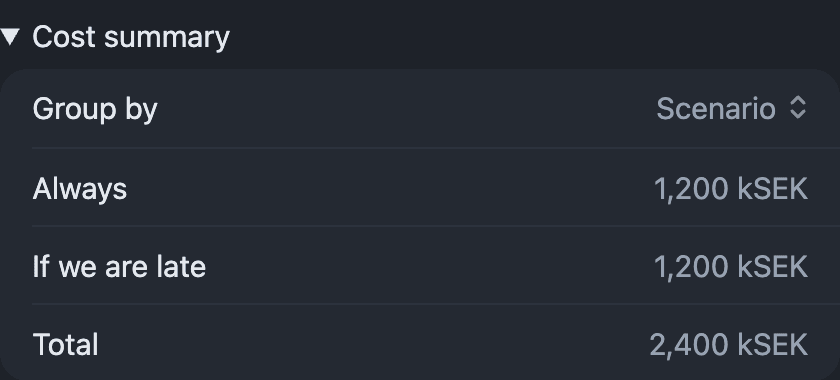
The cost summary adds up the activities that match the view's filters and search. Changing the filter changes the total; the plan stays the same. A filter can show one value of a dimension, several of its values, or all values except the ones you tick. Meet the deadline excludes If we are late rather than selecting Always, so work you add later without a Scenario value still counts toward the deadline total.
Search also narrows the total. Searching for “data centre” in Late leaves the two contract years, 2,400 kSEK, and the notice milestone, whose title also matches. Search covers dimension values too, so “late” finds the work tagged If we are late.
The cost summary is a setting of each view. Turn on Show cost summary in Customize View… for every view where the steering group should see totals, and save the view to keep it; its grouping is saved with it. Only activities carry costs: milestones and periods have none, so the notice date counts toward neither total.
The scenario is a tag you maintain

Scenario is an ordinary dimension. Tidigar does not decide which scenario applies. When the migration slips past the notice date, the milestone shows a red dot, but Data centre, 2028 keeps its If we are late value until you change it. When the steering group accepts the delay, give the 2028 contract year the value Always, or rename the views to match the new decision.
A filtered view hides work but removes nothing
Dependencies keep working when a filter hides one end of the relationship. A filtered view does not remove anything from the plan or its share link, so do not use it to keep a scenario confidential.
A baseline follows the scenario you choose
When the steering group has chosen, save a baseline to follow the plan against that decision. In a writable plan stored in Tidigar Cloud or Server, open Properties and choose Save baseline. The baseline captures the whole plan, including the activities a view filters out. Add the budget and current estimate columns to Meet the deadline and its cost summary compares the budget with the current estimates for the activities in that scenario only. In Timeline, Show baseline draws the saved dates behind the current bars. See Schedule follow-up for dates and Plan project costs for the budget.
When an activity is later split into smaller ones, the baseline still holds the original activity, and the parts appear as added work. Keep the commitment comparable with a milestone that follows the work, such as Migration complete after Switch off the old servers, added before you save the baseline. Let the parts lead to it: it moves later when they slip and shows its variance against the saved date, however the work behind it is divided. The fixed notice milestone keeps its date instead and shows the red dot. Schedule follow-up explains this in more detail.
Other decisions with a notice date work the same way
Closing an office lease, for example, can have the move as activities, the notice date as a fixed milestone and the extra lease period tagged If we are late.
Limits and access
- Free, in the browser and in every Tidigar app.
- Saving, choosing and removing baselines needs a writable plan in Tidigar Cloud or Server; the local copy of this example offers none of them.
- A fixed milestone holds its date and reports later predecessors. It does not move the migration earlier or schedule work backwards from the deadline.
- An activity's cost counts in full whenever the activity is shown; the summary does not spread it over months.
- The embedded example is a copy for exploration. Choose Open in Tidigar for an editable copy; edits to it do not change this guide.
Related
- Plan project costs: currency, units and the cost summary.
- Two kinds of milestone: fixed milestones.
- Plan in phases: more about filtered views.
- Schedule follow-up: baselines and dates.