Let colleagues sign in with their work account
Tidigar Business · Paid
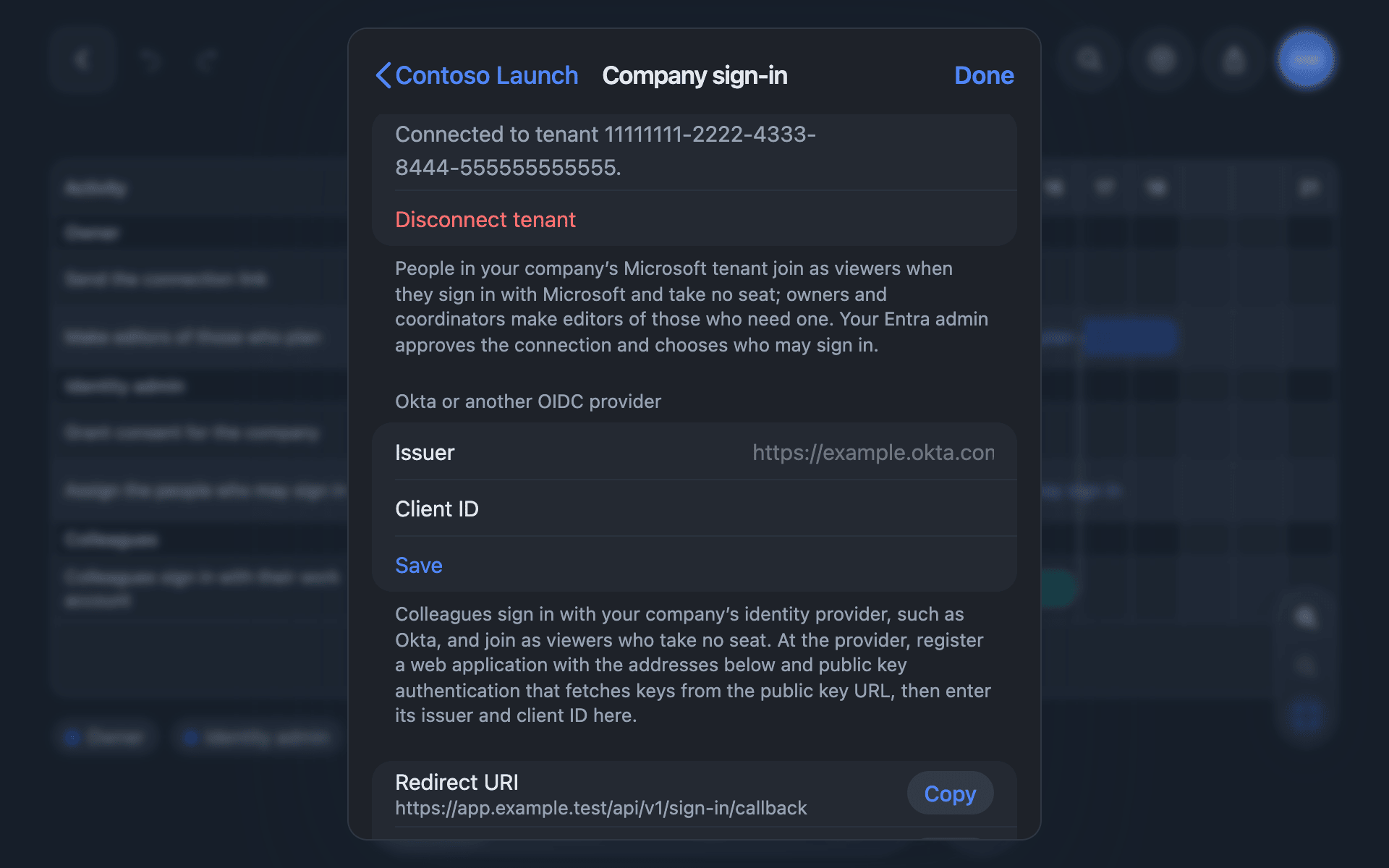
An owner connects the company’s identity provider once; colleagues join as viewers when they first sign in.
Get started
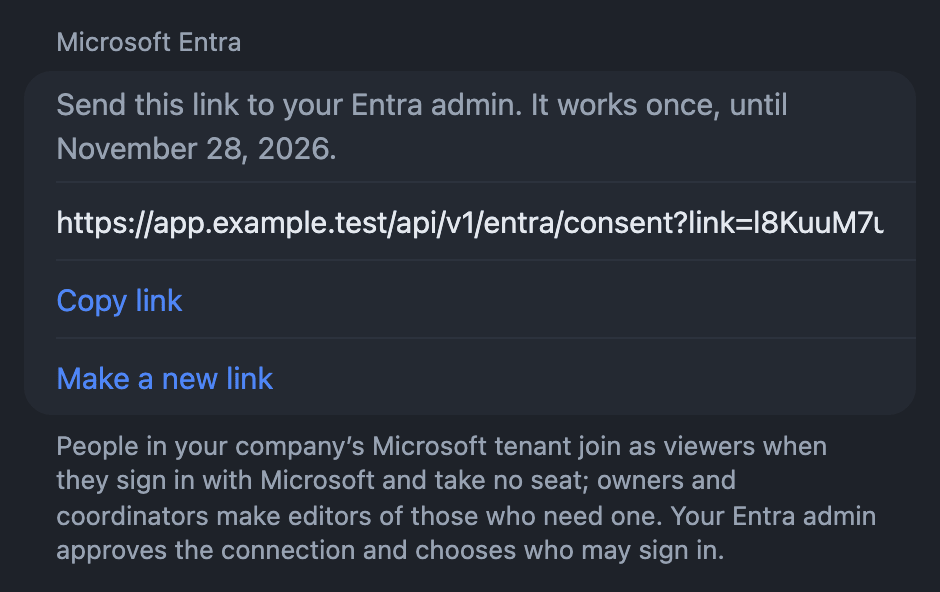
The pictures show a stand-in organisation, Contoso Launch. Nothing is connected for you.
To connect Microsoft Entra:
- As an owner, open your account menu, choose the organisation, then Company sign-in. Under Microsoft Entra choose Connect Microsoft tenant copy the link and send it to your Entra admin. It works once, for seven days; Make a new link replaces it.
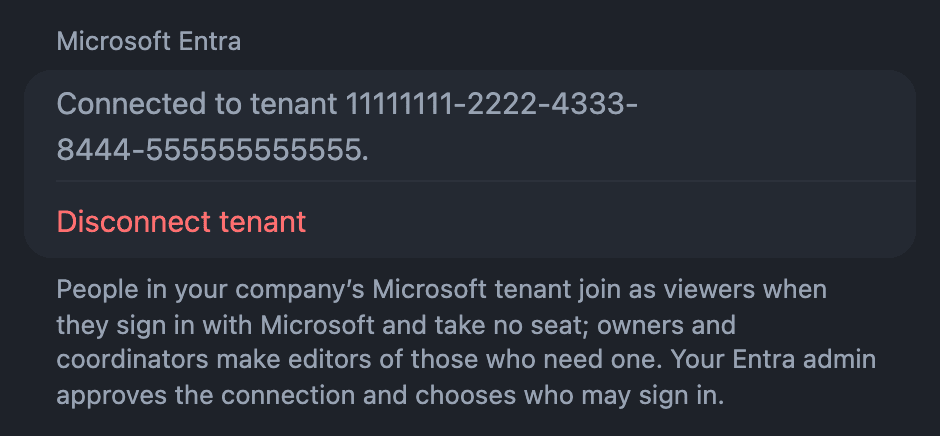
- The admin opens it, signs in to Microsoft and grants consent for the organisation. A page confirms the connection and the organisation’s page shows the tenant.
- In the Microsoft Entra admin center, under Enterprise applications → Tidigar → Properties, the admin sets Assignment required? to Yes, then assigns the people or groups who should use Tidigar under Users and groups.
- Colleagues choose Continue with Microsoft when they sign in and join as viewers.
- To edit, a viewer asks an owner or coordinator, listed with their address on the organisation’s page, to open the viewer’s member row and change Role to Editor.
To stop new people joining, an owner chooses Disconnect tenant; members stay until an owner removes them.
More things to do
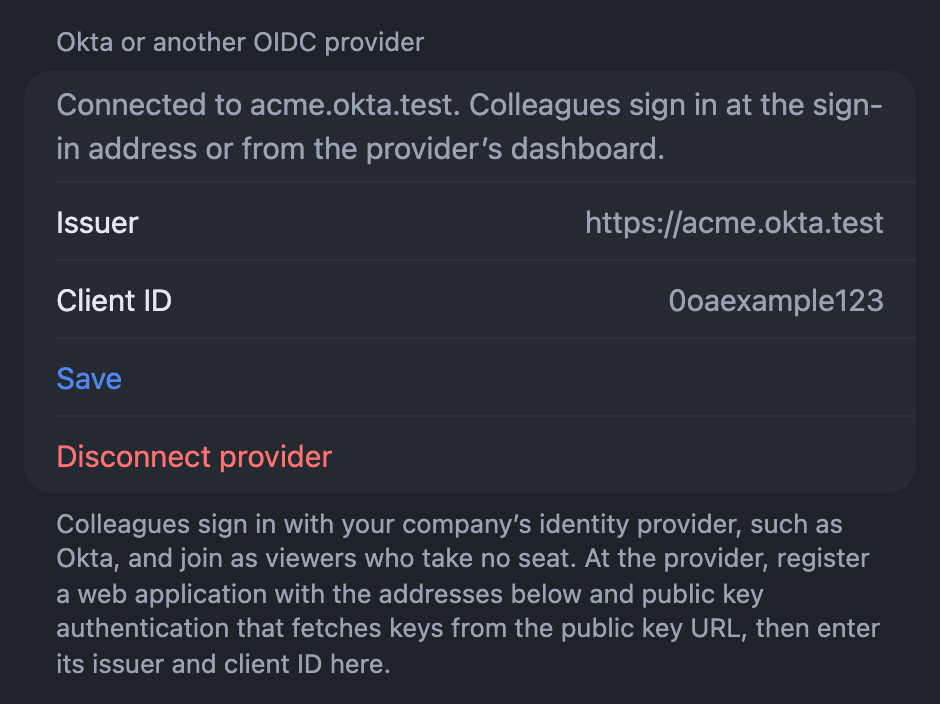
Connect Okta or another OpenID Connect provider
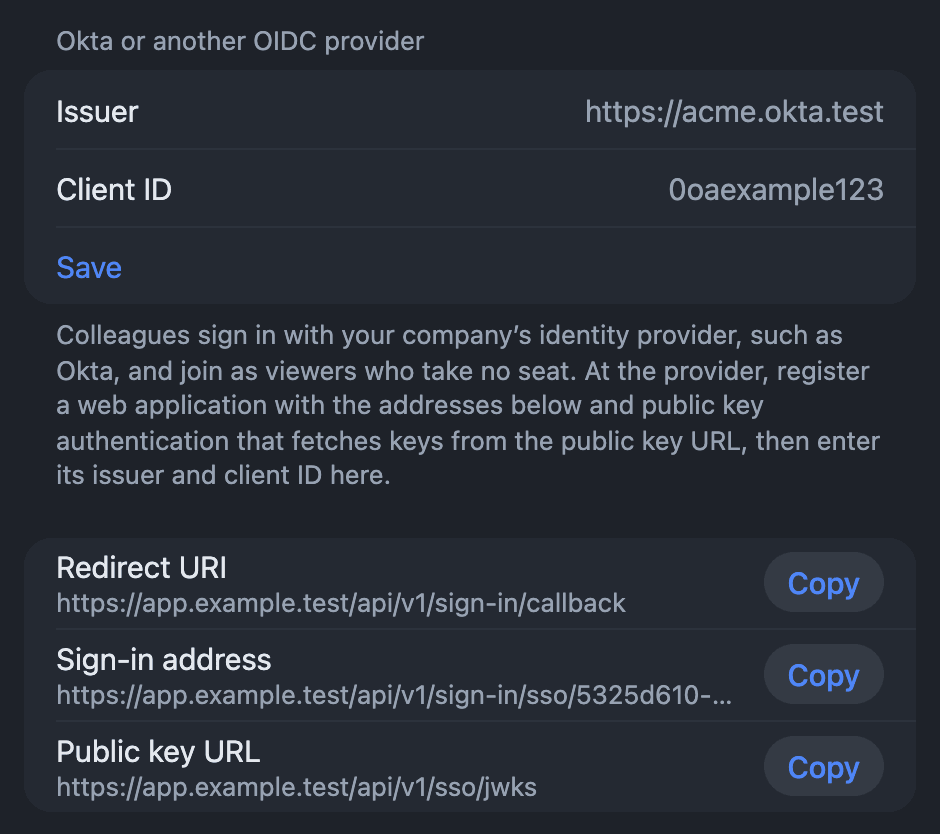
Colleagues then sign in from the Tidigar tile in Okta, or at the organisation’s sign-in address.
- As an owner, open Company sign-in. It lists Redirect URI, Sign-in address and Public key URL, each with Copy.
- Your Okta admin makes a web application from them, as described below, and assigns the people or groups who should use Tidigar.
- In Tidigar, enter the Issuer, your Okta address such as
https://yourcompany.okta.com, and the application’s Client ID, then choose Save. - Choose Sign in to connect and sign in with your own Okta account. That connects it, and your Okta account becomes one of your ways in.
To stop people signing in this way, an owner chooses Disconnect provider; members stay.
How it works
A connected tenant starts people as viewers
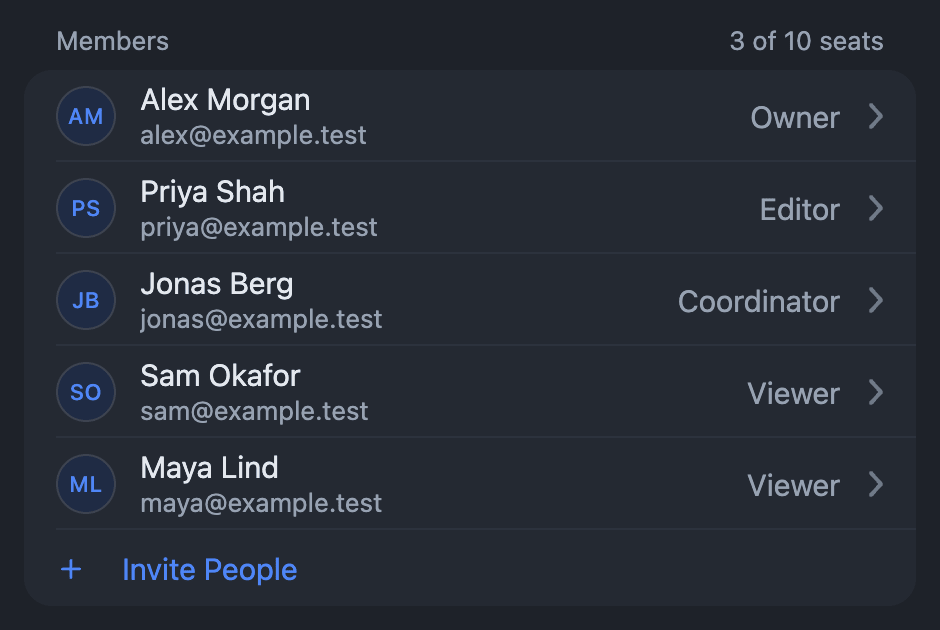
Connecting Microsoft Entra ID or another company sign-in is included in Business, billed monthly or yearly. People who join as viewers use the team’s included viewer places. Only an owner or coordinator making someone an editor uses a seat, and that raises the subscription if the seats are full.
When the viewer places are full, the person who signed in is told whom to ask. Owners and coordinators see them under Could not join on the organisation’s page; once seats are added, they join the next time they sign in. Coordinators move members between viewer and editor; other role changes stay with owners. Someone an owner removed, or who left, is not added again by signing in; invite them to bring them back.
Only an admin’s consent connects a tenant
An owner’s link alone, or an ordinary colleague’s sign-in, does not connect a tenant. A tenant connects to one Business organisation, and an organisation to one tenant; a second organisation trying to connect the same tenant is refused.
Tidigar reads no users or groups from the tenant. Choose who may sign in with assignment in Entra: without Assignment required?, everyone in the tenant who signs in with Microsoft joins. Blocking or unassigning someone in Entra stops their next Microsoft sign-in, but they keep their seat, and any other way they sign in, until an owner removes them in Tidigar.
A colleague whose address is on a domain the tenant has verified gets an account at once. Otherwise, including guests, and whenever an account with that address already exists, Tidigar first sends the usual sign-in email to confirm the address, and the person joins after confirming it.
The Okta application uses a public key, not a secret
Tidigar keeps no password or secret from Okta. In the Okta Admin Console, the admin chooses Applications → Applications → Create App Integration, then OIDC - OpenID Connect and Web Application. They enter the Redirect URI as the sign-in redirect URI and the Sign-in address as the initiate login URI, keep Authorization Code as the grant type and leave Require PKCE on. Under Client Credentials, they set Client authentication to Public key / Private key, choose Use a URL to fetch keys dynamically and enter the Public key URL.
Company sign-in confirms each address once
Okta and other providers do not prove that an address belongs to the person, so a new colleague always confirms theirs by email once; after that they sign straight in and join as viewers. A provider connects to one Business organisation; another organisation trying to use it is refused. As with Entra, choose who may sign in with assignment at the provider; someone you unassign keeps their seat until an owner removes them in Tidigar.
Members need another way in before company sign-in pauses
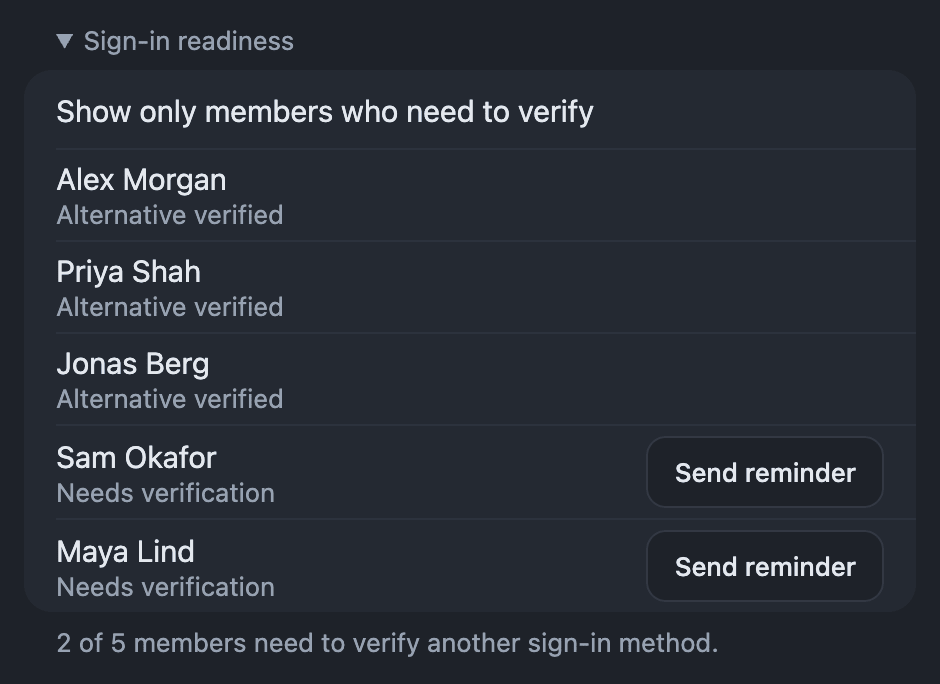
Company sign-in is an additional way to sign in. While a connection exists, the Company sign-in page lists Sign-in readiness: how many members still need to verify another sign-in method, with Send reminder for each. If Business ends, company sign-in and automatic joining pause, and existing members can sign in another way. Before cancelling, have an owner check that everyone can sign in to the same account another way.
Limits and access
- Company sign-in is part of Tidigar Business and needs the browser. Only an owner connects or disconnects it.
- Tidigar Cloud offers it; Tidigar Server does not.
- It does not enforce single sign-on or remove members when IT revokes access.
- Disconnecting never removes members.
Related
- Teams and permissions: roles, plan access and invitations.
- Library and storage: where the team’s plans are kept.
- Agents with your Tidigar plans: connect an assistant or CLI.