Open Tidigar from its own icon
Free
Install the Tidigar web app on your phone, tablet or computer to open your plans like any other app, with or without a connection.
Get started

- Open app.tidigar.com in your browser.
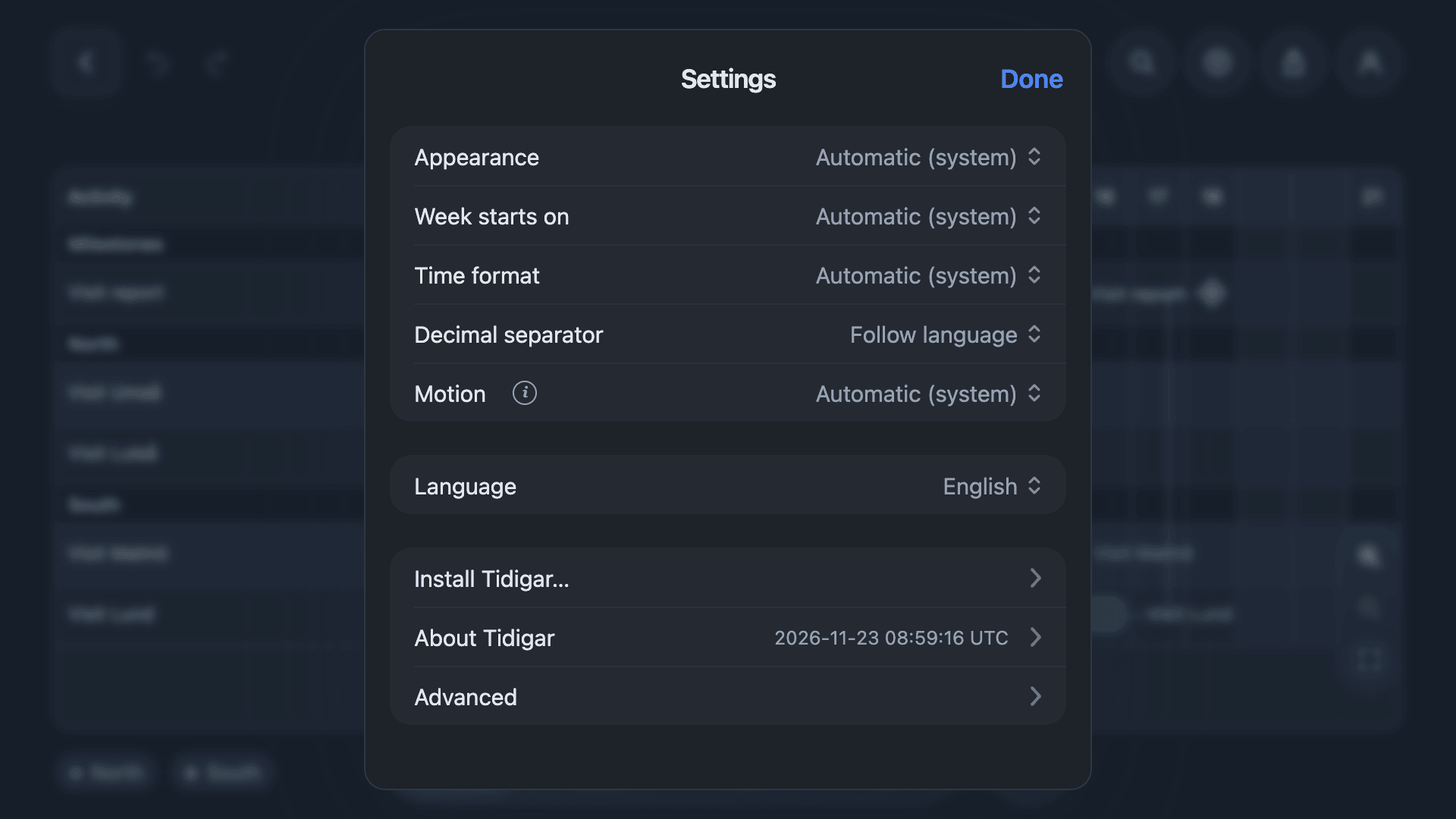
- Open the account menu and choose Settings, then Install Tidigar….
- In Chrome, Edge and on Android, confirm the browser's question. On an iPhone or iPad, follow the instructions Tidigar shows.
- Open Tidigar from its new icon. Your plans and the app open in a window of their own.
More things to do
Install on an iPhone or iPad
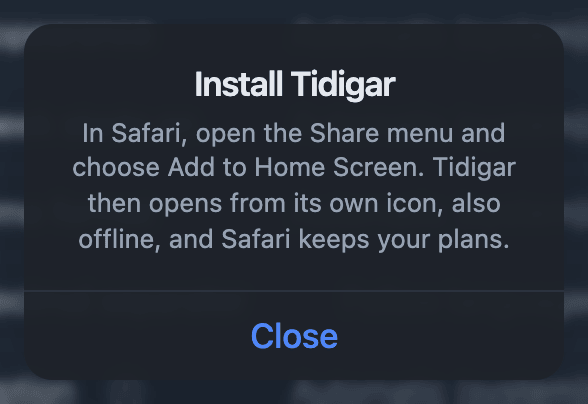
In Safari, open the Share menu and choose Add to Home Screen, then Add. Safari on a Mac installs with File → Add to Dock.
Get notified on an iPhone
An iPhone or iPad shows notifications only from apps on the Home Screen, from iOS 16.4. Install Tidigar first, open it from its icon, sign in and turn on notifications in your account settings to hear about assignments and mentions.
How it works
The app is the same Tidigar as in the browser
The installed app is the web app at app.tidigar.com in a window without the browser's address bar and tabs. It has the same views, the same account and the same plans as the browser tab it came from. While Tidigar runs installed, Install Tidigar… is not shown. In a browser without an install command, Tidigar stays in a tab and works the same there.
The app starts without a connection
Tidigar keeps its own files on the device after the first visit, so it starts offline, installed or not. Plans kept in this browser are always on the device. A plan kept in your account or a team opens offline once a copy is on the device; Library and storage shows how to check. Edits made offline are saved on the device and reach Tidigar when the connection returns.
Installing asks the browser to keep your plans
Browsers may clear a website's data when the device runs short of space. Once installed, Tidigar asks the browser to keep its storage. The browser decides; a plan you cannot lose belongs in your account, a team or an exported file as well.
On an iPhone or iPad, the Home Screen app has its own storage
An app added to the Home Screen keeps its data apart from Safari. Plans kept only in Safari stay in Safari and do not appear in the installed app. Sign in and move them to your account to have them in both.
New versions arrive by themselves
When a newer version of Tidigar has arrived, a card at the bottom of the window says A new version of Tidigar is available. Choose Reload to start it; your plans are already saved on the device. Tidigar looks for a new version when you return to it, at most every ten minutes, and every hour while it is in view. Offline, it keeps the version it has.
Limits and access
- Free, with no account. Plans in your account or a team need sign-in, also in the app.
- Chrome, Edge and Android install from Install Tidigar…; Safari on iPhone, iPad and Mac from its own menu. Other browsers keep Tidigar in a tab.
- The first start needs a connection, to fetch the app.
- An installed app is not a native app from an app store, and it reads no files or calendars on the device.
Related
- Library and storage: where each plan lives and when it is ready offline.
- Keep changes made elsewhere: edits from another device or tab.
- Assignments and history: notifications about your work.
- Where your plans live: browser, account and server.