Keep both people's work
Free Tidigar Business · Paid
When the same plan is changed in another tab or on another device, Tidigar keeps both sets of edits and asks only where you both changed the same thing.
Get started

This workshop has three activities and one following milestone. Open in Tidigar opens your own copy. The frame shows the plan; it does not simulate another person's edits or open the conflict sheet.
For a two-person exercise, move your copy to a writable team and invite a colleague as an editor. Both people must open that organisation's same plan. See Teams and permissions and Sharing a plan.
- Both open A workshop planned together while connected. Your colleague can then go offline with that plan already open.
- Change the progress of Draft the agenda from 25 to 50 percent and let your connected device save it.
- While still offline, your colleague renames Invite customers to Invite workshop guests.
- Reconnect the colleague's device and let it sync. Check that the shared plan has both the new progress and the new title.
More things to do
Choose a title when both people changed it
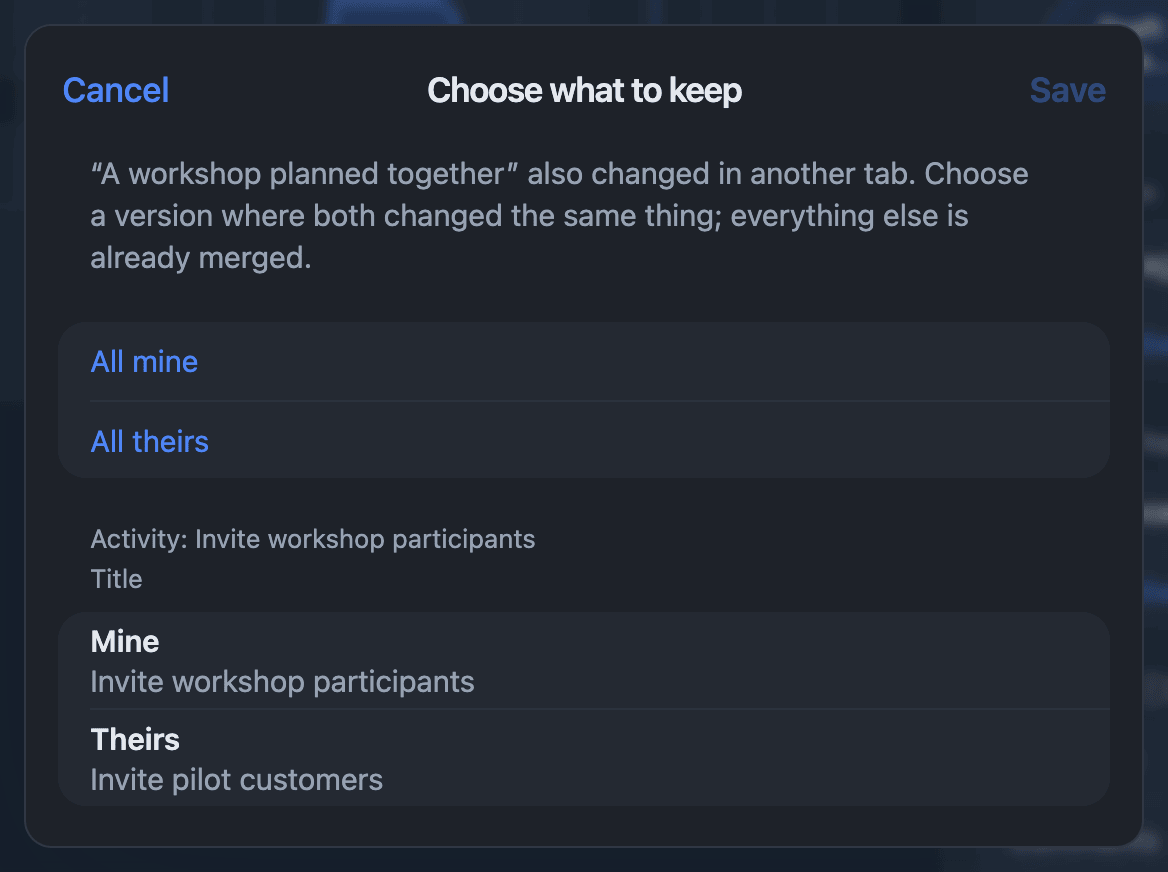
Take the colleague's device offline, rename that activity to Invite pilot customers on your connected device and let it save. On the offline device, rename it to Invite workshop participants and reconnect. Choose what to keep shows the title: Mine is Invite workshop participants, Theirs is Invite pilot customers. Choose one and save.
Settle dates that do not fit
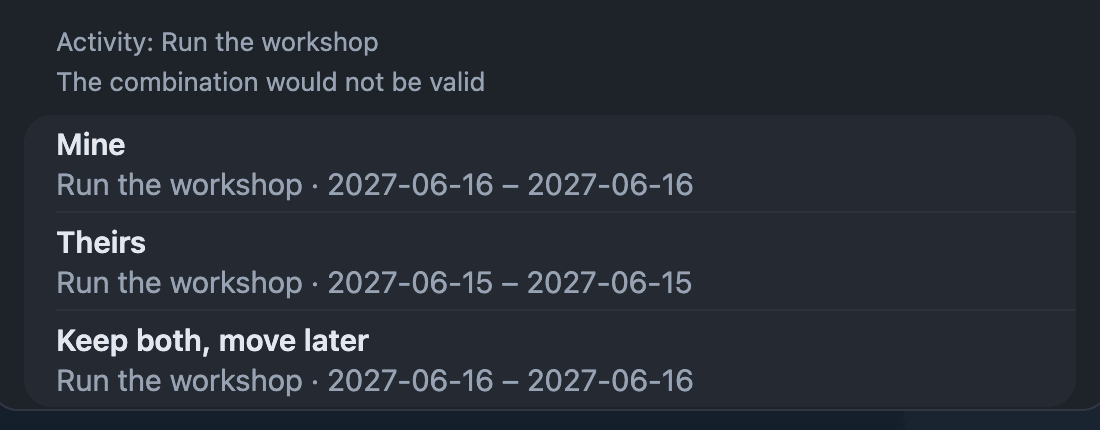
Extend Draft the agenda to end on 2027-06-10 in one tab and let Invite customers end on 2027-06-15 in a tab that is behind. Choose Theirs for the dates, then Mine for the end of Invite customers. Run the workshop now shows The combination would not be valid; choose Keep both, move later, review the rows and save.
How it works
Changes to different things need no decision
Neither edit has to win over the other when they change different fields. The same applies when one person changes an activity's title and another changes its progress, provided the combined plan remains valid. Tidigar compares your current plan and the incoming version with a previously known shared version. A field changed on only one side is kept. The same value chosen on both sides needs no decision. Different changes to the same field require a choice.
Every conflict needs a choice before you can save
Choose the version to keep, then save the merge. Changes that do not conflict are already included. Check the result in the shared plan after sync completes. Mine and Theirs describe the two versions being compared, rather than who owns the plan.
All mine and All theirs answer the conflicts together. They still retain independent changes from both versions; they do not replace the whole plan with one person's snapshot. Use individual choices when you need some changes from each person.
Keep both, move later is offered only where moving later helps
Each person's plan can be valid by itself, yet the combined dates may break a dependency: for example, one person extends Draft the agenda while someone else moves Invite customers earlier, so the invitation starts before its predecessor has finished. The sheet then shows The combination would not be valid.
Where rescheduling can fix a dependency timing conflict, Keep both, move later offers dates that retain the changes and move waiting work. Later activities can follow too. Review every resulting row before saving. It cannot fix every invalid combination, such as an activity ending before it starts or a dependency cycle; choose differently for the changes involved. Tidigar checks the combined plan rather than silently accepting dates or relationships that cannot work together.
A shared starting point explains what changed
Records are matched by their identity, so two activities with the same title can still be different activities. A title or a matching project identifier alone does not prove that two copies share a known starting point. New plans and conflict copies are independent plans.
The shared starting point is remembered locally for synchronization; it is not a history carried in a share link or exported plan. Missing or unreadable local history can therefore prevent a merge even when two versions look related. Keeping a copy or explicitly choosing a replacement is safer than guessing which edits were intended.
Deletion and ordering can conflict too
Deleting a record on one side and leaving it unchanged on the other removes it. Deleting it while the other side edits it needs a choice: restoring the edited record and accepting its deletion express different intentions.
Conflicts can also involve dimensions, dimension values, milestones, periods and saved views. Incompatible ordering changes can need a decision. Dependencies are combined as relationships, then checked with the rest of the plan. Independent edits may still produce a broken reference, a cycle or impossible dates; resolving the text choices can reveal another conflict about that combination.
Your personal reading state, such as which view is selected or which summaries are folded, is separate from the plan. It is not another person's conflicting edit. Stored view settings do belong to the plan; see Timeline views.
More changes can arrive while you choose
For browser tabs and stored plans, the sheet can refresh if the stored plan changes again. It says The roadmap changed again. Check the choices before saving. Review the displayed values, including any new conflicts. Saving checks for another update before applying the merge; the first save attempt may refresh the choices instead of closing the sheet.
Cancelling keeps your work as a separate copy

Cancelling the sheet leaves the fallback for that storage workflow in place:
| Situation | What happens when you cancel |
|---|---|
| Another browser tab saved the same local plan | This tab's version is saved as a separate plan; the other tab's stored version stays in the original. |
| A stored plan's update conflicts with your local work | Your local work is kept as a separate copy, and the linked plan takes the server's version. If the organisation keeps plans inside it, Tidigar attempts to add the copy there; check the result message. |
A conflict copy has its own identity. Review both plans and keep the one you intend to continue, transferring any remaining useful edits deliberately. Editing a copy does not resolve or update the original automatically. Read the message and storage label before assuming the copy is shared with colleagues.
Limits and access
- Merging between browser tabs works without an account; a plan shared between people needs a writable team (Tidigar Business).
- These safeguards reduce accidental overwrites; they are not a backup history of every edit.
- Sending each person a copy creates separate plans that do not exchange changes.
- Without a readable shared starting point, Tidigar keeps a copy instead of merging.
Related
- Teams and permissions: invite an editor to a shared plan
- Library and storage: choose a storage place and keep an independent plan
- Timeline views: which view settings belong to the plan
- Sharing a plan: copies and links