Give your team one shared plan
Free Tidigar Business · Paid
A team keeps one plan that everyone works on: free for up to five people, Tidigar Business for more.
Get started
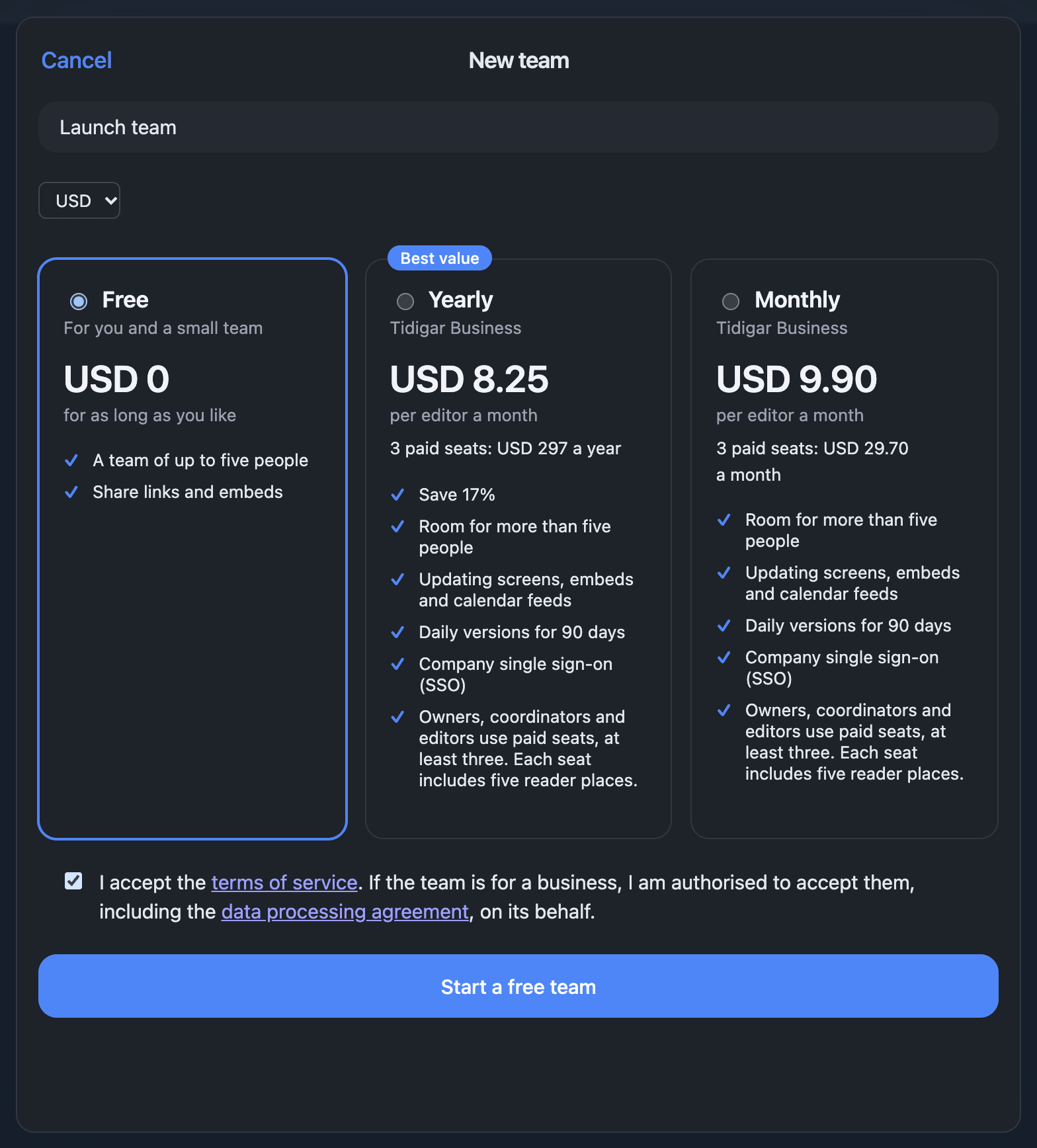
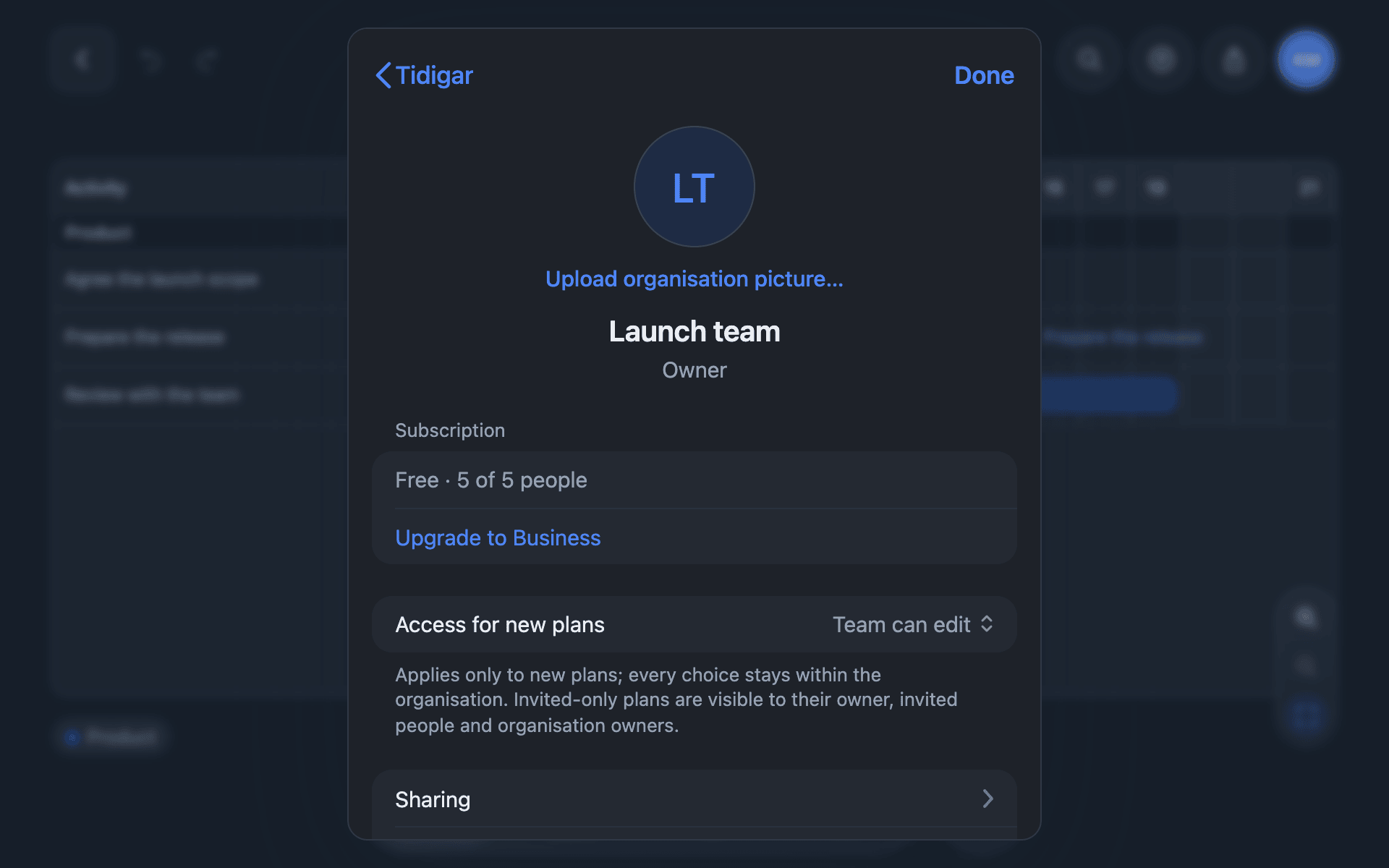
The pictures show a stand-in team, Launch team.
- In the browser, sign in, open the account menu and choose New team….
- Name it, such as Launch team, select Free, accept the terms and choose Start a free team.
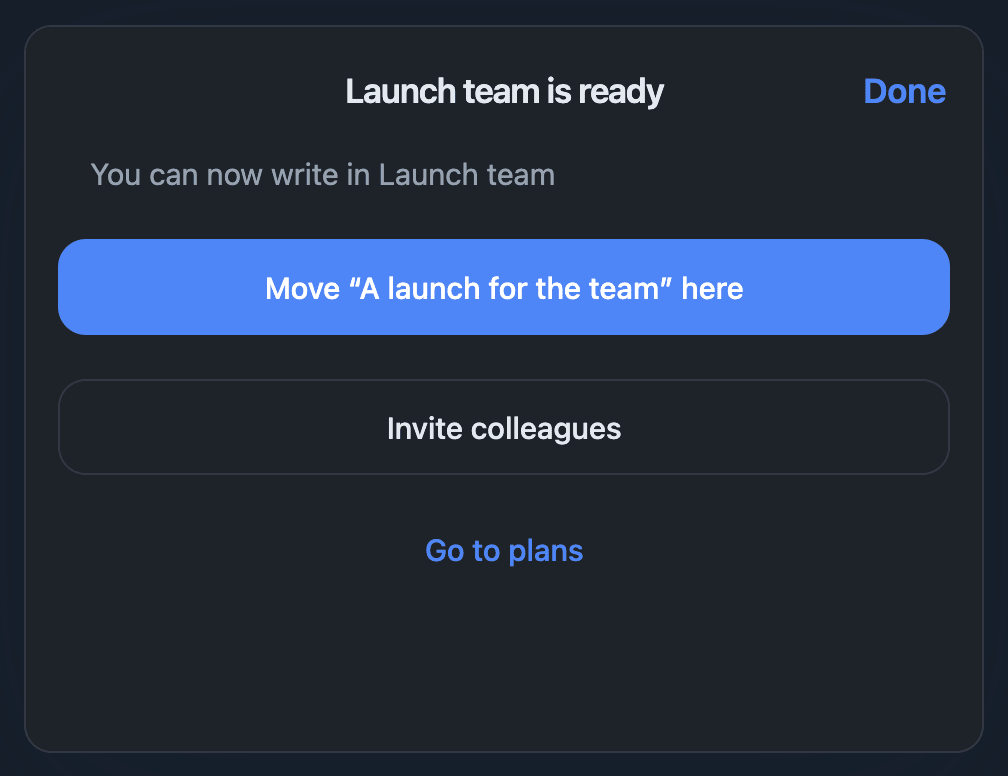
- At Launch team is ready, choose Move “…” here to bring the plan you opened; later use Properties → Move to….
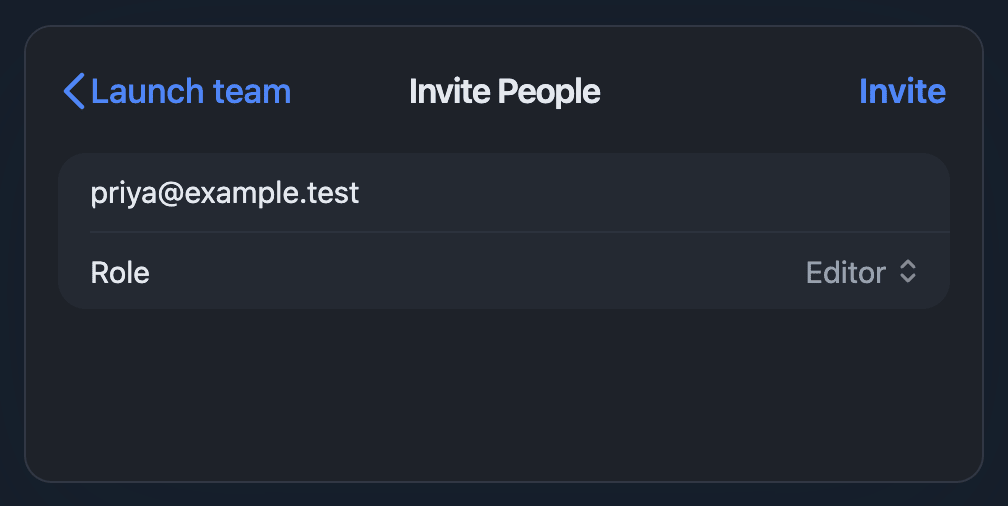
- Choose Invite colleagues, enter a sign-in email, select Editor (Viewer to only read) and choose Invite.
- Each colleague opens the email, signs in with the invited address and chooses Accept. Opening the link alone does not join.
- Open the launch, choose Share → Copy link to plan and send the address to members who accepted.
More things to do
Set access on a plan
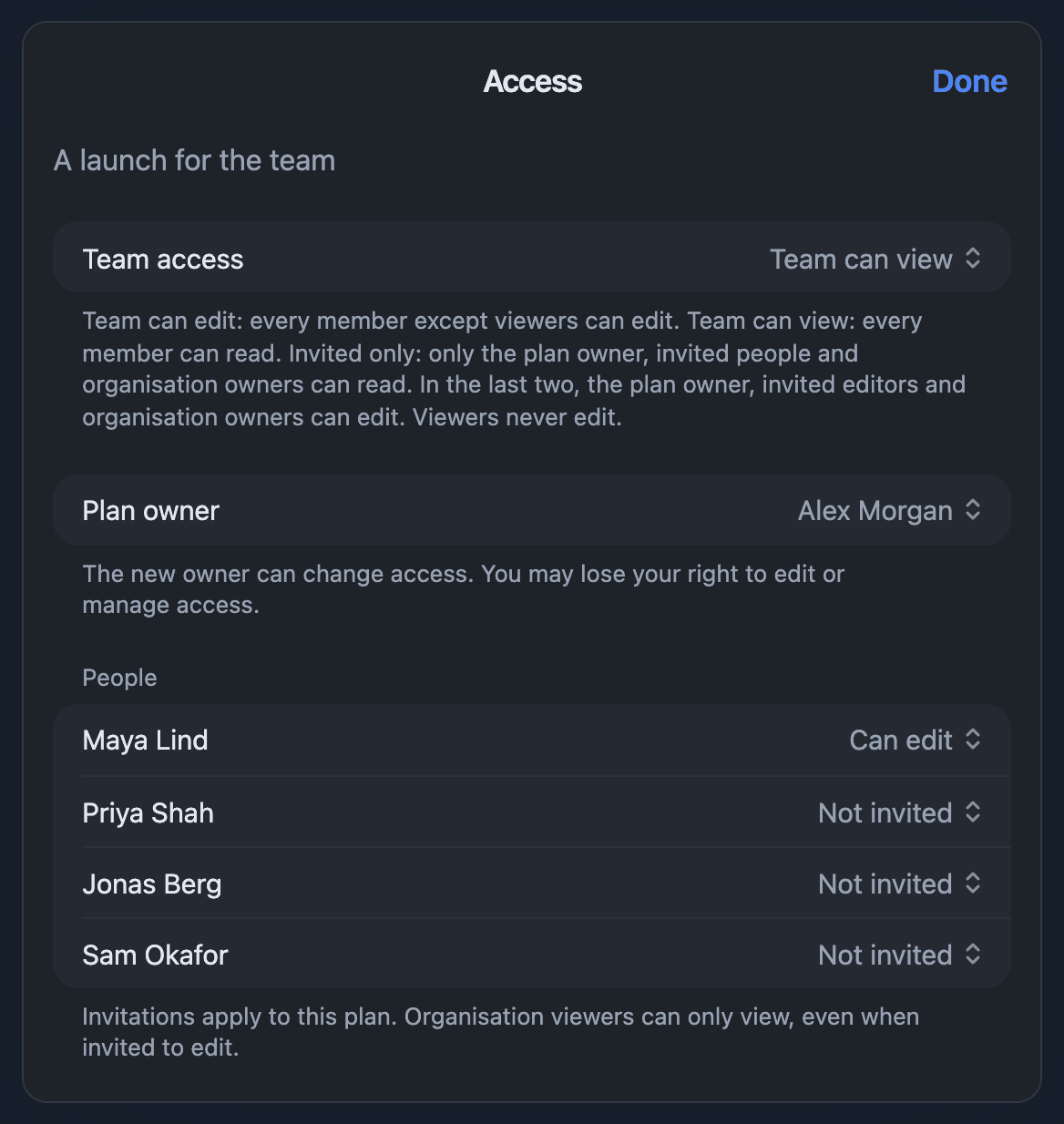
The team should read the launch and Maya should maintain its dates. Open the plan card, or its properties, then Access.
- Under Team access, choose Team can view.
- Under People, choose Can edit for Maya, an existing member with an editing role.
- For a private budget draft, choose Invited only and give each colleague Can view or Can edit; organisation owners keep access.
- Use Share → Copy link to plan; it opens the plan only for people who already have access.
Hand over a plan
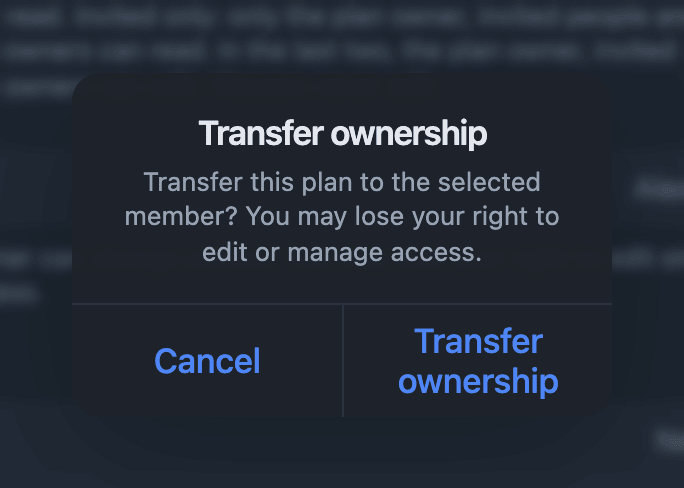
Open Access, choose the new Plan owner and confirm Transfer ownership. The new owner must be a current organisation member.
Keep plans inside the organisation
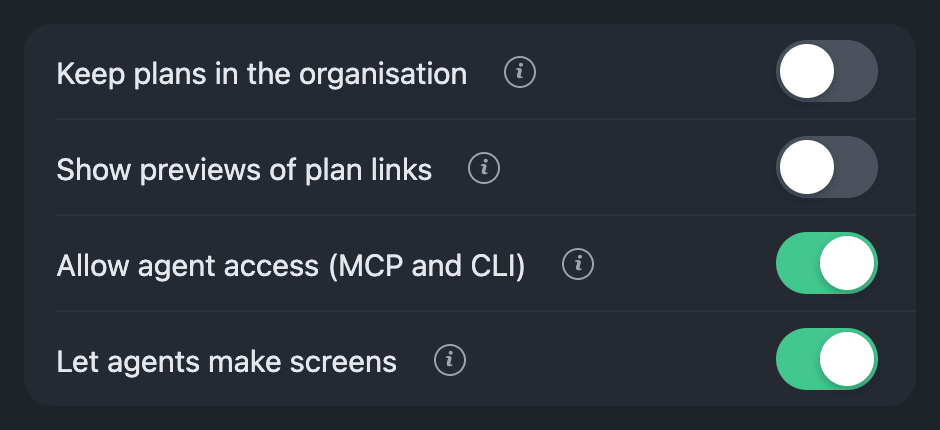
An owner opens the organisation’s Sharing settings and turns on Keep plans in the organisation. Show previews of plan links and Allow agent access (MCP and CLI) are described below; Screen links covers Let agents make screens.
How it works
Choose the smallest role that fits
| Role | Work with shared plans | Manage the organisation |
|---|---|---|
| Viewer | Read plans you have access to; local exploration does not update the shared plan | Accept invitations, see whom to ask for editing, and leave |
| Editor | Create plans and edit those you have writing access to while the organisation is writable | Accept invitations and leave |
| Coordinator | Work with plans as an editor | Also see members, invite editors or viewers, resend and revoke invitations, and make viewers editors or editors viewers |
| Owner | Read every plan and edit every plan while the organisation is writable | Also change roles, remove members, manage the subscription and organisation settings, download its package and delete the organisation |
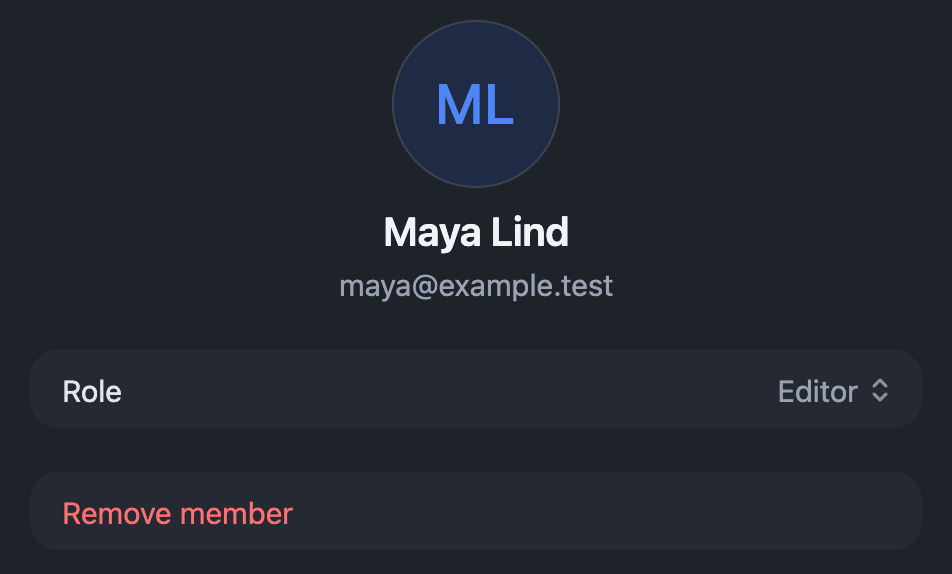
To make a colleague a coordinator or owner, invite them as an editor or viewer first. After they accept, an owner opens their member row and changes Role. Role changes need no second acceptance step. Other devices learn of them through normal access and plan-list refreshes.
Before handing over ownership, promote another member to Owner and check that the change succeeded. Tidigar refuses to remove or demote the last owner, including when that person tries to leave.
The same account can belong to several organisations, with a different role in each. Open your account menu, then the organisation under Organisations, to check its name and your role before changing anything. Joining an organisation does not upload a colleague’s local plans or give it access to plans they keep elsewhere.
Plan access combines with the role
| Team access | Who can read? | Who can edit? |
|---|---|---|
| Team can edit | Every organisation member | Members with an editing role |
| Team can view | Every organisation member | The plan owner, people with Can edit, and organisation owners |
| Invited only | The plan owner, invited people and organisation owners | The plan owner, people with Can edit, and organisation owners |
Every edit also requires an editing organisation role and a writable organisation. Can edit never turns a viewer into an editor. Every level stays within the organisation. Invited-only plans are available in every organisation. Organisation owners can read and edit them, so choose Invited only when selected colleagues should see a plan, rather than when it must be hidden from the organisation's owners.
Can view gives reading access to an invited-only plan. On a plan the team can view, it leaves that person read only. On a plan the team can edit, it does not restrict an editor: that level already allows them to edit. Choose Team can view if only selected editors should change the plan. Not invited removes the individual plan grant; it does not remove rights supplied by the access level or ownership.
A plan invitation selects a current member's rights on this plan. To bring someone new into the organisation, first use Invite People and have them accept the organisation invitation. Assigning an activity to someone also does not grant plan access; see Assignments and history.
Changes to access save as you make them. If a change reports a failure, check the settings again after reconnecting before relying on the new access.
An organisation owner is not a plan owner
An organisation owner manages the organisation and can see, edit and manage access to every plan. A plan owner is the one member responsible for that particular plan, initially its creator. Owning a plan does not make you an organisation owner or let you change other members' organisation roles.
The plan owner, organisation owners and coordinators who can see the plan can change its access, people and owner. Coordinators have no automatic reading access to invited-only plans. On other plans than Team can edit that they can see, they still need plan ownership or Can edit to change content, even when they can manage access.
When a member leaves or is removed, their plans, including plans in the trash, pass to a remaining organisation owner and their plan invitations are removed. Check your own invitation before transferring a plan: you may lose editing or, for a private plan, reading access. Plan ownership does not override a viewer role or an expired subscription. Transferring one plan is separate from handing over the organisation: promote another organisation owner before the last owner leaves.
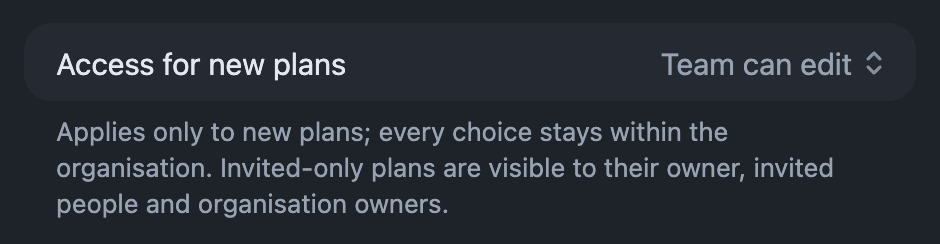
An organisation owner chooses Access for new plans → Team can edit, Team can view or Invited only on the organisation's page. The starting default is Team can edit. The choice applies only to plans created afterwards, including plans moved or copied into the organisation; existing plans keep their own level.
Seats and the free limit
A free team has room for five people in every role, counting pending invitations. An owner can choose Upgrade to Business beside Free on the team's page at any size, and needs to before inviting a sixth person; the team keeps its plans, members and links. To go back, open Manage subscription, choose Change plan and Downgrade to Free. When Business ends, a team of five or fewer becomes a free team by itself; a larger one chooses who stays under Prepare for Free in Manage subscription. An account can start one free team at a time and join any number of others; upgrading it to Business frees that place.
In Business, owners, coordinators and editors use paid seats, with a minimum of three seats. Each paid seat includes five viewer places, shared across the team. Pending viewer invitations count toward that allowance. Owners can upgrade the same Free team at any size and see the total for its paid seats before Checkout. To hand out seats later, an owner can choose more seats in Checkout, or buy more under Manage subscription → Seats; added seats are charged pro rata from that day. The invitation sheet explains whether another editor fits the existing subscription or adds a seat when they accept. A role allows editing only while the organisation is writable; an ended subscription can make an owner's plan read only too, unless the team has five people or fewer and becomes free again.
A private plan can offer one date
A private budget draft can offer an agreed date without opening the whole plan. Save your own milestone, open its card and turn on Outgoing milestone. Everyone in the organisation can then take in its title and date and see the source plan's name. A period offers its title, description and dates the same way with Outgoing period. Choose names suitable for the whole organisation. Only people who may edit the plan can change this selection. Incoming milestones cannot be offered again. A private receiving plan appears as A private plan in Used in for people without access, with no opening link. See Incoming milestones for the full workflow.
An invitation belongs to an email address
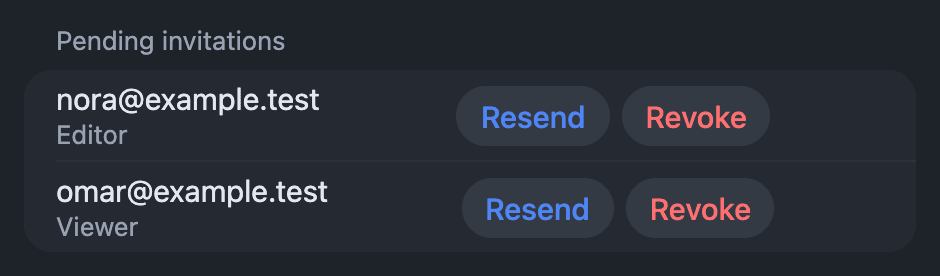
Only the account signed in with the invited email can see and accept the invitation. If it is missing, check the signed-in address and organisation name first. A forwarded email or a plan link does not give another account membership.
Invitations expire after seven days. Owners and coordinators can use Resend beside a pending invitation; resending replaces the previous invitation and starts a new seven-day period. They can also revoke it. A recipient can decline it. An accepted, expired, declined or revoked invitation cannot be used again.
An invitation never silently changes an existing member's role. An owner changes that role from the member's page instead. If sending fails, correct the address or reported delivery problem and try again; a message on screen is not proof that the colleague has joined. Pending invitations and member controls need a connection.
Membership covers the organisation's plans
A plan link identifies the plan; the recipient's signed-in membership decides access. A non-member is asked to request an invitation or use another account. Membership gives reading access to plans the team can edit or view. Invited-only plans require plan ownership, an invitation or organisation ownership. A plan the team can view also needs plan ownership or an editing invitation to change it, except for organisation owners.
A viewer's edits made during local exploration do not write to the shared plan. An editor or coordinator with plan editing access can edit without controlling the organisation's sharing settings. When you need someone to invite colleagues but not change owners or settings, use Coordinator.
Removing someone stops subsequent access checks from authorising them. It cannot withdraw content they have already read or copies they have already made. An offline device learns about membership changes when it reconnects; removing a member does not remotely erase a disconnected device at that instant.
Access changes and copies
Access changes take effect as normal authorization caches and plan lists refresh. An offline device cannot learn of a change immediately. When a successful refresh confirms that a plan is no longer readable, Tidigar removes its kept copy, including unsent edits. Send waiting work before changing access or arranging a departure.
A protected plan without writing rights can be explored locally; those edits do not update the shared plan. Waiting edits can be sent if you later gain writing rights, so check your local changes before continuing.
Copies, share links, files and Markdown exports carry no plan access settings or outgoing milestone selections. The owner's organisation package preserves them and includes private plans. Removing access cannot recall an earlier copy.
A screen or embed link has its own link access and can be read by anyone holding it, including when its source plan is private. Making the plan private does not revoke that link. Review existing screens separately; see Screen links. Assistants and CLI tokens follow the member's plan rights and their own granted scope; they cannot manage plan access or transfer ownership.
Keeping plans is a workflow rule
Keep plans in the organisation starts off. When enabled, it applies to owners too: it blocks moving plans out, sending copy links and exporting CSV, and it ends existing screen links and prevents new ones. Members cannot bypass it by filtering a view, moving to another organisation or letting the subscription lapse. An owner can change the setting, and the owner's Advanced → Download organisation package remains available.
Members can continue working on cached plans offline within their access. Signing out, leaving or losing membership deletes those kept copies when Tidigar processes the change. Before a voluntary sign-out or departure, Tidigar tries to send waiting edits and asks before discarding edits it cannot send. If membership is removed elsewhere, unsent edits in kept plans can be lost when the device learns that access ended. Reconnect and let changes reach Tidigar before a planned handover.
The setting leaves pictures and printing available and cannot recall earlier exports. Treat it as control over the supported sharing and moving workflows. Turning it off allows those workflows again but does not restore screen links that it ended; create new screens if needed.
For example, keep the launch inside the organisation when the team should continue working from its shared source. Members can still send its member link to each other. Use Sharing a plan for an independent copy where permitted, or Screen links for an updating view without reader accounts.
Previews reveal the name and picture
Show previews of plan links is off by default. A preview never grants access to the plan. With previews enabled, anyone holding the member link can obtain the preview of a plan the team can edit or view, including people outside the organisation. Invited-only plans show a generic preview after the preview cache refresh. The plan still needs membership to open. Leave previews off when even the launch's name or picture should stay within the team.
Preview responses can be cached for up to a minute, so turning the setting off does not remove every preview immediately. A chat app may keep a picture it already fetched. Keeping plans inside the organisation suppresses previews even if they were previously enabled; check the preview setting again before allowing plans out.
Agent access is a separate choice
Allow agent access (MCP and CLI) lets members connect assistants and create agent tokens within their access. Allowing agents does not make plans public or give an assistant a role of its own. Access uses the authorising member's permissions and is limited to that organisation. Turning agent access off asks for confirmation, revokes every existing token and assistant connection in that organisation, prevents new ones and affects all its members' tokens and connected assistants, including owners'. Turning it back on permits new connections; it does not restore revoked credentials.
For connecting an assistant or CLI, continue with Agents with your Tidigar plans. Keep plan sharing and agent access as separate decisions: allowing agents does not turn off the rule that keeps plans inside the organisation.
Leave, hand over or delete
Use Leave organisation when you should lose access while the team continues. An owner can remove another member from their member page. Check waiting edits first and arrange another owner before the last owner leaves.
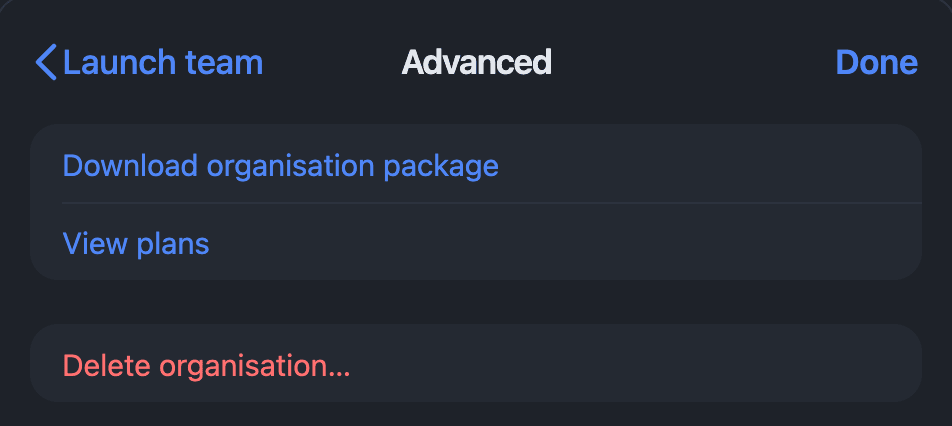
Advanced → Delete organisation… is a different action: an owner confirms its name, its subscription is cancelled and its plans, memberships, invitations and agent access are deleted. This is immediate deletion of the organisation, rather than moving a plan to the 30-day trash. Consider Download organisation package before deleting it. If cancelling the subscription cannot be completed, deletion stops and reports the problem.
Limits and access
- Free teams: five people in every role, counting pending invitations. You can own one free team at a time and join any number of others. Your Personal space is separate and only you can access it.
- Tidigar Business: paid seats for owners, coordinators and editors, with a minimum of three. Company sign-in is part of Business: see Company sign-in.
- Create organisations and manage subscriptions in Tidigar in the browser. Pending invitations and member controls need a connection.
- Removing access cannot recall content already read or copies already made.
Related
- Library and storage: where plans are kept and how to move them.
- Sharing a plan: independent copies where permitted.
- Screen links: an updating view without reader accounts.
- Assignments and history: responsibility without access.
- Incoming milestones: use another plan’s date and decide when your work follows.
- Company sign-in: let colleagues join with their work account.
- Agents with your Tidigar plans: connect an assistant or CLI.