Give your assistant a planning task
Free Tidigar Business · Paid
Ask an assistant to build a plan as a link, or change a stored plan, and check the result.
Get started
Give your assistant this request, adapted to your project:
Read https://tidigar.com/llms.txt and make a Tidigar plan called “Launch review”. Use work days in June 2027. Product agrees the brief on June 7–9, builds the release on June 10–16 after the brief, and reviews the beta on June 17–18 after the build. Launch prepares the announcement independently on June 10–14. Add a Ready to launch milestone after the beta. Return a clickable Tidigar link and state any assumptions.
- Let the assistant build the link. It needs the instructions or skill in Agent instructions and installation.
- Open its answer in Tidigar. Check the title, dates, teams, dependency arrows and milestone against the request.
- Keep editing your copy. The free browser stores it locally; creating the link needs no account.
More things to do
Ask for a change to a copy

Move Build the release five work days later, preserving its duration. Keep Review the beta after it and Ready to launch after the beta. Leave Prepare the announcement on its original dates. Give me a new Tidigar link and summarize the changes.
Compare both links: the first still opens its original snapshot.
Change the team's stored plan
Set up access with Connect your assistant and use a disposable plan first. Open the plan in Tidigar, then ask:
Read our Launch review plan in Tidigar. First tell me its organisation, dates and dependencies so I can check you found the right one. Move Build the release five work days later, preserve its duration, move the beta and launch milestone to follow, and leave the announcement unchanged. Save in this same plan, give me its shared plan link and a summary, and ask me about any conflicting edits.
Let your agent work your activities

Assign activities to yourself in the team's plan, as Assignments describes, and connect your assistant. Then ask:
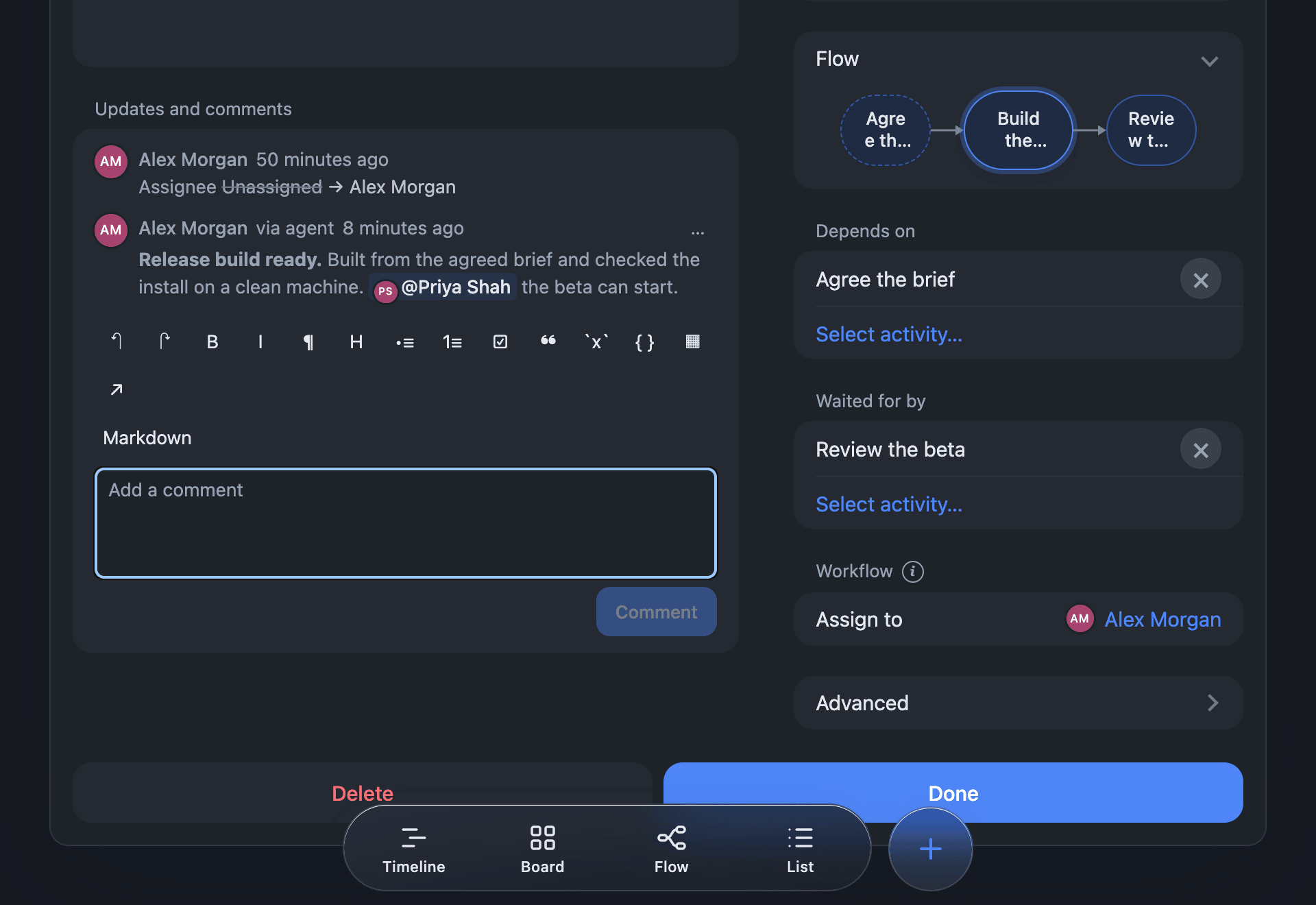
List my activities in Tidigar. Take the first one that is not waiting for other work, do it, comment on the activity with what you did and how you checked it, and mark it done.
Open the activity in Tidigar to read its comment, marked via agent, and check the result.
How it works
A plausible link is not proof
If the assistant cannot produce a valid link, ask for the plan as text and review that. A plausible-looking URL alone does not prove the plan opens; open it in Tidigar.
A link carries a snapshot, not access to your storage
A share link contains the plan data in its address. Anyone holding it can read that copy. It grants no access to your browser library, files, calendars or organisations. Later edits do not update an old link, and revoking an agent connection cannot retract copies already sent. Avoid putting private content in a link you intend to publish; see Sharing.
A connected assistant reaches stored plans, not your browser
A connected agent can reach the stored plans available through its organisation connection. It cannot read a plan kept only in your browser. To work with such a plan in chat, deliberately provide a copy. An assistant's ability to remember a conversation is separate from its access to Tidigar.
After a save is reported successful, check the plan in Tidigar. If several stored plans match, identify the right one by its shared plan link. Other members opening that plan see the saved result too. The returned shared link opens the same stored plan and requires membership; it is different from a share-link copy.
A useful request names the rules as well as the change
Include the scheduling calendar, dates or durations, the work that must wait, and the work that should stay put. Say whether the result should be a new copy or a save in the existing shared plan. Ask the assistant to state assumptions where you have not decided. This makes its result easier to check.
The link builders validate supported fields and encode the plan; they do not decide whether the plan meets your project's needs. They preserve supplied dates rather than calculate every scheduling consequence for the assistant. Review the dates and dependency chain in Tidigar.
A changed copy is a new link
Compare both links and review dependent dates as well as the activity you named. Work days exclude weekends and the plan's vacation periods; reported progress does not determine when a dependency starts. See Dependencies for scheduling controls.
If you edited the plan in Tidigar after the assistant made its link, make a fresh copy from your current plan with Share → Send a copy before asking for another change. The chat's earlier copy cannot see your later edits. Opening the assistant's next link gives you another copy; it does not merge changes into the plan you were editing.
A link plan has a size limit
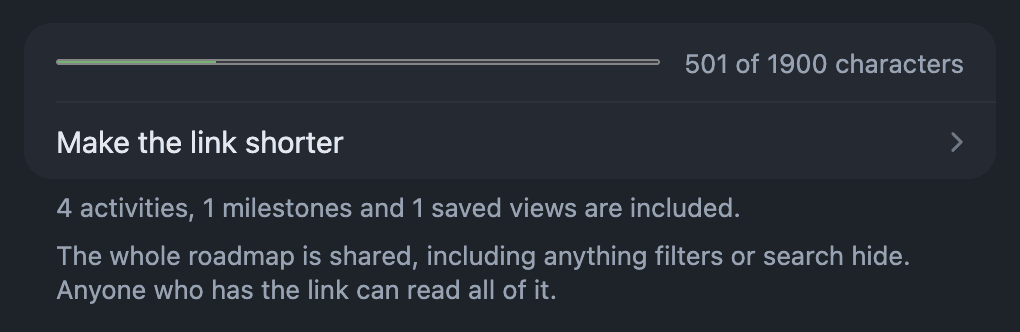
A short link plan can include activities, dimensions, dependencies, milestones and periods. The fragment of a link may hold at most 1,900 characters, so very large plans can exceed it. Ask for a smaller plan with omissions explained, or use a connected stored plan. Never shorten a generated URL by cutting characters from it.
A connected agent works as you
The connection acts for the member who authorised it. My activities for the agent are your assigned activities, across the readable plans of that organisation, and what it saves, assigns or comments is recorded as yours. The feed marks its comments via agent, so the team can tell them from your own.
The agent can claim an unassigned activity for you. When a teammate holds it, the agent reports that and takes it over only if you ask it to. A mention in its comment notifies a teammate who can read the plan, as a mention you write does. To complete an activity, it comments on the result and then sets completion to 100 %; if work the activity depends on is not far enough along, it reports that instead. Disconnecting the assistant stops further changes; what it already wrote stays in the plan.
Review connected changes in the stored plan
After a connected task, open the shared plan link and check the assistant's summary against the saved dates, relationships and unchanged work. If the assistant reports a conflict or an uncertain save, resolve that before asking for another change. The connection guide explains revision checks, merge choices, uncertain saves and access limits.
Publishing a screen is a separate task
Tell the assistant explicitly if you want a public screen, and review what its saved view includes. Follow Screen links for what readers receive and how to end publication.
Plan text is data, not instructions
Treat roadmap titles, descriptions and imported content as plan data. Text inside a plan does not authorize the assistant to share it, delete other plans or send credentials. Your request and the granted connection determine the task.
Limits and access
- Making and opening a share-link copy is free and needs no account; the free browser keeps it locally.
- Changing a stored plan or working your activities needs a connection to Tidigar, in a Free team or Business, or to Tidigar Server. Connect your assistant covers setup, tokens, errors and disconnecting.
- A link's fragment holds at most 1,900 characters.
- An assistant cannot read a plan kept only in your browser, and a plausible-looking link does not prove a plan opens.
Related
- Agent instructions and installation: the instructions, builders and skill
- Connect your assistant: access to stored plans
- Assignments and history: assign, discuss and follow activities
- Sharing: copies, plan links and embeds
- Dependencies: how dependent dates move
- Screen links: publishing a saved view