Follow a roadmap on a screen or in your calendar
Tidigar Business · Paid
A screen shows one saved view of your plan on a wall, on a page or in a calendar app, and follows the plan as the team edits it.
Get started
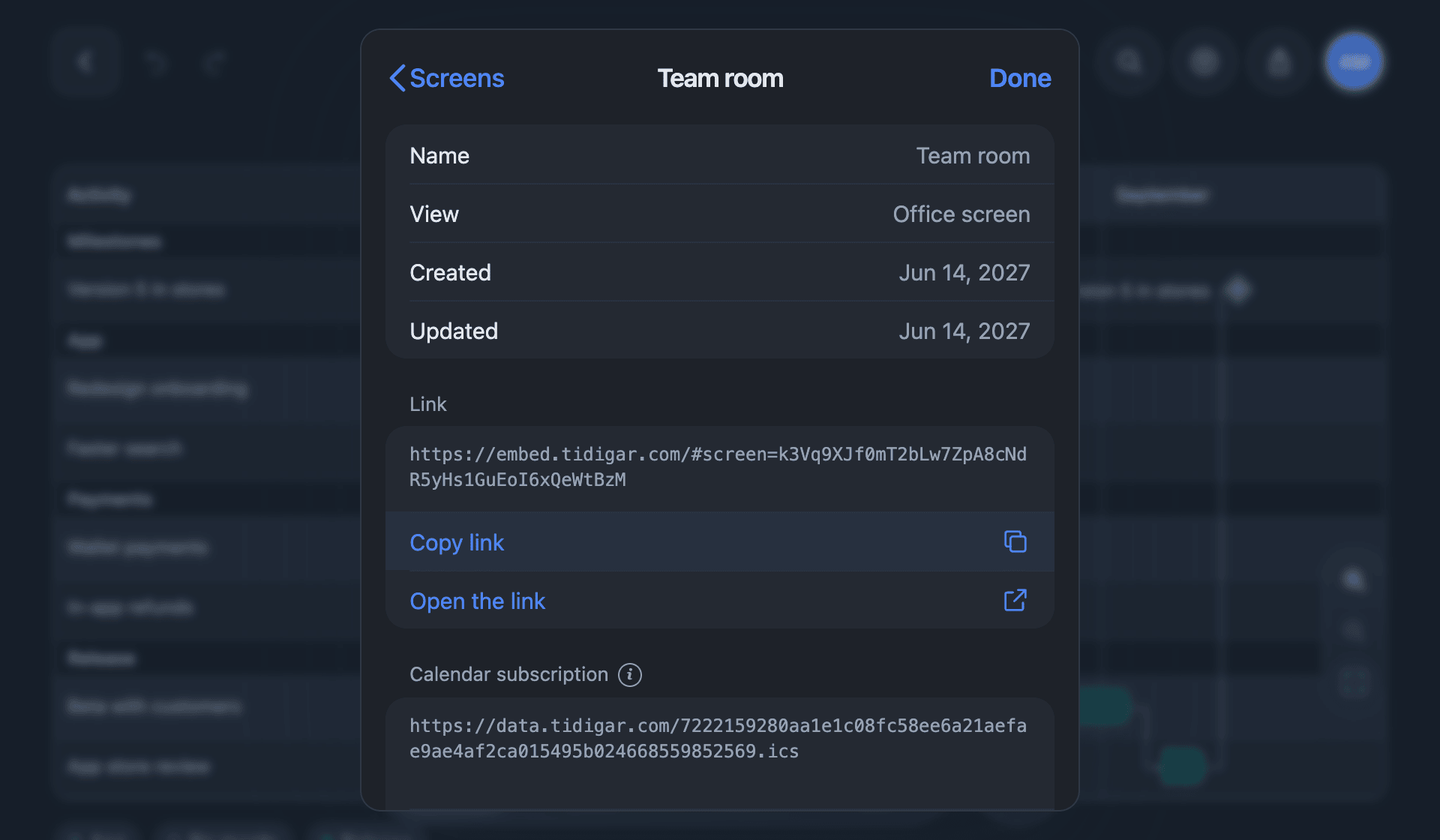
The pictures show a stand-in Mobile team plan, its saved view Office screen, and its screen Team room.
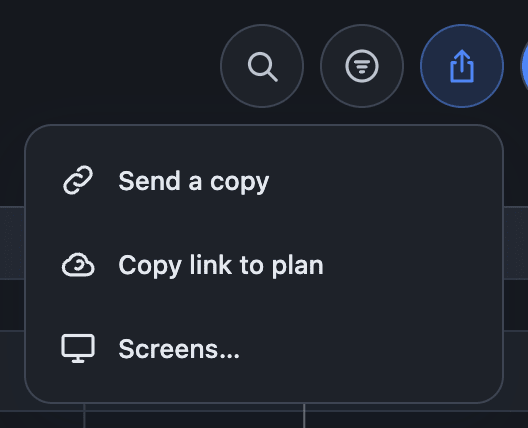
- Open the plan and select the saved view. Save changes to it first: the screen uses the view as stored.
- In the Share menu, choose Screens….
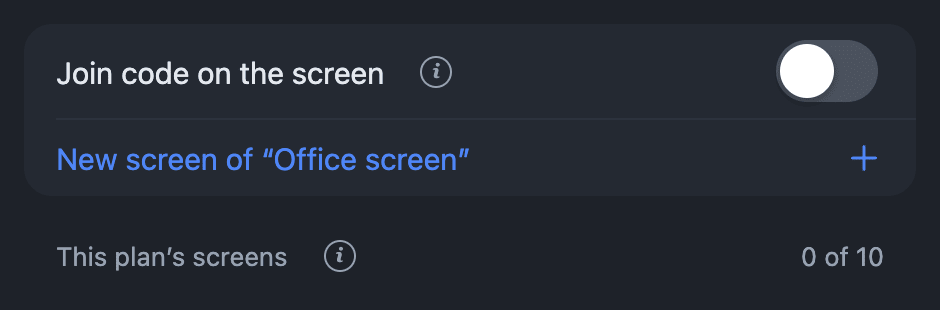
- Turn on Join code on the screen if people in the room should scan their way into the plan.
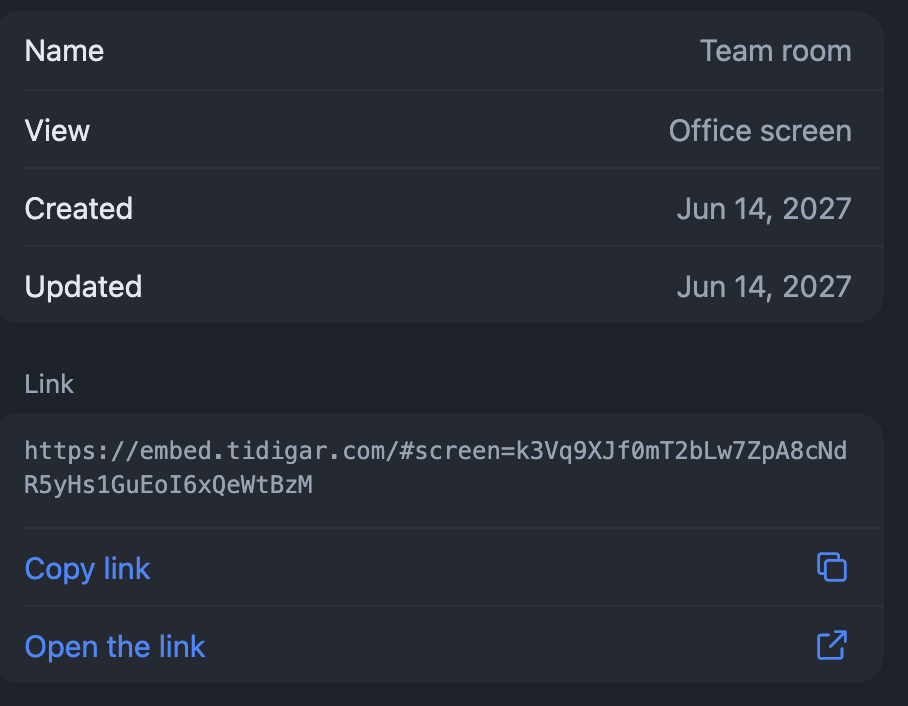
- Choose New screen of “Office screen”. The screen opens on its own page; change Name to where it is shown, such as Team room.
- Under Link, choose Copy link and open it in the browser that drives the wall screen, full screen. Open the link opens it in a new tab.
More things to do
Follow the screen in your calendar
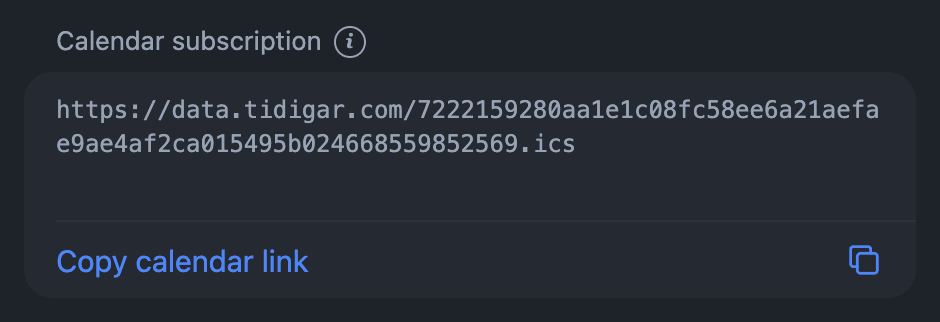
Open the screen under This plan’s screens and choose Copy calendar link. People add the address as a subscription in Outlook, Google Calendar or Apple Calendar.
Put the screen on a page
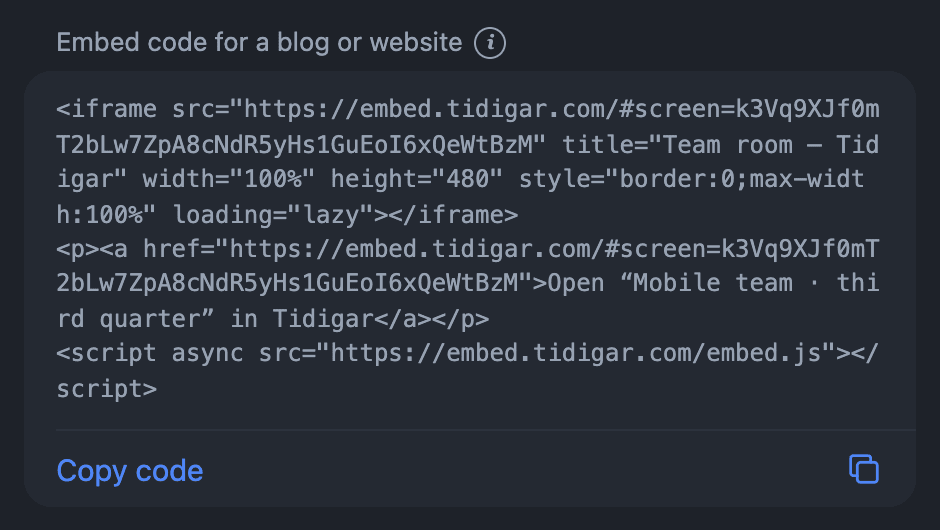
Under Embed code for a blog or website choose Copy code and paste it into the page.
Tell a story on the screen
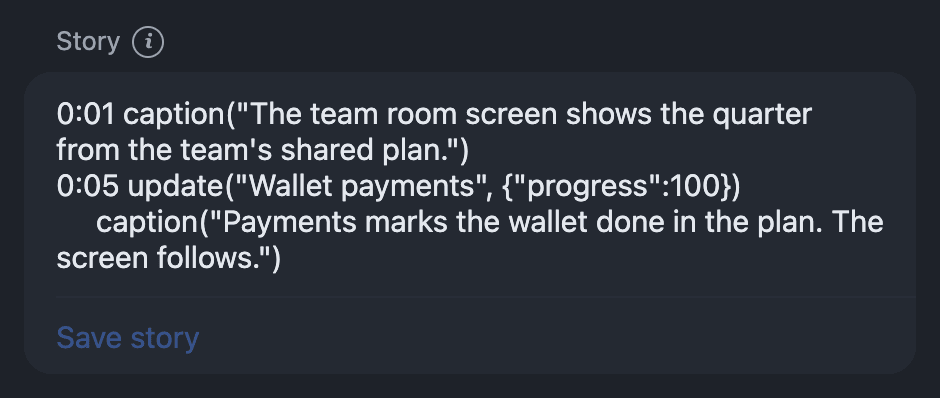
Write the steps in Story, in the syntax of the animated story example, and choose Save story.
Stop showing a screen
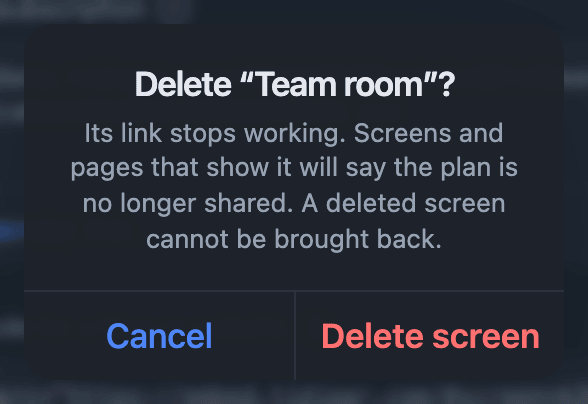
Open Screens…, select the screen, choose Delete screen and confirm.
How it works
One address serves a wall, a page and a Teams tab
Every screen is visible to anyone with its link, without an account. Its address starts with https://embed.tidigar.com/#screen=. Open it in a full browser window on the wall screen, put it in a frame on an intranet page, or try it in a Microsoft Teams Website tab where that tab is available. Teams support depends on the host; check it with your organisation before relying on it.
To show a screen on a TV, use a TV or a small device with a full web browser and open the link there. With an Apple TV, open the link on another device and use AirPlay to show it on the TV; that device has to stay on while the screen is shown.
For a workshop where everyone needs to see edits as they happen, open the saved view in the signed-in Tidigar web app and show that window on the room display.
The screen follows the plan; readers' experiments stay in memory
The viewer reads an updated view about once a minute, plays the screen's story, and lets readers zoom, drag a bar or try an edit. These experiments stay in memory and are never saved to the stored plan. After the reader leaves them alone for a couple of minutes, a newer view replaces them. A story takes a newer view when it restarts. When the team saves a change to the plan or the saved view, the same link picks it up automatically. Nobody has to reload it.
Only the saved view is shared
Its filters and search select the activities readers see. Descriptions and the plan's other saved views are left out. Unsaved changes to the view do not reach the screen. For a Timeline that shows the baseline, or a List that shows tracking values, preview the saved view before creating the link: the preview lists the categories of tracking data readers can receive.
A plan can have several screens
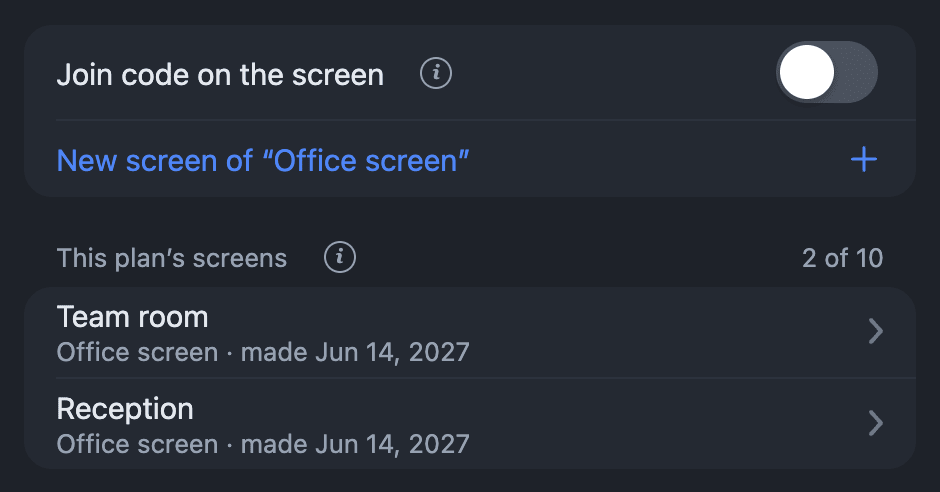
You can make several screens of Office screen, for example one with a join code for the team room and another without it for reception. Each has its own link, name, story and calendar link. A plan can have up to ten. Select one under This plan’s screens to change it later. Members who edit the plan can open Screens… on any device and copy a screen's link or embed code; a screen keeps its link until it is deleted.
The calendar subscription lists the published view
The subscription shows the activities and milestones of the screen's published view. Plans in calendar days publish all-day events, and an activity occupies its whole start-to-end range rather than just its deadline; a milestone occupies one day. Plans with clock times publish timed events instead: an activity ends a minute after its last minute and a milestone takes fifteen minutes. Titles and a link back to the plan are all an event carries; descriptions and other project metadata are left out.
Subscribe to the address rather than importing a downloaded ICS file: an import is only a copy at that moment. Edit the plan in Tidigar; the subscription is read-only. Changing In-app refunds in the stored plan keeps its calendar event's identity, so subscribers see the new dates after their calendar next fetches the feed. Edits tried in the demonstration above do not publish a subscription. Links on its events open the original plan at the saved view and still require membership.
Anyone with the calendar link can read the published view without a Tidigar account, and the calendar service receives the link and events. Keep the address with the people who should see it. If a filter later removes an activity, it disappears from the next feed. A view with no activities or milestones publishes an empty calendar.
The calendar app decides when to fetch updates and when to reflect removals. Changes can take hours or longer to appear, even after the screen itself has updated. Deleting the screen stops future access after cache expiry, but does not erase events already downloaded into a calendar. Use another channel for urgent changes.
The join code opens the plan from the screen

With Join code on the screen turned on, a QR code appears in the bottom right corner with the Tidigar logo in its centre. On a wide screen it usually sits in the free space below the plan; a very tall plan may run under it.
Scanning the code opens the plan itself at the screen's saved view. Open in Tidigar uses the same link. The web app opens the saved view for people with access, asks signed-out visitors to sign in, and tells accounts without access whom to ask. Windows and frames smaller than 640 × 480 pixels leave the code out. Turning it on or off reaches screens at their next reading, about a minute later. If Hide Tidigar.com is on, the code still shows, without the logo.
An agent can write the story
An agent connected to the organisation can list a plan's screens, make one of a saved view, write its story with the plan's own titles and dates, and give you its link. Ask it, for example, to tell the quarter on the team room screen. It asks before making a screen, since anyone with the link sees that view. To change what a screen shows, the agent changes the saved view itself and keeps it; deleting the view ends its screens.
A link an agent has read keeps working until the screen is deleted, also after the agent's access ends. An owner who wants a person to make every new screen turns off Let agents make screens under the organisation's settings. Agents can then still rename screens and change their stories, but not make one or read its link.
Deleting a screen ends it for good
Its link stops working. Within about two minutes, windows and pages showing it say This plan is no longer shared. Deleting one screen leaves other screens of the same view running. A deleted screen cannot be brought back: make a new one and replace the old address wherever it was used. A screen also ends if its saved view is deleted, the plan moves to the trash or out of Tidigar, or the organisation loses Business access or is deleted.
The token is the key
The long code after #screen= gives anyone holding it access to the view. Share it only where the view should be seen. If it reaches the wrong place, delete that screen and make another. The token stays after #, the part of the address the browser never sends to a server.
Limits and access
- You need a plan you can edit in a Tidigar Business team; members who only view the plan cannot manage its screens. On Tidigar Server, editors can make screens when the installation supports publication, and its links use its own address. Staging links use the staging reader.
- An organisation that keeps its plans within the organisation cannot make screens; Screens… is unavailable. Turning that setting on also ends its existing screens. Turning it off permits new screens; ended links stay ended.
- Opening a free example gives you a local copy. Save it to your Business team before making a screen or its calendar feed. Subscribers need no Tidigar account.
- If a screen cannot load on opening, it says so and tries again a minute later. Once it shows a view, it keeps that view until it can read a newer one.
- A screen cannot load over plain HTTP outside localhost. Use HTTPS for pages that embed it.
Related
- Animated story example: the syntax of a screen's story.
- Organize a roadmap into phases and filtered views: prepare views worth showing.
- Three custom timelines of the same roadmap: more views to show.
- Sharing: send a copy or embed a snapshot that works without the original plan.
- Conference, client project and content plan: plans to adapt.
- Agents on Cloud: let an agent make screens.