Organize activities into phases
Free
Group activities by phase for an overview, then filter a detailed view for each phase.
Get started
This roadmap has twelve activities in Feasibility, Design, Implementation and Roll out. The timeline above groups by Phase, one row per phase, so the sequence from research to release reads at a glance. Each phase has its own filtered view below, beside its description.
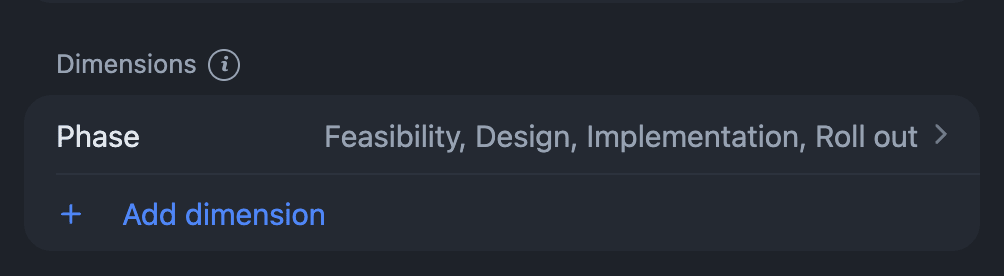
- Open Dimensions and create Phase, with a value for each phase in your process. Put the values in the order you want to read them.
- Set each activity's Phase in its properties. Add dependencies where work must wait, including between phases.
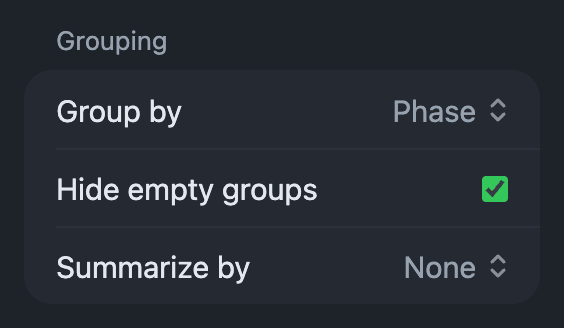
- Choose New View…, name it Phase overview and use Customize View… to group and color by Phase with Multiple activities per row. Choose Save changes.
- Create a named view for each phase and filter Phase to its value (next section).
More things to do
Feasibility: establish the scope
Filter Phase to Feasibility and choose One activity per row with a fixed label, so titles stay in the left column. Set the date range a few days around the phase's activities so the bars fill the width. Interview users, Summarize findings and Agree scope are easier to inspect here than in the overview.
Design: test the proposed experience
The same roadmap filtered to Design shows Sketch the journey, Review the concept and Test the design, each on its own row.
Implementation: build and validate
The Implementation filter isolates Build the experience, Integrate the experience and Validate the release. The rest of the roadmap still exists; this view leaves it out.
Roll out: pilot before the wider release
This view shows Run the pilot, Check launch readiness and Release to everyone. A change here also appears in the overview at the top.
How it works
A phase classifies work without scheduling it
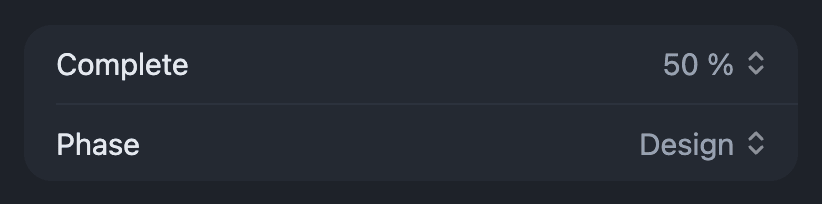
Phase is an ordinary dimension that you name and maintain. Each activity can have one value in that dimension, or no value. A separate dimension such as Team can classify the same activity independently. For work that spans two phases, choose the phase that best describes it or split it into separate activities when those pieces need their own dates and dependencies.
The order of phase values controls their group order. It does not enforce a sequence in time. Design and Implementation can overlap, and an activity can move to another phase without changing its dates. Changing the grouping or coloring also leaves the schedule alone. Use dependencies to express an actual handover; use a milestone when that handover needs a named date.
This is the overview that summary tasks in Microsoft Project provide, as grouping values rather than parent tasks. The compact overview above groups activity bars into phase rows. It does not create a summary task, calculate a phase duration or give the phase its own predecessor. If you want a bracket spanning each phase's work, use timeline summaries as described in Timeline views. Such a span includes gaps between activities; it is not an amount of work.
Dependencies continue across the phase boundary
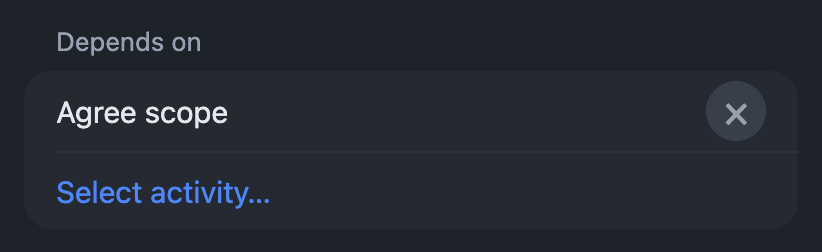
In this plan, Sketch the journey in Design waits for Agree scope in Feasibility. Build the experience in Implementation waits for Test the design. Those relationships keep working when a detail view hides the predecessor or successor.
Moving Test the design later can therefore move work in Implementation and Roll out even while only Design is visible. Return to the overview to inspect the consequences. Assigning the activity a different Phase value does not remove its dependencies, and dragging it earlier cannot bypass its predecessor's date constraints. See Moving dependency chains for date, overlap and work-day rules.
A filter selects activities, not a separate plan
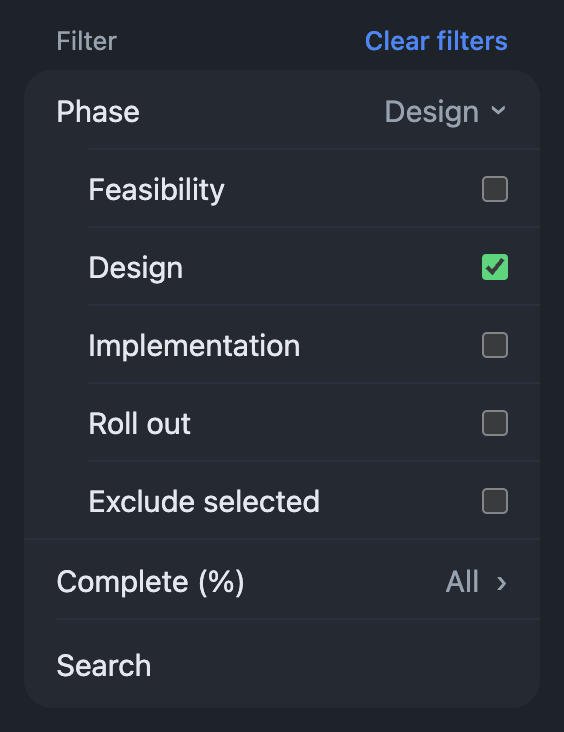
The Design view selects activities whose Phase is Design. An activity without a Phase value will not appear there. Tick several phases to show the activities of any of them, or turn on Exclude selected to show every activity except those phases, including activities without a Phase value. If you also filter by Team, an activity must satisfy both selections; search narrows the result further. When nothing matches, clear filters or search before assuming the activity was deleted.
An edit to an activity's Phase can make it disappear from the current detail view immediately. It remains in the roadmap and appears in the view for its new phase. Renaming a phase value keeps its assignments. Deleting the value clears those assignments and filters that referred to it; it does not delete the activities or their dates. Reassign work before removing a phase you still need to track.
Hide empty groups removes group headings with no matching activities. It does not assign unclassified work or remove empty phase values from the plan. Use the unfiltered overview to review work that has not yet been classified.
A saved view keeps the question and its framing
The phase filter, grouping, coloring, row layout and date range belong to the saved view. Save changes updates that arrangement. Revert Changes restores the saved arrangement; it does not undo activity edits made while using it. Activity dates, dependencies and Phase assignments belong to the plan and are shared by all its views.
Each detail view above has its own explicit date range. Fit to screen fits that interval into the available width; selecting a phase does not automatically replace it with the phase's start and end. If the detail bars look too small, shorten the range in Customize View… and save it. A phase that moves later may need a new framing even though its filter still selects the right work.
The five embeds keep their own view settings while edits to the plan synchronize between them. Choose Open in Tidigar to keep your own editable copy. A filtered share link still carries the roadmap's hidden work: for access boundaries, use the options described in Sharing a roadmap.
Limits and access
- Free, in the browser and in every Tidigar app.
- One value per dimension per activity; a phase does not schedule, sum or constrain its activities.
- A filtered view or share link still carries the whole roadmap: it focuses a discussion and does not hide confidential work.
Related
- Three custom timelines: row, title and summary settings in more detail.
- Moving dependency chains: date, overlap and work-day rules between phases.
- Sharing a roadmap: access boundaries for readers.