Organize work with Board and List
Free
Board shows where work belongs; List edits several activities at once. Both show the same plan.
Get started
In this website relaunch Write the copy is in Content / Ready and Prepare training has no team or stage yet. The animation moves the copy to Doing, then to Web. Touch a view to stop it.
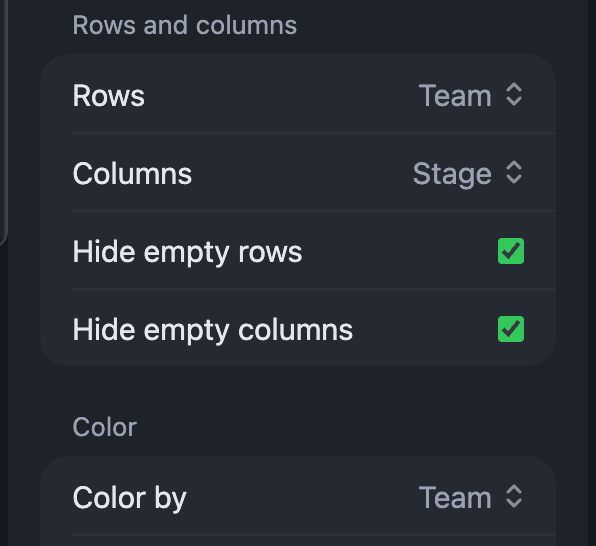
- Choose Board, then Customize View….
- Set Rows to Team, Columns to Stage and Color by to Team, or use your own dimensions.
- Untick Hide empty rows and Hide empty columns while placing new work.
- Drag Write the copy to Content / Doing to make its Stage Doing; drag it to Web / Doing to change its Team too.
- Save the custom view to return to it later.
More things to do
Create an activity
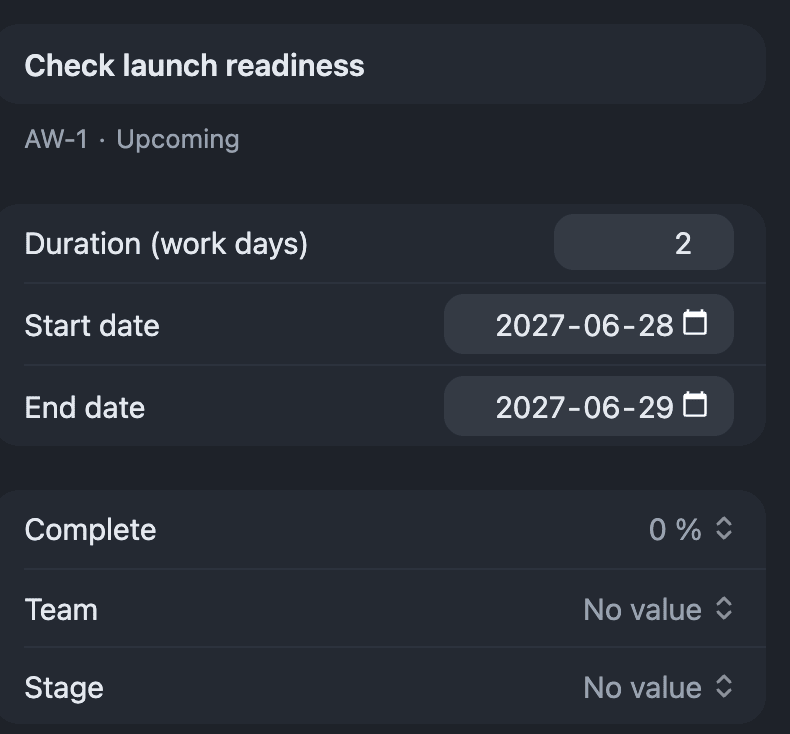
Choose New activity, name it Check launch readiness, add dates if you know them and choose Done. The card appears on the board.
Edit the same work in a list
Change the Stage cell of Write the copy: the card moves to the matching column. The views share one set of activities.
Link activities from the list
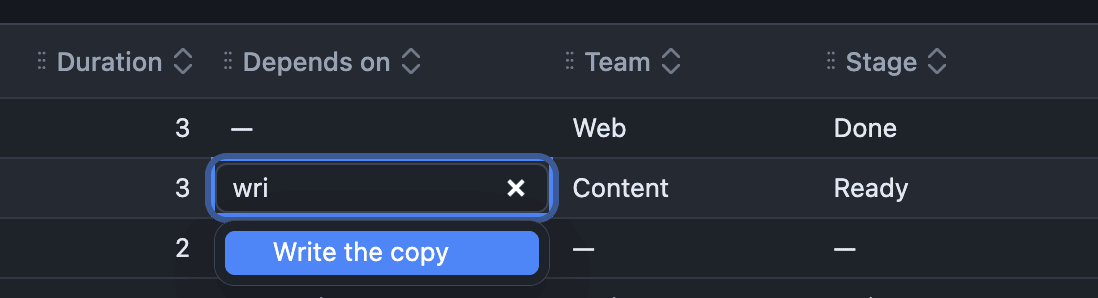
The animation links Review with legal to Write the copy and the timeline follows.
- Choose List and move to a Depends on cell with the arrow keys.
- Type a name or reference key, or press Enter to open the list. Typing highlights the first match.
- Press Space or click to tick or untick the highlighted activity.
- Press Enter to keep your choices, or Tab to keep them and move on.
- Press Escape to leave without changing anything.
Browse cards on a phone
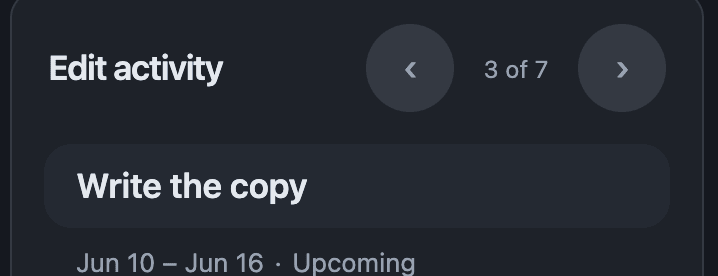
Open an activity, then swipe left or right or use the arrows.
How it works
Board groups values, rather than creating dependencies
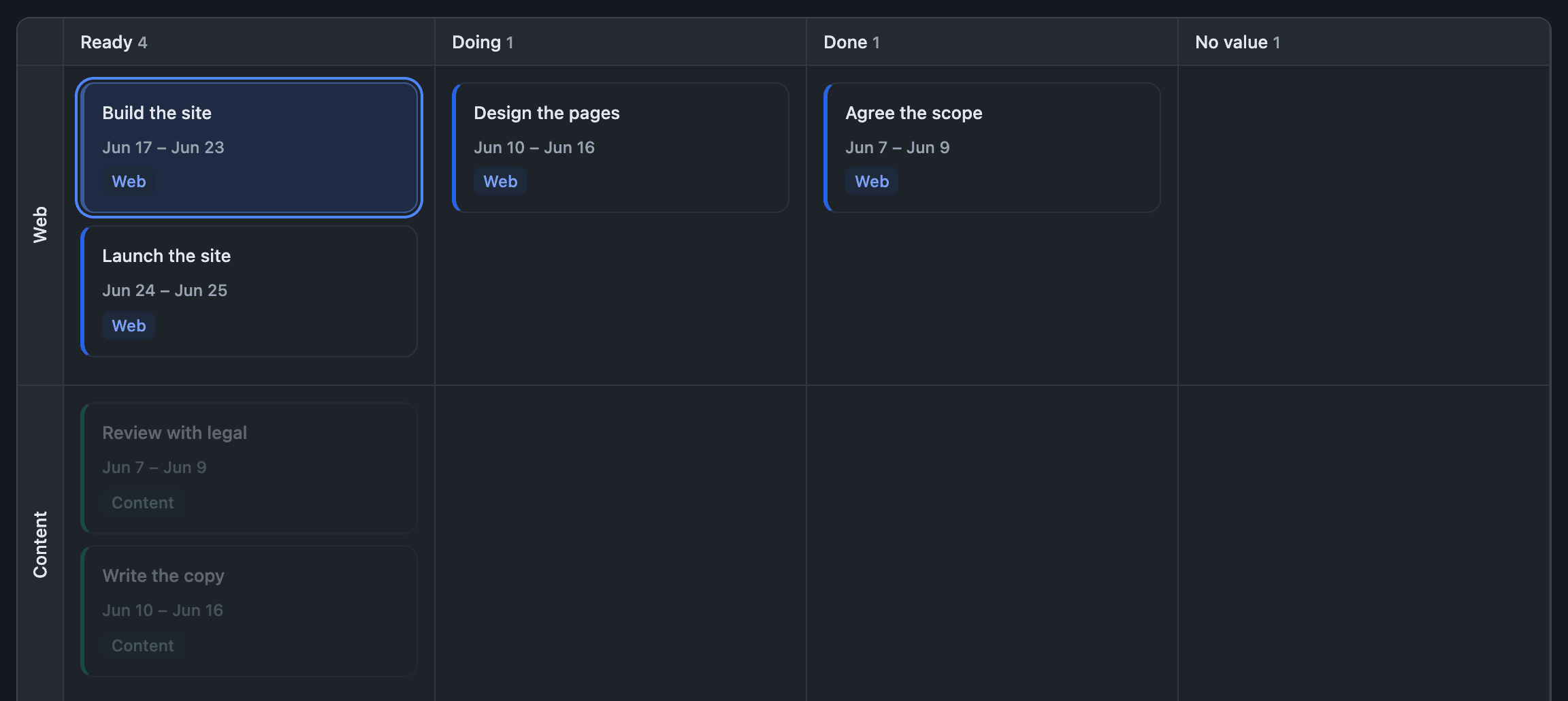
Rows and columns follow the order of the dimension's values. An activity without a value belongs to the no-value group: Prepare training starts there. Choosing no dimension for an axis removes that grouping. Color is a separate choice; it need not match either axis.
Moving a card changes the values of its destination cell. Dates and dependencies stay unchanged. Dimension columns such as Stage remain separate from completion: moving a card to a Stage named Done does not mark it 100% complete. Dragging within one cell does not establish a manual card order.
Milestones appear as cards too, marked with a diamond and their date. Periods are time off rather than work, so the board leaves them out.
Within each cell, activities are ordered by dependency depth, then start date and time, with whole-day starts at midnight. An activity with no activity predecessor has depth zero. Each following activity is one level deeper than its deepest predecessor. In Web / Ready, Build the site therefore comes before Launch the site. The depth counts activity links across the whole plan, including activities hidden by a filter; a fixed milestone does not add an activity level.
Selecting a card highlights the activity and the paths before and after it. Unrelated activities dim when a chain is present. Select the card again to open its details in the app; press Escape or select empty board space to clear the selection. The embedded example lets you select and move cards; use Open in Tidigar for the full editor and your own copy. Grouping two activities together does not connect them; add an explicit dependency when one must wait for the other. Moving dependency chains explains the scheduling effect.
Board columns can group by completion
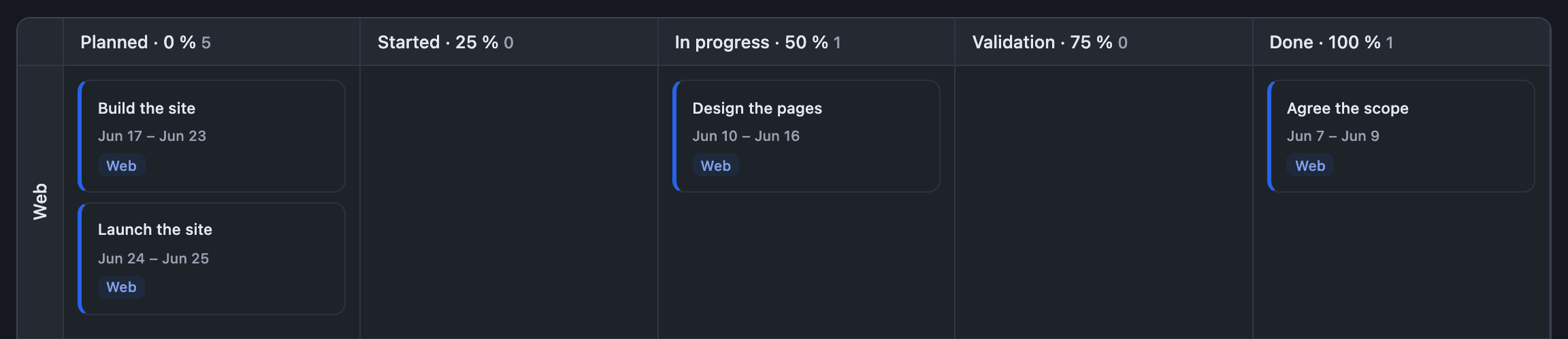
Choose Complete (%) as the Board's columns (or rows) to arrange activities by percentage completion: Planned · 0 %, Started · 25 %, In progress · 50 %, Validation · 75 % and Done · 100 %. Dragging a card into one of these columns sets its completion to that percentage. A milestone is done or not, so its card lands only in Planned or Done. Editing completion in the activity card moves it to the matching column. An activity created in a progress column starts at that percentage.
New plans, plans made from templates and plans created from share links include a saved Kanban view with these five columns visible. The Tutorial groups its Kanban rows by Area. It is an ordinary saved view that you can change, rename or delete. Existing stored plans are unchanged; choose Complete (%) in their Board settings and save a view to use the same layout.
The Done column reports completion in List
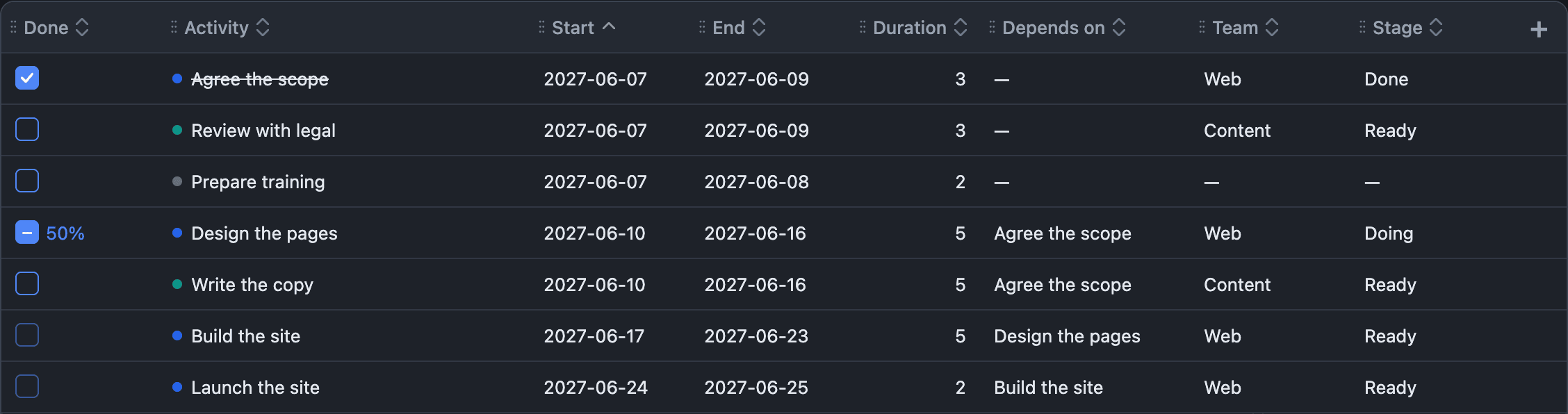
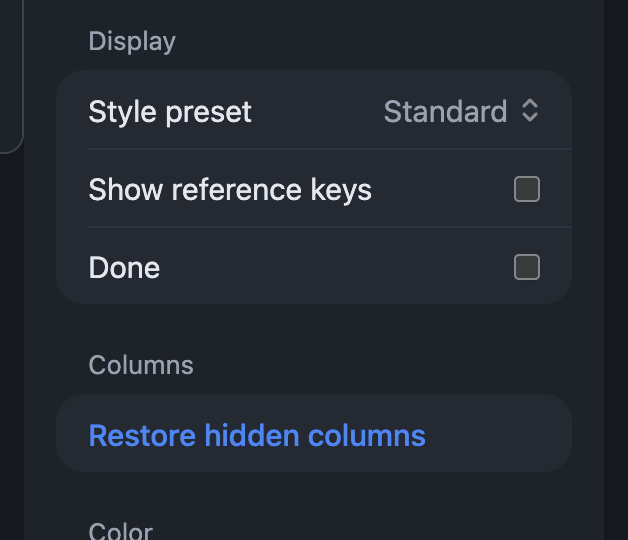
In List, open Saved views → Customize view and turn on Done under Display. It places the column at the left of the table. Save a custom view to keep its layout. Check an activity to set its progress to 100 % and strike through its name. A partly filled box shows the current percentage. Clear a checked box to return the activity to 0 %, or use Undo to restore its previous value.
A check requires every direct activity predecessor to meet its threshold. For example, if Publish follows Review, Review must reach 100 %. If Review can start halfway through Write the copy, its check requires at least 50 % reported progress on Write the copy. A blocked box lists each predecessor's current and required percentages. This also applies to ordinary links between undated activities. A fixed milestone still constrains dates.
The card's header shows the same rule beside its dates. Its follow-up status, such as Upcoming or Overdue, adds waiting for the first activity or milestone it waits for that is not done, and how many more. A period never holds a record back, and a period's card shows no status.
My activities reports completion across plans
In the browser, open the account menu from the library or an open plan and choose My activities to see your assigned Cloud activities across plans. The page groups them by due date, with separate groups for undated and done work. Select the checkbox to update the source plan. Select the activity name to open its activity page, then go back to return to the list. The same dependency thresholds apply as in List. Undo restores the previous percentage when the activity still has the percentage you set. The page confirms a change when the plan saves it. If the plan changed meanwhile or the browser is offline, check the message and try again when the plan is available.
Every list cell edits with the keyboard
Milestones and periods are rows of the list too, and their cells are edited the same way. A milestone has a date but no end or duration, and its Done box marks it done or not done. A period has a start and an end, and no duration, predecessors or Done box.
Click a cell or focus it and press Enter or F2. Arrow keys move between cells; Tab moves to the next cell, and Shift+Tab moves back. While editing, Enter or Tab keeps the change; Escape cancels that cell's edit. Typing in a focused title cell starts replacing its text. The small details button beside a title opens the activity in the app. In the app, New activity adds a row ready for a title; cancel an empty draft with Escape.
Drag a column's grip to rearrange it. Drop a header on the shelf above the table to hide the column; open the view settings and choose Restore hidden columns to show them again, then drag the column's grip to place it, for example Depends on beside the dates. Activity always remains visible. Save the view if you want to keep its column layout. Scroll the embedded table horizontally to reach columns on a phone.
List sorts by one column at a time
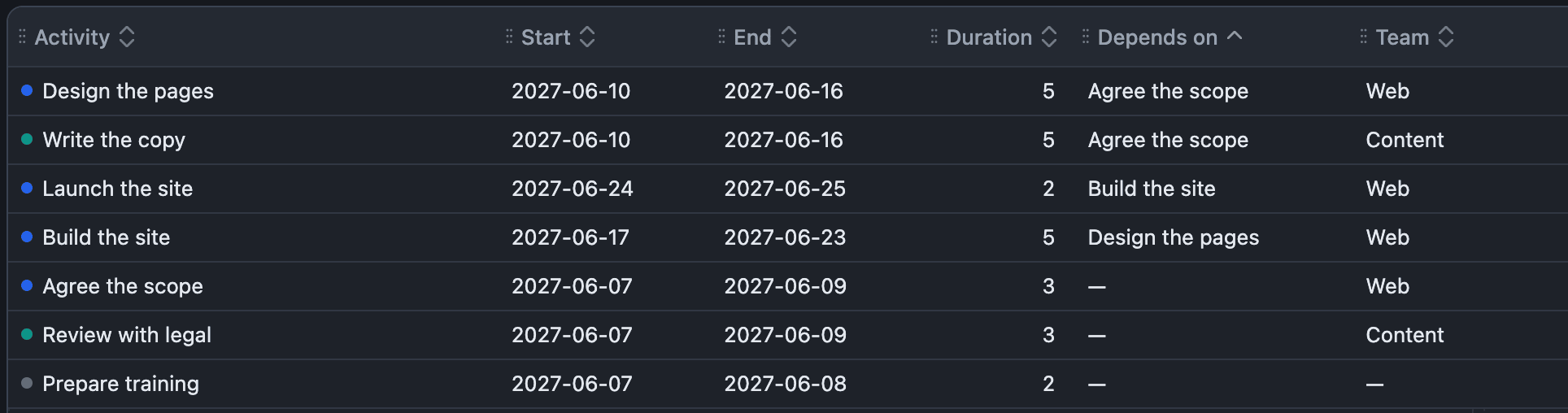
The list starts sorted by Start, earliest first, so the plan reads as an agenda; click Start again to reverse the direction, or click another heading to sort by that column. Dimensions sort by their defined value order, with missing values last in either direction. Other columns sort by their displayed values. Depends on sorts by predecessor names, with activities without predecessors last.
Editing does not immediately move a row to its new sorted position, so the activity stays under your hands. Click a sort control again, or leave List and return, to apply the order afresh. The sort column and direction are saved with a custom view when you save it; sorting does not rewrite dependencies. Sort by Start, earliest first, for an agenda mixing dates and clock times. Milestones sort at their moment, before activities at the same moment, and records without dates come last when sorting by a date. See Clock times and agendas for a wedding programme and the scheduling rules.
Layout choices and plan edits have different effects
A saved view holds its mode, filters, Board axes and colors, or List column layout and sort order. Save changes to a custom view when you want to keep that presentation. Selecting a card and focusing a cell are personal working state. Changing a cell's title, dates, duration, dimensions or predecessors changes the plan itself.
Whole-day duration uses the plan's calendar: in a work-day plan it counts working days and changing it recalculates the end. Clock activities use hours and minutes and run through nights and weekends; open their card to edit times and length. Date and dependency edits can move following work. An empty title, an invalid date, an end before its start or an invalid duration keeps the editor open for correction. See Vacation and working days for how non-working days affect duration.
Filters hide activities without deleting them. With no matches, List asks you to add an activity or change the search. Board can hide empty rows and columns; groups emptied by your drag remain available during that interaction so the destination does not disappear under your pointer.
The embedded guide keeps the table at every width. Board can be zoomed and scrolled, with less card detail shown as you zoom out. In a team's plans, grouping by Assignee can reassign work and follows team permissions; see Assignments and activity history.
Costs are estimates in the plan's currency and unit
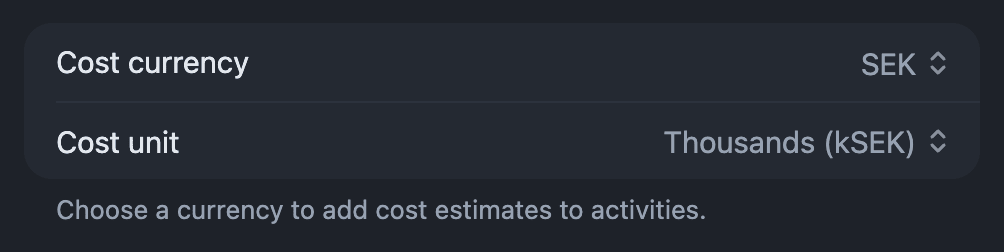
To track estimated costs, choose a currency and unit in Properties. For a plan in thousands of SEK, the cost column shows Estimated cost (kSEK) and entering 12.5 means 12,500 kronor. Changing the unit preserves every amount. Choose your decimal separator in Settings. The cost field accepts commas and points.
In List, select a cost cell and type the first digit to edit it. Press Enter to save and move to the next activity's cost cell. Shift+Enter moves up and Tab moves across. Turn on Show cost summary in Customize View…, then open Cost summary above List to see the total for visible activities. Choose a dimension to see subtotals by its values. The report counts activities with no estimate separately. Zero is a valid estimate. See Plan project costs to try the workflow on a training plan.
A highlight is a search result; a tick is a choice
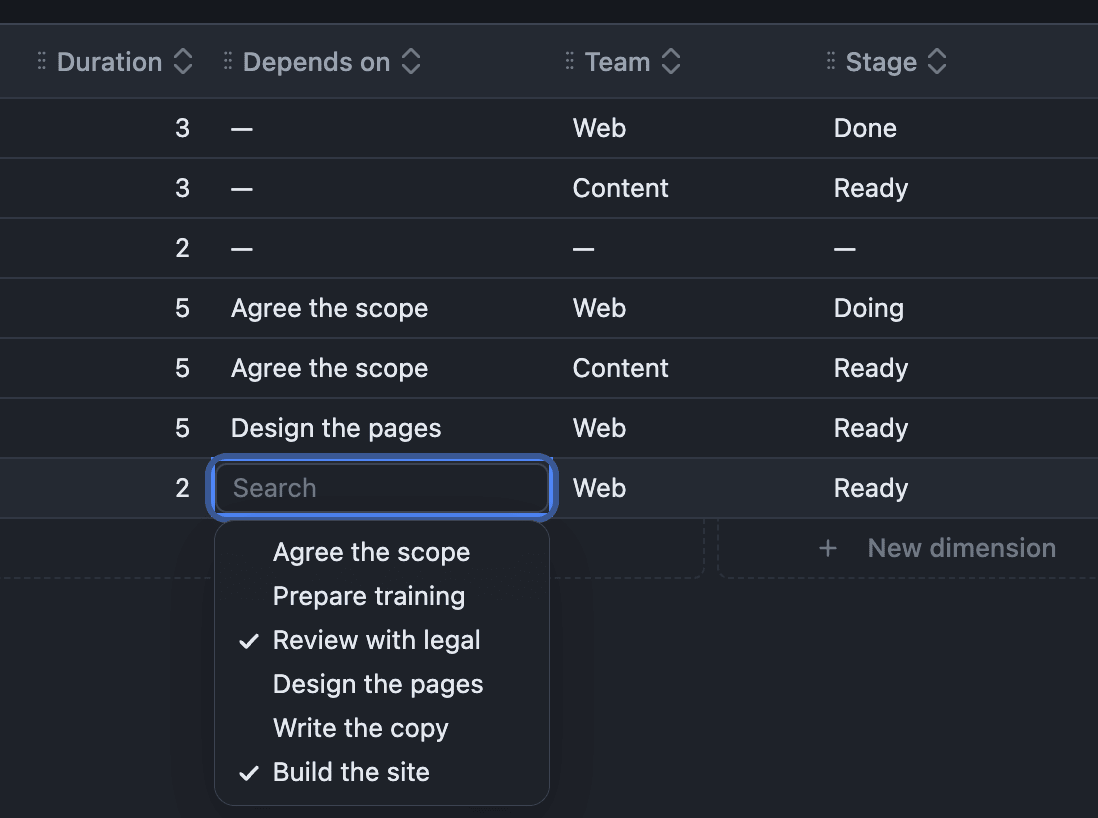
Typing narrows the available records by name or reference key without changing the plan. The highlighted row is where Space will act. Arrow keys move that highlight; Space or a click toggles its tick. Enter and Tab keep the ticks already made, but never select a highlighted result by themselves; neither ticks anything. If typing finds nothing, shorten or clear the search. Tidigar does not create a new activity from unmatched text.
The picker starts with the activity's existing predecessors ticked. Searching for another name hides nonmatching options without removing their ticks, and clearing the search does not untick anything. This lets you add one predecessor without losing the others. To remove a relationship, open the cell, untick its predecessor and press Enter. To remove every relationship, clear the search, untick all the selected records and commit the edit.
The choices apply together when you leave the cell
Ticks remain a draft while the cell is open. Enter, Tab or moving focus outside the cell applies them together and plans the activity once. Escape discards that cell's draft, including both additions and removals. After committing, one undo restores the relationships and dates changed by that edit. The animation above does not type into the picker; it shows the relationships and the dates they produce. Replay restores the opening plan.
Review with legal initially waits for nothing, so it sits at the start of the plan, before there is any copy to review. Linking it to Write the copy pushes the review later because its original start is too early, keeping its three work days. If it already started after the copy, an intentional gap could remain. Removing the relationship leaves its current dates in place; it does not restore the original June 7 start. Use undo when you want to reverse the edit itself. Committing a dependency edit in List changes the dates in the timeline, and moving a bar changes the dates in List.
Several predecessors all constrain the activity, including work outside the current view. A change can also move activities and following milestones elsewhere in the plan. If the change cannot be saved, Tidigar shows the reason and keeps the cell open for correction; resolve the choices or press Escape. See Moving dependency chains for the scheduling rules and date limits.
The picker follows the plan, including hidden work
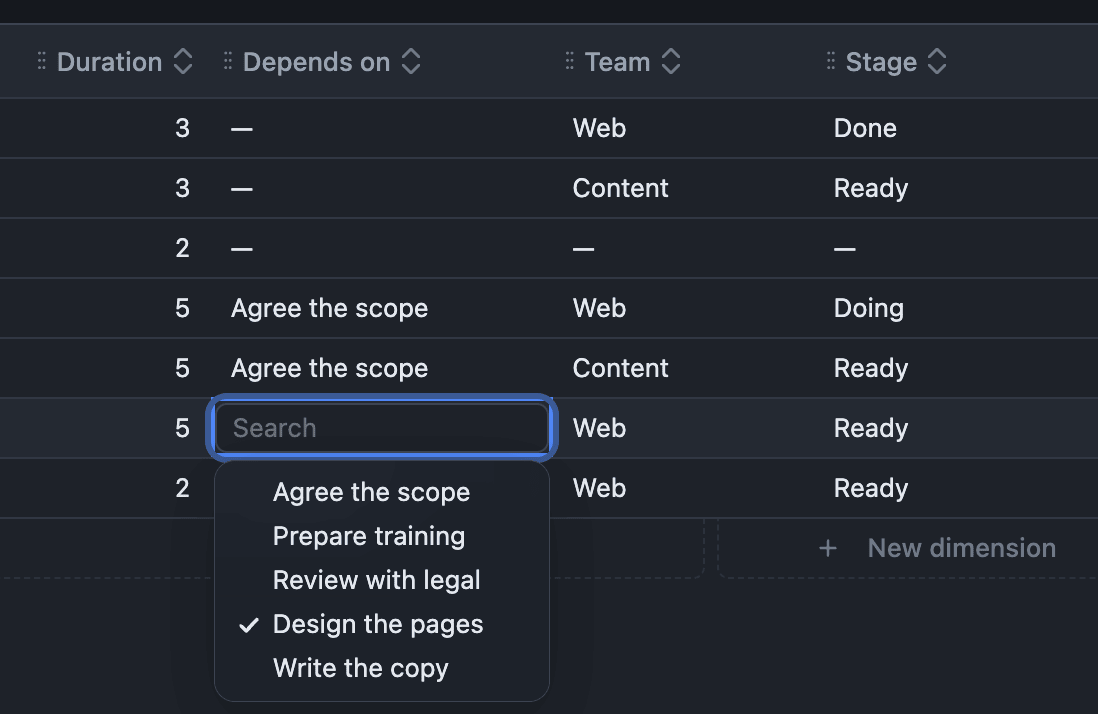
The search offers eligible activities from the whole plan, followed by fixed milestones in their own group. A view filter does not limit the choice to visible rows. You can therefore connect a Content activity to Web work without changing the filter. Hiding a predecessor later does not remove its constraint.
The activity itself and every activity already waiting for it, directly or through a longer chain, are excluded. Linking to any of those would create a cycle. If an expected choice is missing even with an empty search, check that dependency direction before trying another view. With no eligible records, leave the cell without a selection or create the missing activity separately.
Only fixed milestones can be chosen here. A following milestone waits for activities instead, so its relationships are edited in its own properties. The diamond beside a fixed milestone's name distinguishes that dated anchor from an activity. Read Two kinds of milestone before choosing the direction of the relationship.
A short cell can represent several constraints

The closed cell shows the first predecessor and how many more follow it: Build the site +1 means two predecessors. It does not mean that the build is the most restrictive one. Hover over the summary for all names, or open the cell to inspect the ticks. An activity without predecessors shows a dash.
If the first predecessor allows overlap, the cell shows that choice beside its name; in the animation the review starts halfway through the copy. Other predecessors can have their own thresholds; the summary does not show them all. Change those thresholds in the activity card or by right-clicking a timeline arrow. List chooses which records the activity waits for, while the overlap control chooses how far each predecessor must proceed.
Limits and access
- Free, in the browser and in every Tidigar app.
- Moving a card sets dimension values only; it does not change dates, dependencies or completion, unless the columns are Complete (%).
- The picker never offers an activity that would create a cycle; only fixed milestones can be chosen as milestone predecessors.
- My activities needs a Cloud account and shows assigned Cloud activities only.
- Dragging within one board cell does not set a manual card order; periods do not appear on the board.
Related
- Moving dependency chains: how dates follow a changed dependency.
- The critical line: the same relationships in a flow view.
- Two kinds of milestone: which milestones List can pick.
- Clock times and agendas: sorting a mixed agenda.
- Plan project costs: the cost workflow on a training plan.